SocietyBee
    Billing
    Automated maintenance & charge billing
    Collections
    Track payments, send reminders
    Accounting
    Double-entry ledger & bank reconciliation
    Reports & Compliance
    Bye-law compliant statutory reports
    BeeAgent AI
    Natural language queries on your data
    For CAs & Accountants
    Manage all societies from one login
    For Treasurers
    Simple billing & audit-ready records
    For Managing Committee
    Visibility without the spreadsheets
    Docs
    Step-by-step guides for every module
    Blog
    Society management guides & tips
    Glossary
    Accounting & society terms explained
    vs MyGate
    Accounting vs gate security app
    vs ApnaComplex
    Multi-society CA login vs per-society pricing
    vs SocietyRun
    BeeAgent AI & zero gateway commission
    vs NoBrokerHood
    Accounting vs marketplace app
    vs Excel
    Audit trail & statutory reports vs spreadsheets
    Pricing
    Sign inStart free →
    Society Onboarding
    Member Onboarding
    Bills
    Receipts
    Vouchers
    Vendors, TDS and GST
    Reports
    Supplementary Bills
    Bank Reconciliation
    • Bank reconciliation at a glance
    • Reconcile by ticking entries
    • Upload a bank statement
    • Review the matches and finish
    • Add a missing voucher
    • Reconciled transactions and history
    • Freeze a period and locked periods
    Docs / Bank Reconciliation

    Reconcile by ticking entries

    Reconcile a bank book against a paper or PDF statement by entering the bank date of each entry, ticking it, and confirming once the Difference is zero.

    Who can do this:admin 4 min read Checked 20 Oct 2026

    Before you start

    • Bank reconciliation at a glance

    What this does

    In this method you read the bank statement yourself. For every entry that appears on the statement, you enter the date it cleared the bank and tick it. Entries that are not on the statement are left unticked and stay open for a later statement. Confirm Reconciliation then saves all the ticks together.

    Where to find it

    Go to Transactions > Bank Reconciliation, choose the bank book and open the In Books, Not in Bank Statement tab.

    Steps

    1. Choose the Bank Book

      Pick the account from the Bank Book list.

    2. Set the Statement Date

      Enter the last date of the statement you are working from. The list shows only entries dated on or before it.

    3. Type the Statement Closing Balance

      The closing balance printed on the statement. For an overdraft, start with a minus sign.

    4. Find each entry on the statement

      Take each row of the list and look for it on the statement. Match by amount and date, or by the cheque or reference number in the Narration.

    5. Set the Bank Date and tick the entry

      The Bank Date box starts as the voucher date. Change it to the date the bank shows, then tick Reconciled? on the right. The date box turns grey once the row is ticked. To change it, untick first.

    6. Leave in-transit entries unticked

      A cheque the bank has not cleared yet stays unticked. It remains in the list for the next statement.

    7. Check the Difference

      Cleared as per Books goes up and down as you tick. When it equals the Statement Balance, the Difference shows ₹0.00 in green.

    8. Press Confirm Reconciliation

      The message Reconciliation confirmed appears with the number of entries. They move to Reconciled Transactions and a row is added under Past Reconciliations.
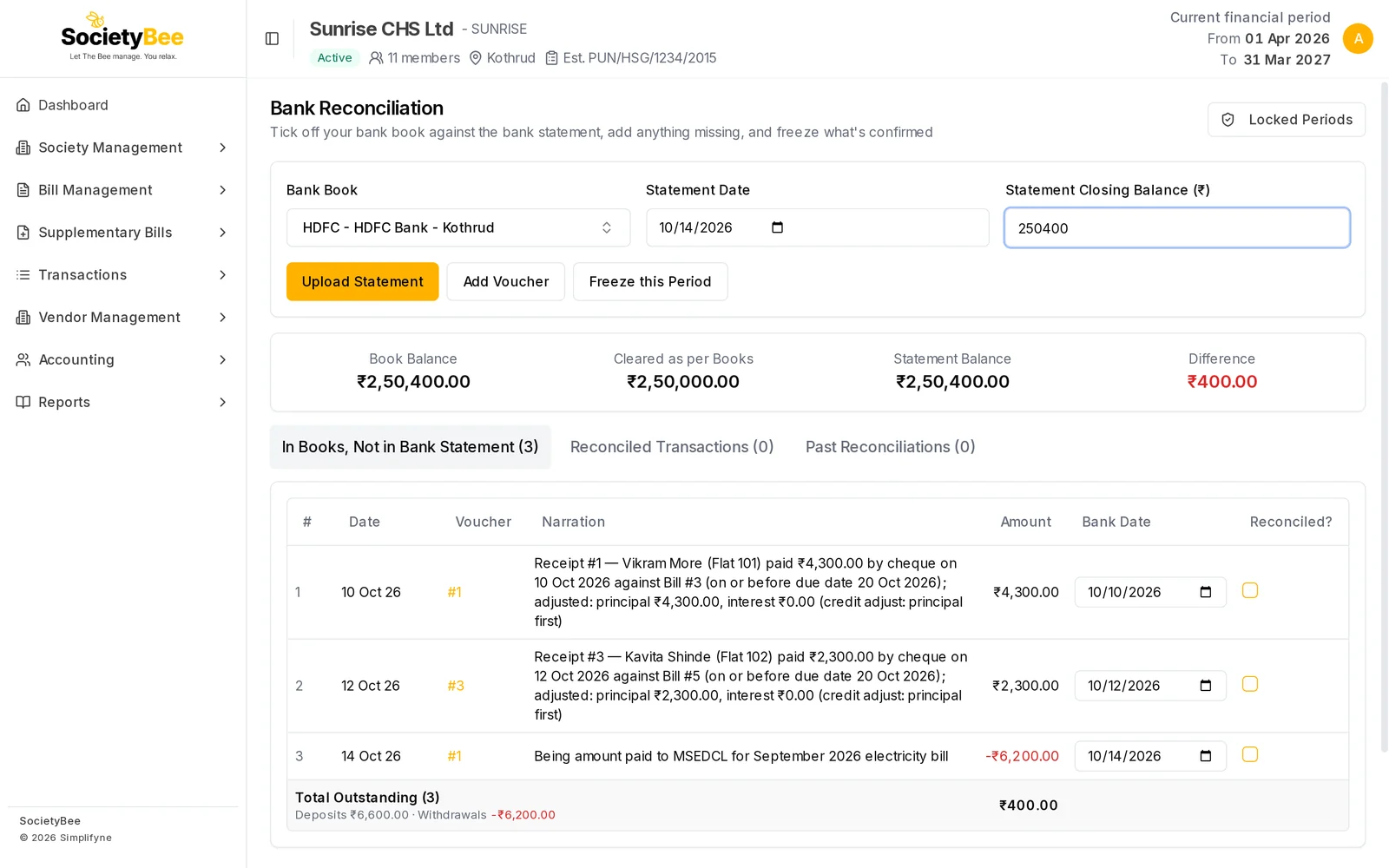
    Bank Reconciliation page with statement date 14 Oct 2026, closing balance 2,50,400 and three unticked entries each with a bank date box
    Statement date 14 Oct and closing balance ₹2,50,400. The three entries are not ticked yet.
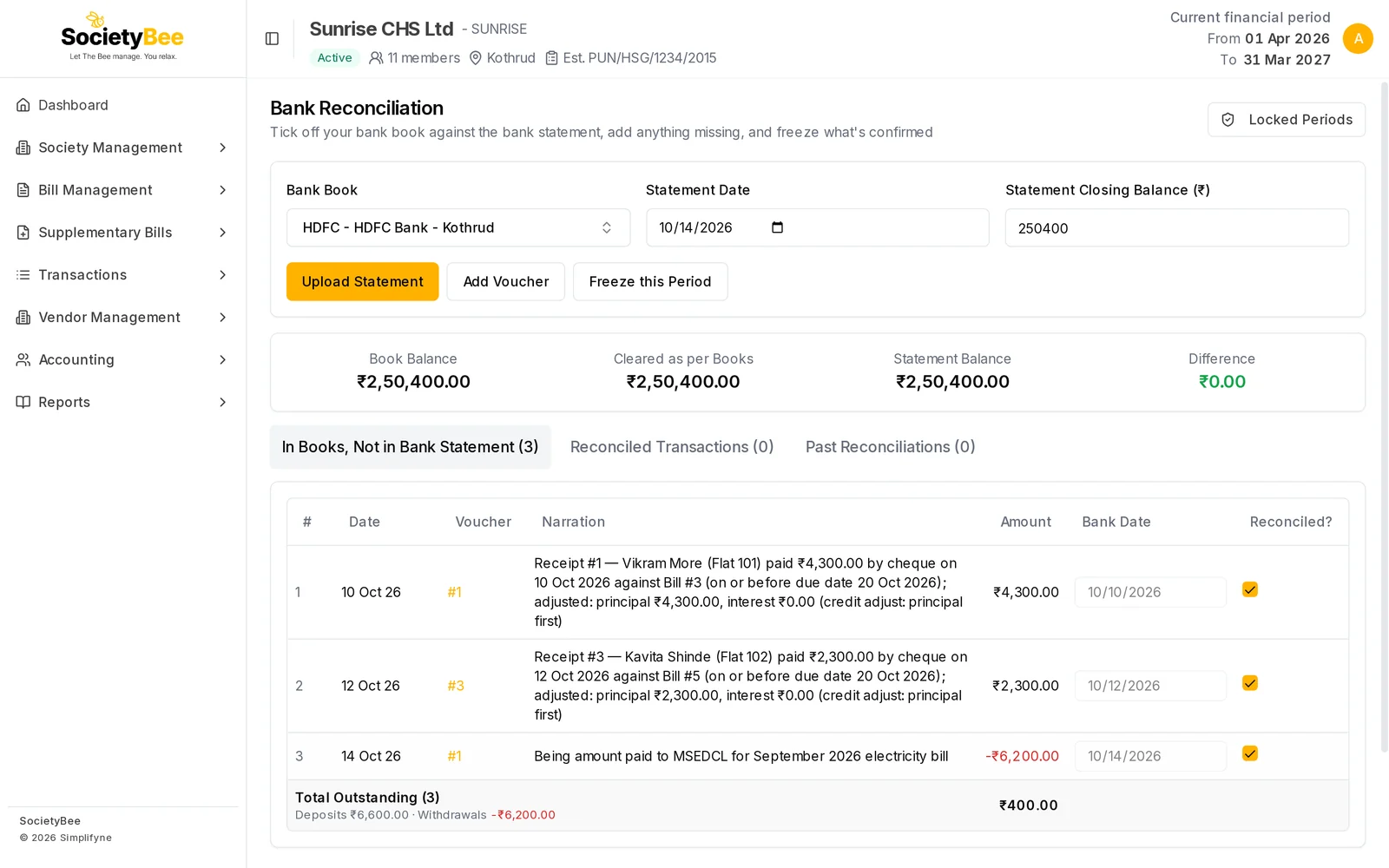
    The same three entries ticked with their bank dates greyed out, and the Difference showing 0.00 in green
    All three entries ticked. Cleared as per Books and Statement Balance are both ₹2,50,400, so the Difference is ₹0.00.
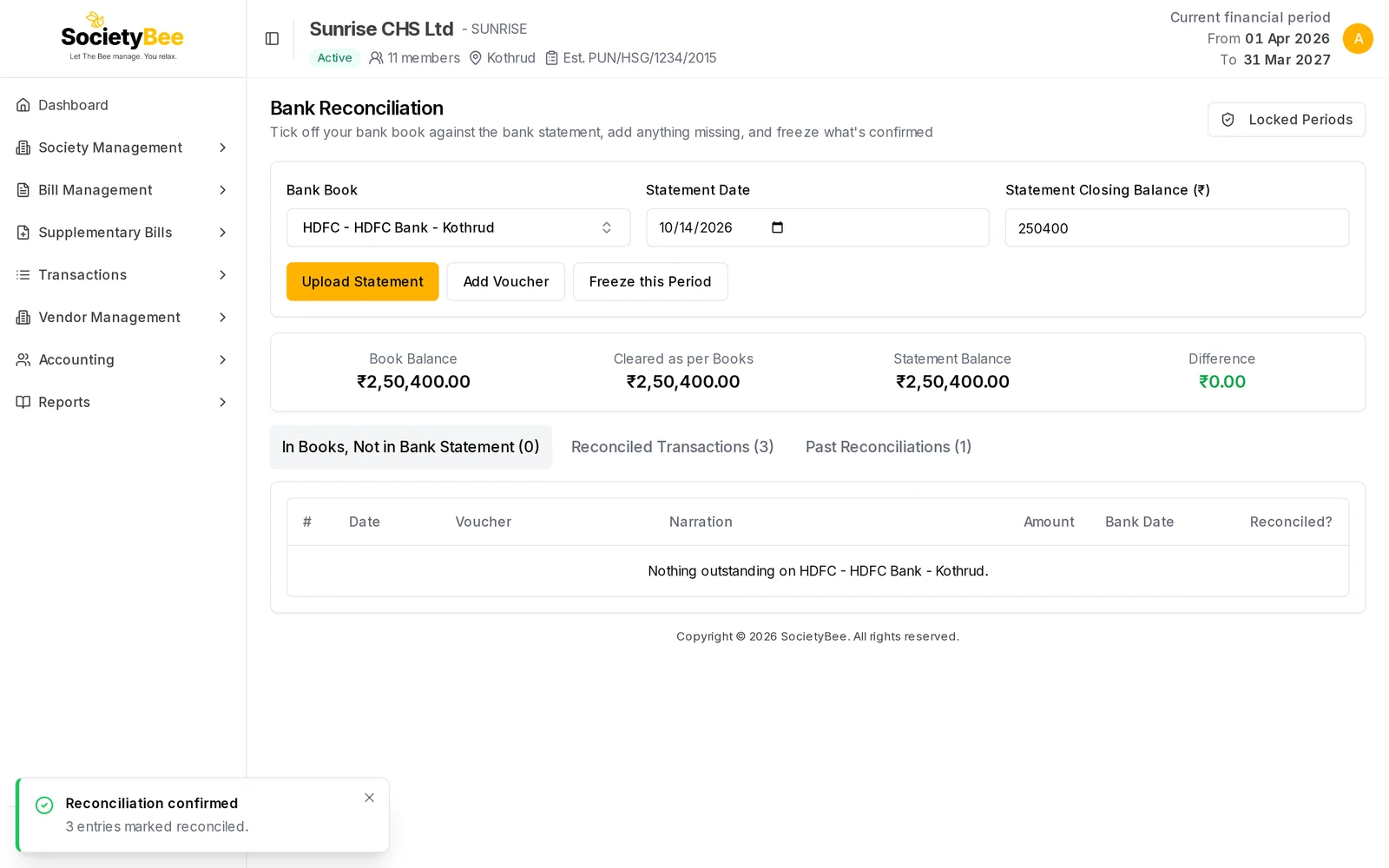
    Bank Reconciliation page after confirming, with the work list empty and the tabs showing 3 reconciled transactions and 1 past reconciliation
    After you confirm, the entries leave the work list.

    Fields and buttons

    FieldWhat it meansExample
    Bank BookThe bank account being reconciledHDFC - HDFC Bank - Kothrud
    Statement DateThe cut-off date. Entries after it are hidden.14 Oct 2026
    Statement Closing Balance (₹)The balance printed on the statement250400
    Date, Voucher, Narration, AmountThe book entry. Receipts and deposits are positive, payments are negative and red.₹4,300.00
    Voucher numberPress it to open the entry's details#1
    Bank DateThe day the bank cleared it. Starts as the voucher date.10 Oct 2026
    Reconciled?Tick when the entry is on the statement
    Total OutstandingThe sum of all rows in the list, split into deposits and withdrawals₹400.00
    Confirm ReconciliationSaves every ticked entry

    What Confirm does

    • Every ticked entry gets its bank date and moves out of the list.
    • One row is added under Past Reconciliations with the Statement Date, the book's opening balance, the Statement Closing Balance you typed and the Book Balance at that date.
    • Nothing in the entry itself changes. The amount, date and account stay the same.

    Careful

    Confirm Reconciliation works even when the Difference is not zero. It only needs at least one ticked entry. If you tick nothing, the message Nothing to confirm appears. Check that the Difference is ₹0.00 before you confirm, otherwise the saved row records a balance that does not agree with the statement.

    Common mistakes and questions

    The Confirm Reconciliation button is grey. No entry is ticked, or a save is in progress. Tick at least one entry.

    I ticked the wrong entry. Untick it before you confirm. After you confirm, use Undo reconciliation in the Reconciled Transactions tab. See Reconciled transactions and history.

    The statement shows something my book does not have. Add it with Add Voucher. See Add a missing voucher.

    I typed a bank date earlier than the voucher date. The box accepts any date. Bank dates normally come on or after the voucher date, so check the statement again.

    I get the message that the period is frozen. The date falls inside a locked period. See Freeze a period.

    What happens next

    Entries without a bank date stay in the list for your next statement. Once a period is fully reconciled, freeze it.

    Related guides

    • Reconciled transactions and history
    • Add a missing voucher
    • Upload a bank statement
    PreviousBank reconciliation at a glanceNext Upload a bank statement

    On this page

    1. What this does
    2. Where to find it
    3. Steps
    4. Fields and buttons
    5. What Confirm does
    6. Common mistakes and questions
    7. What happens next
    SocietyBee

    Built in Mumbai by Simplifyne Technologies Private Limited. Serving housing societies across India.

    Enquiries

    +91 95949 04493
    admin@societybee.in

    Product

    • Billing
    • Collections
    • Accounting
    • Reports & Compliance
    • BeeAgent AI
    • For CAs & Accountants
    • For Treasurers
    • For Managing Committee

    Resources

    • Docs
    • Blog
    • Glossary
    • SocietyBee vs MyGate
    • SocietyBee vs ApnaComplex
    • SocietyBee vs SocietyRun
    • SocietyBee vs NoBrokerHood
    • SocietyBee vs Excel

    Company

    • About
    • Trust & Security
    • Pricing
    • Early Access
    • Book a Demo
    • Contact
    • Privacy Policy
    • Terms & Conditions
    • Refund Policy

    🇮🇳 We serve housing societies across India

    Operating team based in Mumbai.

    © 2026 Simplifyne Technologies Private Limited.

    All rights reserved.