
Reconciled transactions and history
See the entries already reconciled, search them, correct a bank date, undo a reconciliation, and read the Past Reconciliations list of every confirmed session.
Before you start
What this does
Two tabs on the Bank Reconciliation page show what is already done. Reconciled Transactions lists the entries that have a bank date and lets you correct or undo one. Past Reconciliations is the record of every reconciliation you confirmed.
Where to find it
Go to Transactions > Bank Reconciliation, choose the bank book and open the tab.
Reconciled Transactions
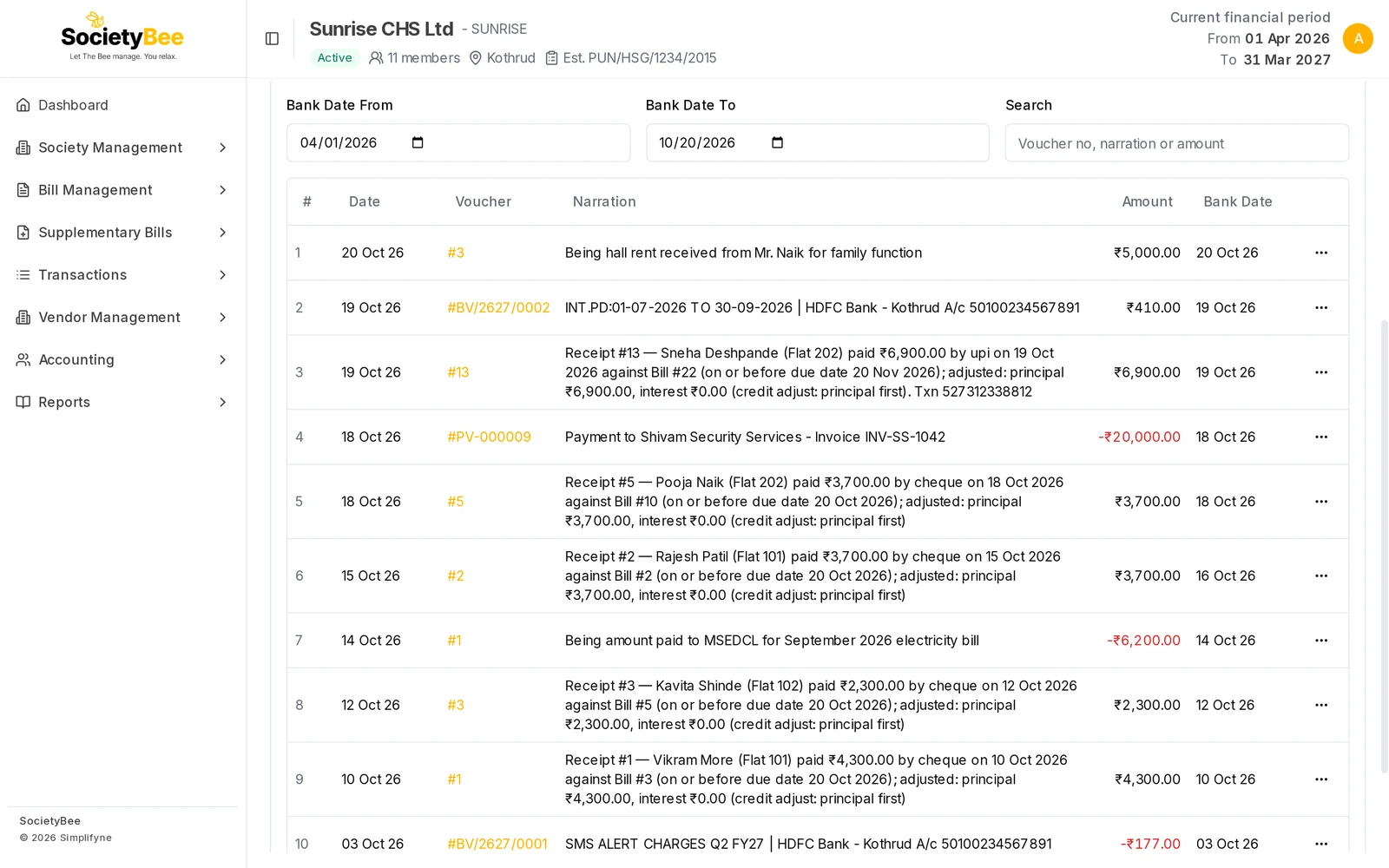
Set the date range
Bank Date From starts at 1 April of the current financial year. Bank Date To follows the Statement Date at the top of the page. The range applies to the bank date, not the voucher date.
Search if you need to
Type a voucher number, part of the narration or an amount in Search. The list is filtered as you type.
Read the table
Each row shows the Date, Voucher, Narration, Amount and Bank Date. The footer gives the total of the rows shown.
Open the three dots
The menu at the end of a row has Change bank date and Undo reconciliation.
Press a voucher number to open the entry. From this tab it opens for reading only.
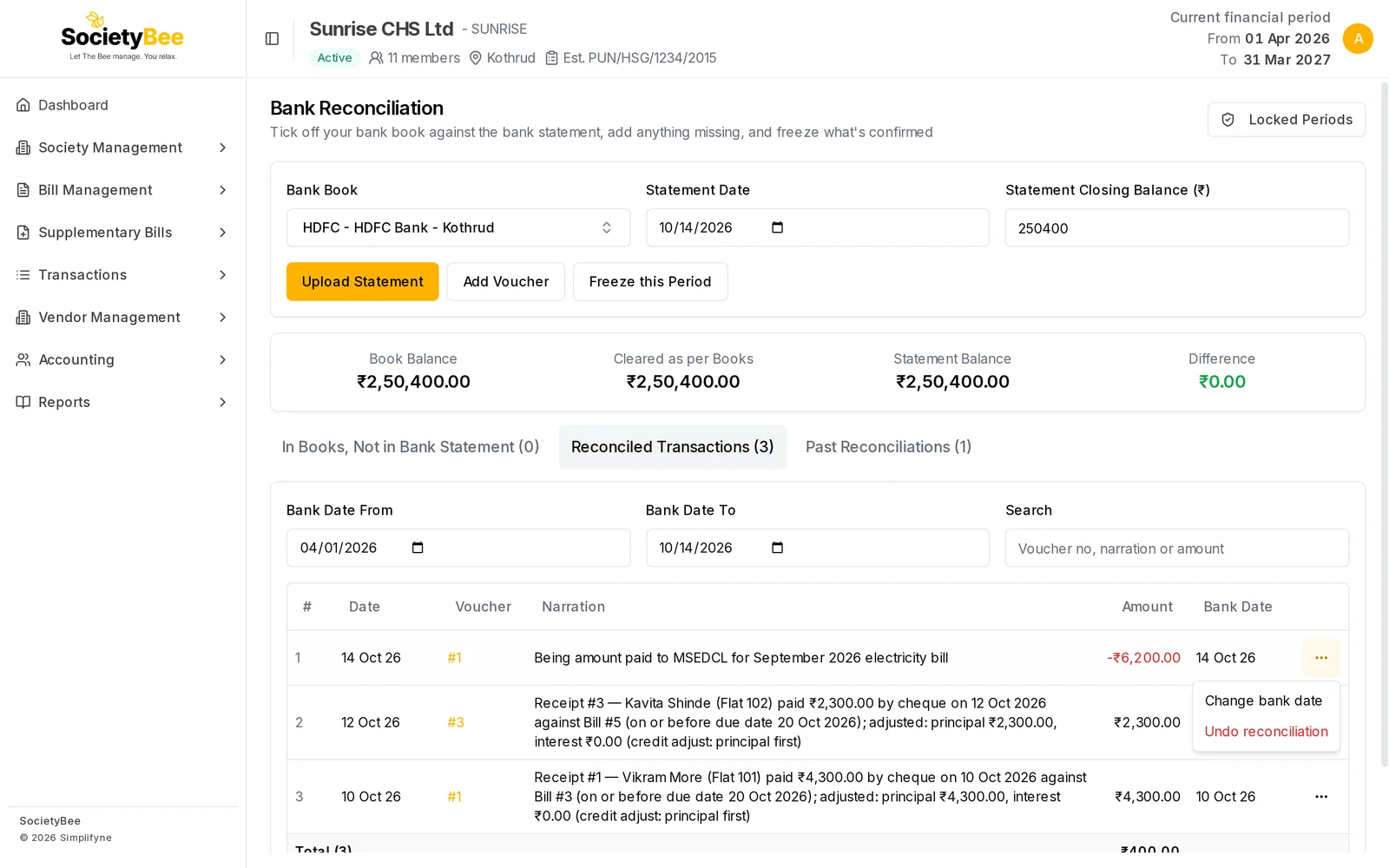
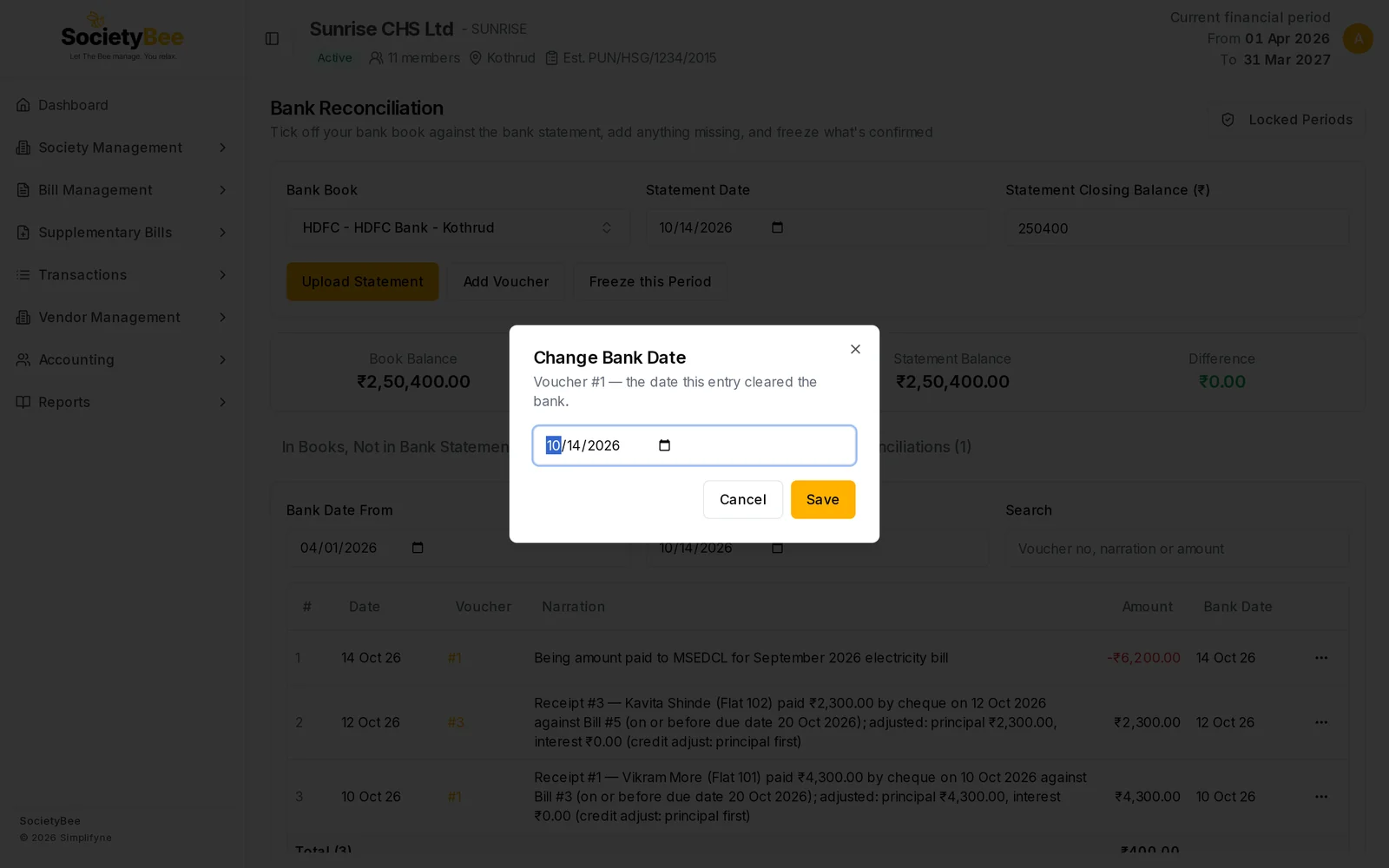
Change a bank date
Choose Change bank date, enter the correct date and press Save. The message Bank date updated appears. The entry stays reconciled.
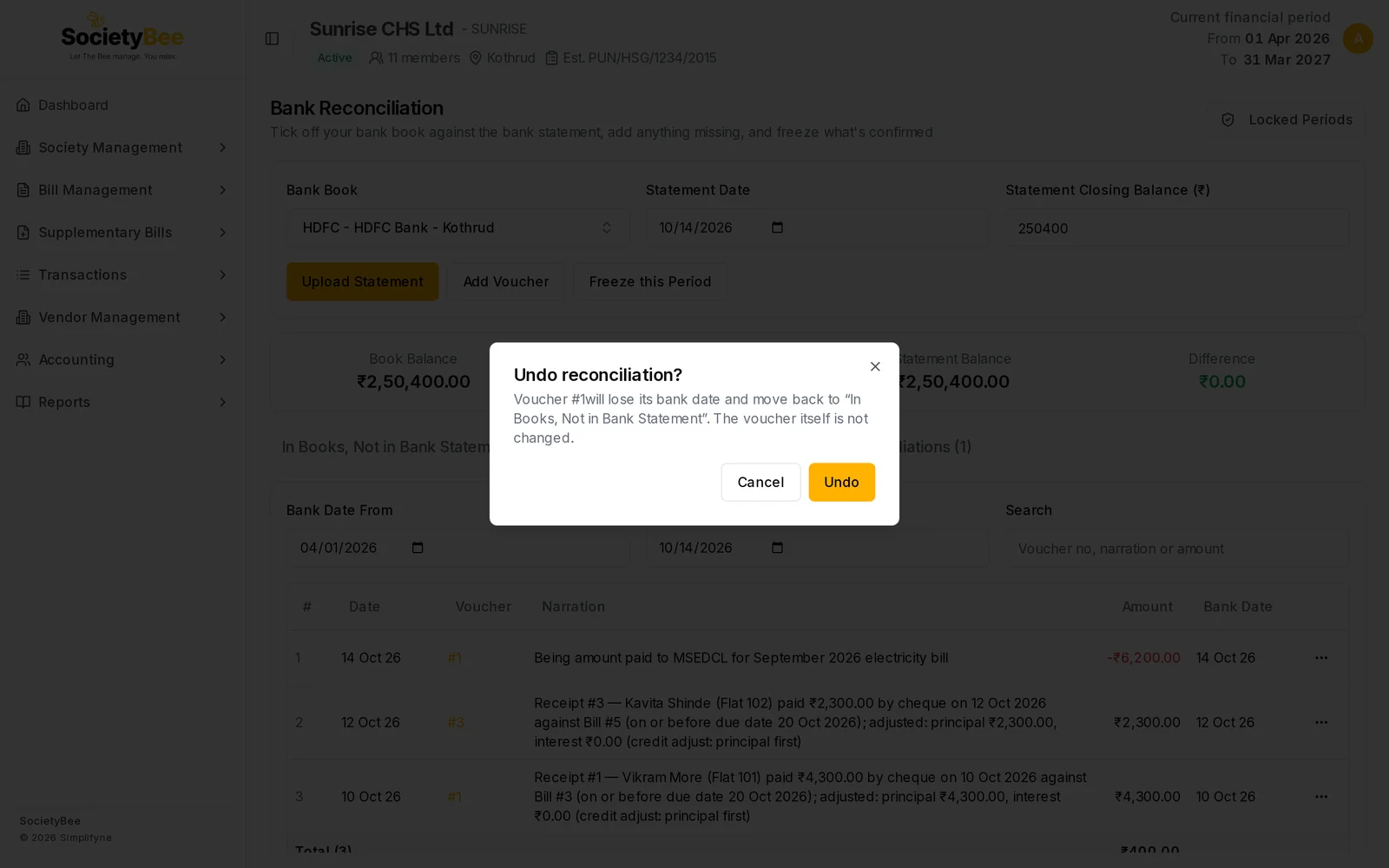
Undo a reconciliation
Choose Undo reconciliation and press Undo in the window. The entry loses its bank date and goes back to In Books, Not in Bank Statement. The voucher itself does not change. If the entry was matched to a bank statement line, that line goes back to pending as well.
Past Reconciliations
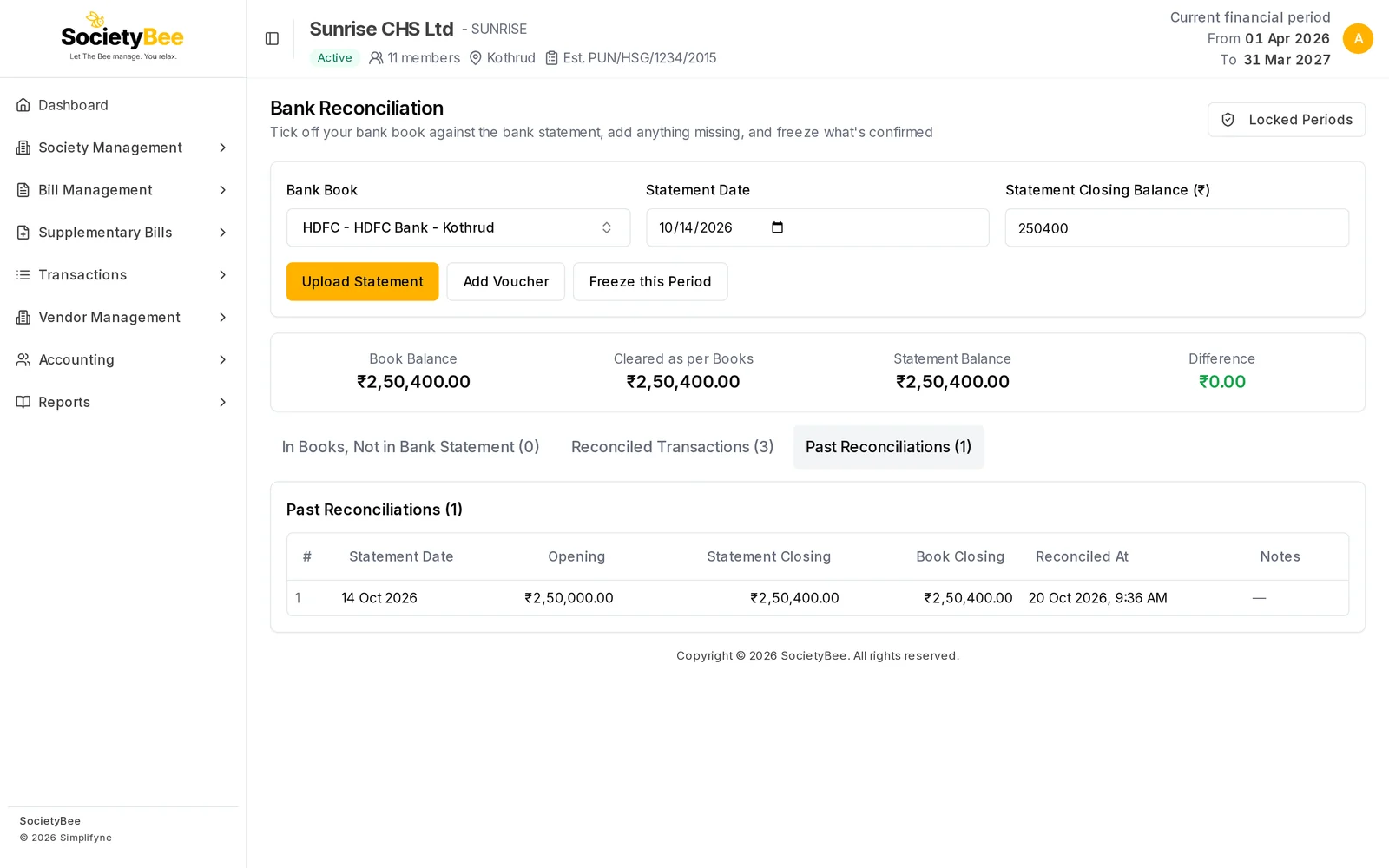
A row is added every time you press Confirm Reconciliation, or complete a statement upload. It is a record of the session and is not removed when you later undo an entry.
| Column | Meaning |
|---|---|
| Statement Date | The Statement Date used in that session |
| Opening | The balance at the start. For ticking by hand, it is the book's opening balance. |
| Statement Closing | The closing balance you typed, or the one in the uploaded file |
| Book Closing | The Book Balance at the Statement Date when you confirmed |
| Reconciled At | The date and time you confirmed |
| Notes | Bank statement: and the file name for an uploaded statement. Empty for a manual session. |
Fields and buttons
| Control | What it does |
|---|---|
| Bank Date From and Bank Date To | Limit the list by bank date |
| Search | Filters by voucher number, narration or amount |
| Change bank date | Corrects the bank date of one entry |
| Undo reconciliation | Returns one entry to the work list |
Common mistakes and questions
An entry I reconciled is not in the list. Check Bank Date From and Bank Date To. The list shows only entries whose bank date is inside the range.
I undid by mistake. Tick the entry again in In Books, Not in Bank Statement and confirm. For an uploaded statement, press Match on the line again.
The Statement Closing in the past row looks wrong. The row records what you typed that day. It is not recalculated.
What happens next
When a period is complete, freeze it.