
Review the matches and finish
Approve the statement lines that matched your entries, create receipts and vouchers for the ones that did not, ignore the rest, and complete the reconciliation.
Before you start
What this does
After the import, SocietyBee compares each statement line with the unreconciled entries of your bank book and proposes a match. You approve the good matches together. For lines with no match you create the missing receipt or voucher, map the line to an entry you choose, or ignore it. When every line is handled and the books agree with the statement, you complete the reconciliation.
Nothing changes in your books until you approve a match or create an entry.
Where to find it
The review opens right after Import and match. To come back later, press Upload Statement and then Continue (or View) beside the file under Earlier uploads.
Read the review screen
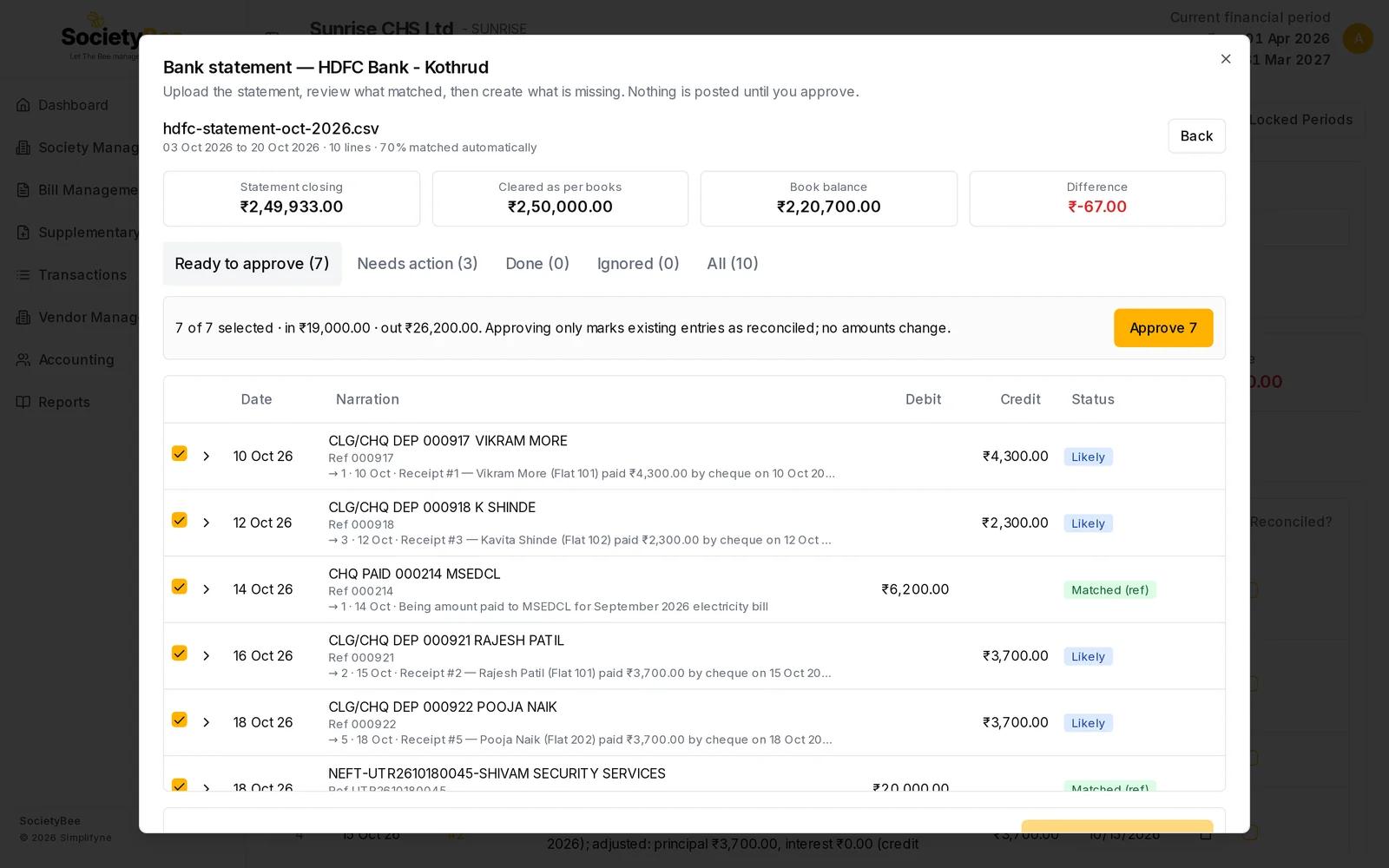
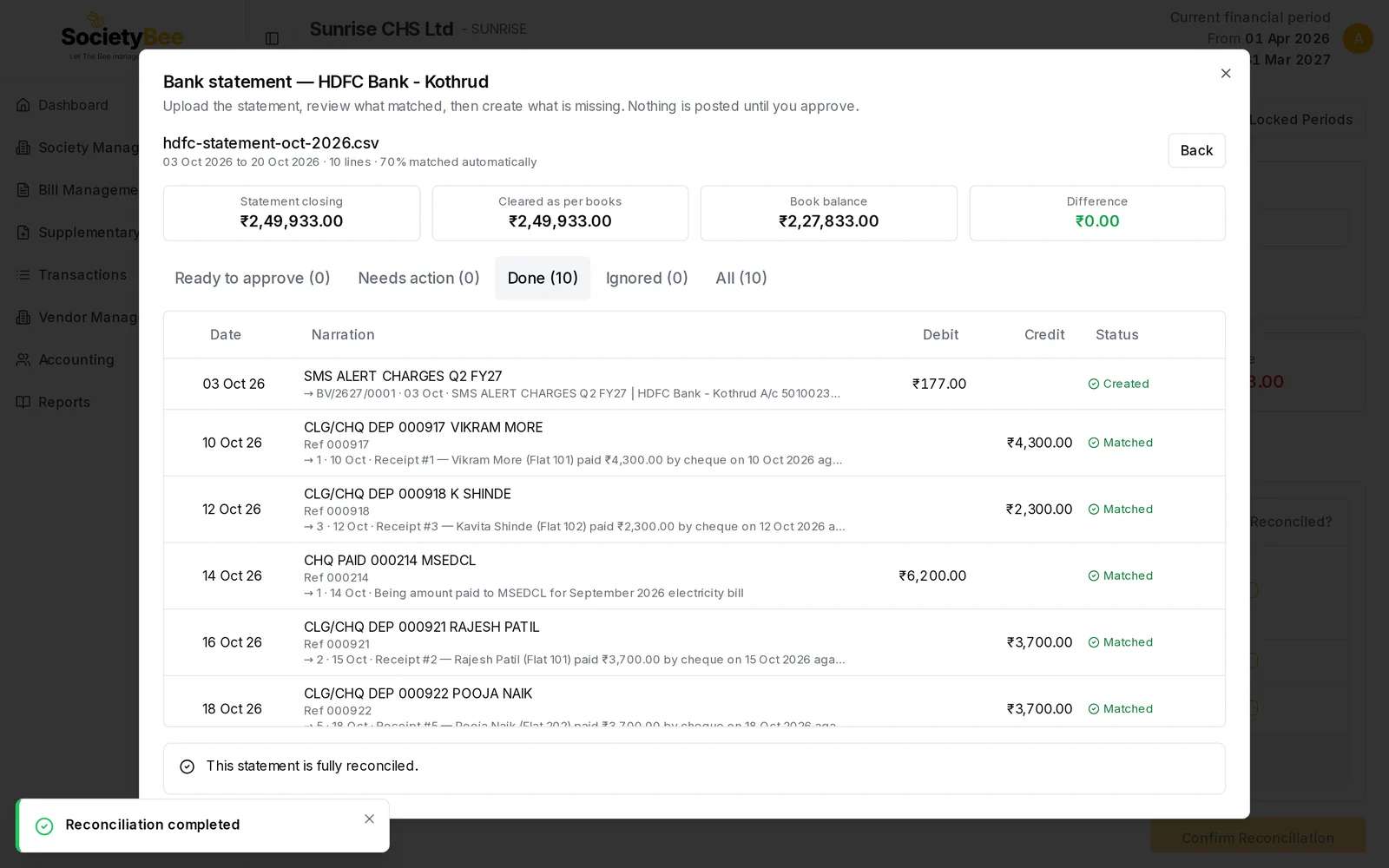
The four boxes at the top are Statement closing (from the file), Cleared as per books, Book balance and Difference. The aim is a Difference of ₹0.00.
| Tab | What it lists |
|---|---|
| Ready to approve | Lines with a proposed match. Opens first when there are any. |
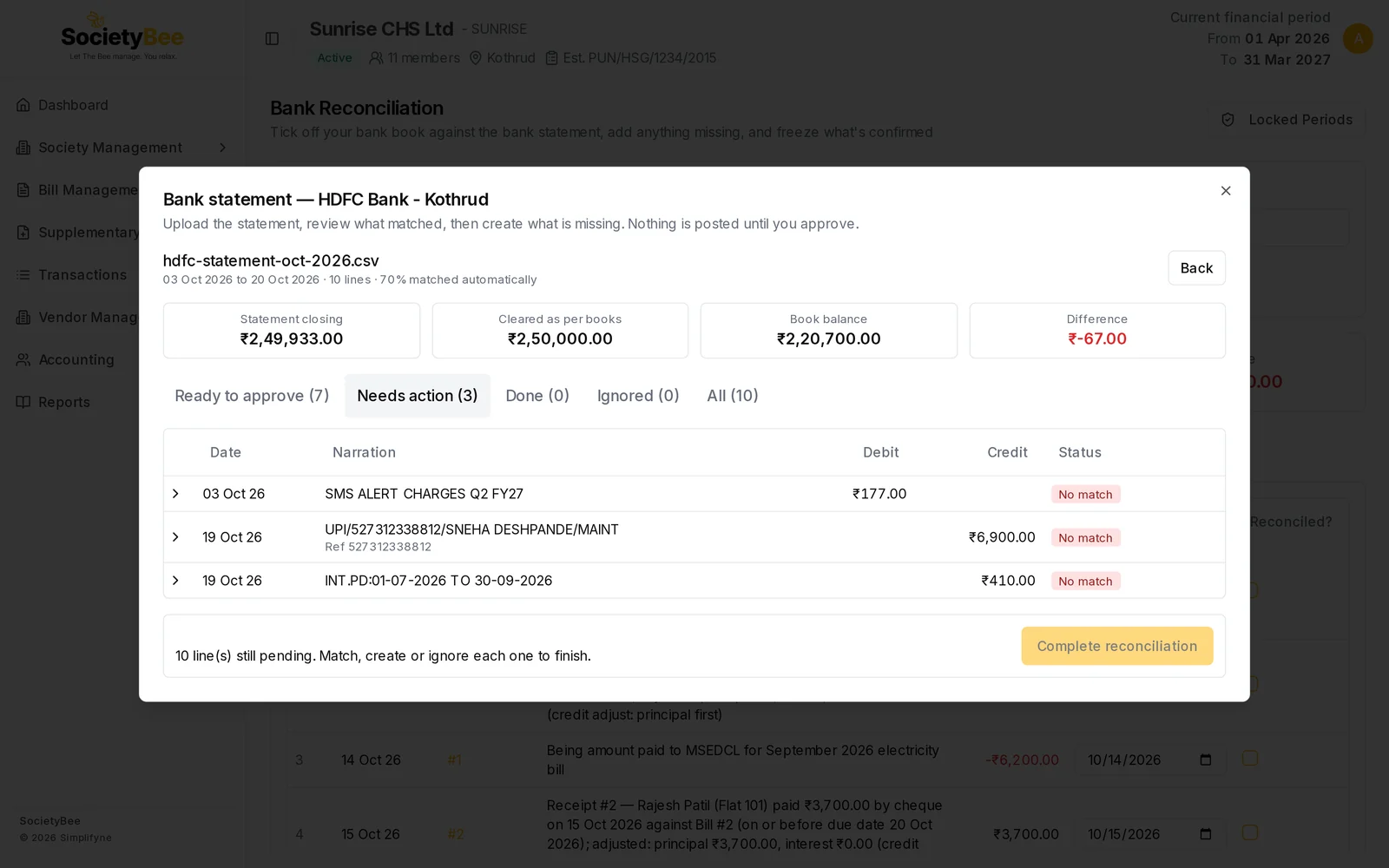
| Needs action | Lines with no match, or several possible matches |
| Done | Lines that are matched or created |
| Ignored | Lines you chose to skip |
| All | Every line |
Each line shows its date, narration, reference, debit or credit, and a status tag.
| Tag | Meaning |
|---|---|
| Matched (ref) | The cheque number or UTR on the line equals one on an entry |
| Likely | Same amount, a close date and usually the same name |
| Choose | More than one entry could be the match. Open the line and pick one. |
| No match | No entry found. Create one, or ignore the line. |
Small grey tags such as duplicate ref in file warn you about something unusual on that line.
Approve the matches
Open the Ready to approve tab
Every proposed match is ticked. Under each line, a grey arrow line shows the entry it was matched to, with its voucher number, date and narration.
Untick anything that looks wrong
The bar above the table shows how many are selected and the money in and money out.
Press Approve
The button shows the number selected, for example Approve 7. A window repeats the money in and out and says Nothing is created or changed in the books. Press Approve.
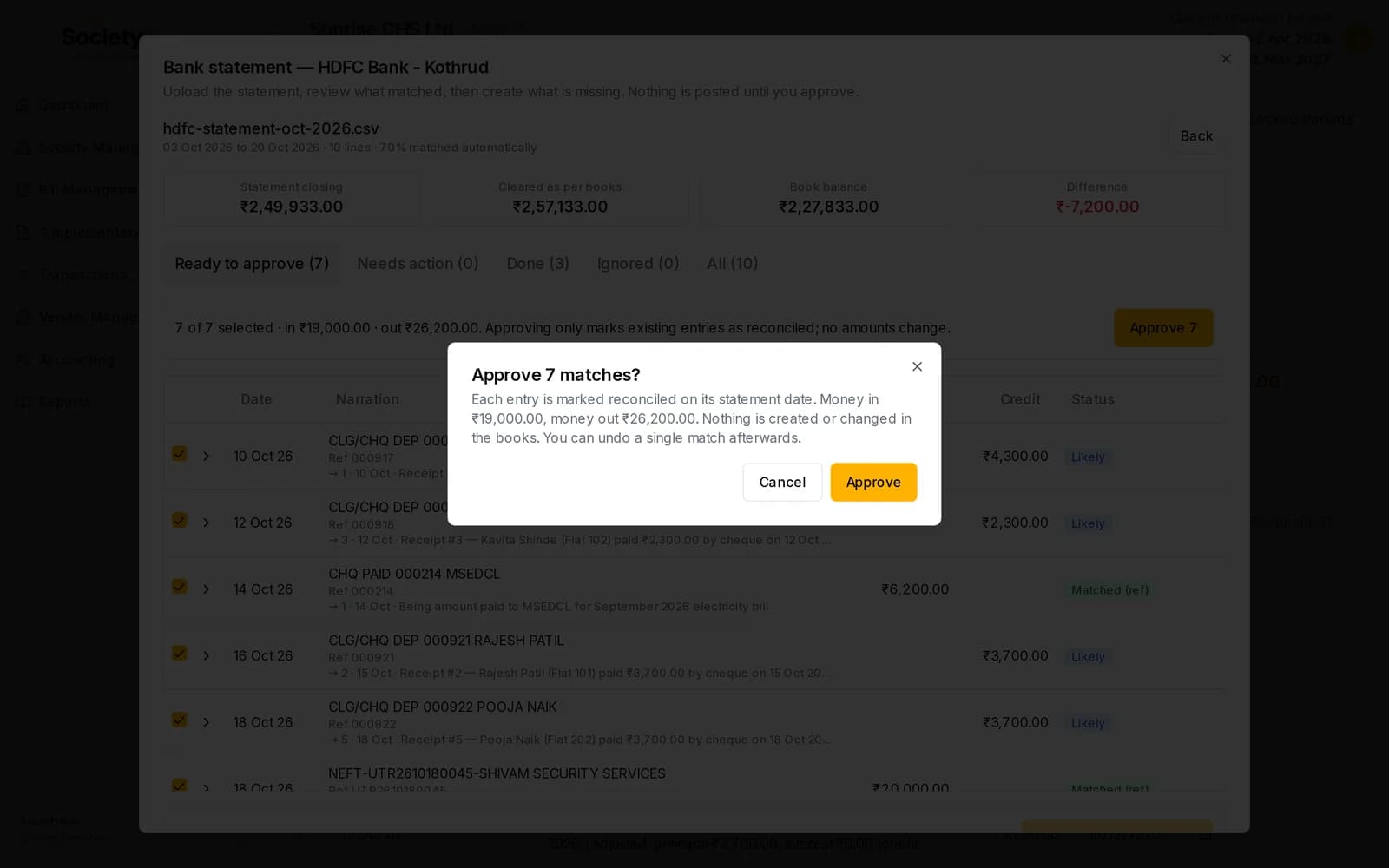
Each approved entry is given the statement line's date as its bank date. If two proposed matches look alike, check the amount and the name before you approve. For example, two members who each paid ₹3,700 are told apart by the date and by the cheque number.
Handle the lines that need action
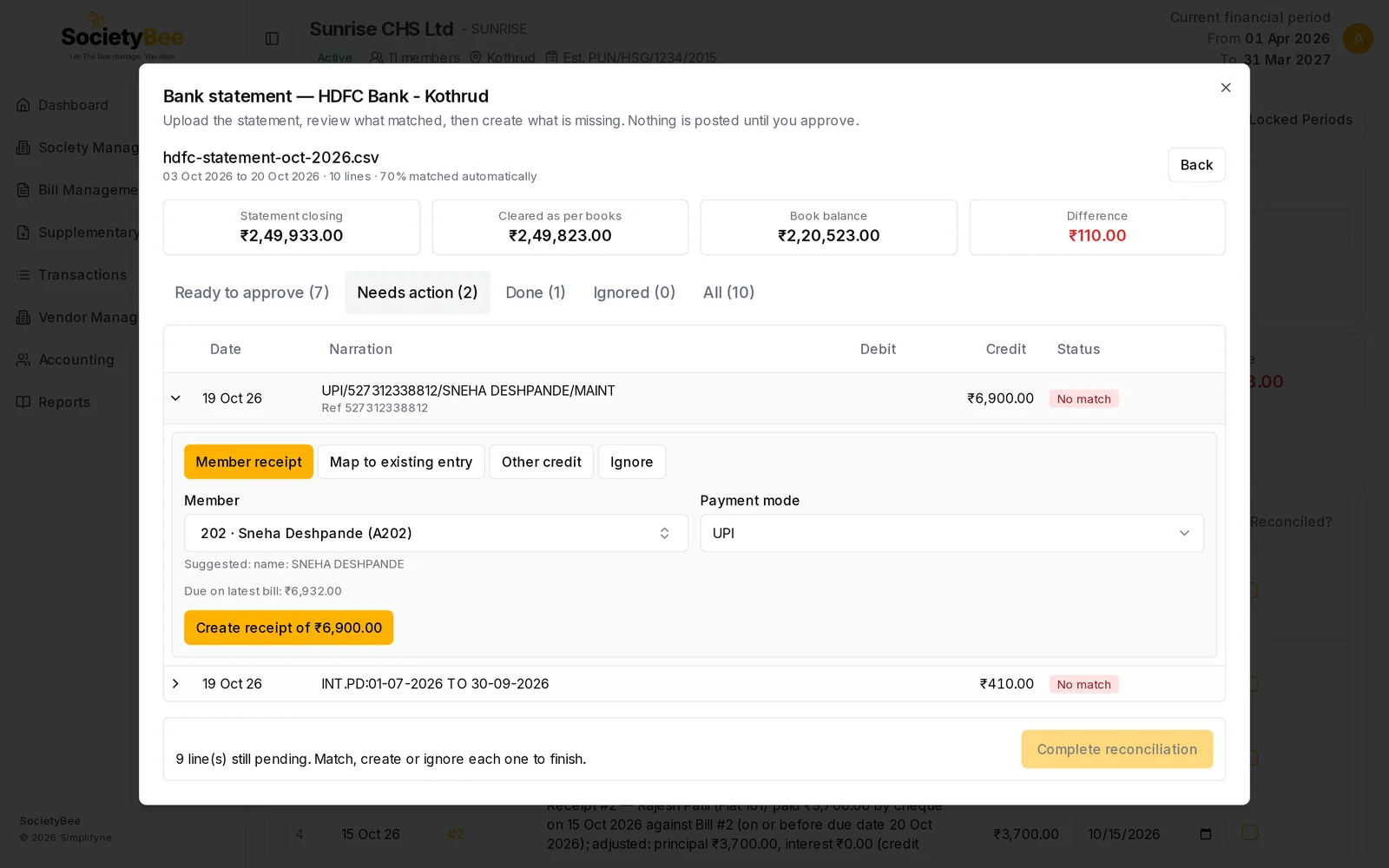
Press a line in Needs action to open it. A row of buttons chooses what to do. Credits (money in) and debits (money out) offer different choices.
| Money | Choices |
|---|---|
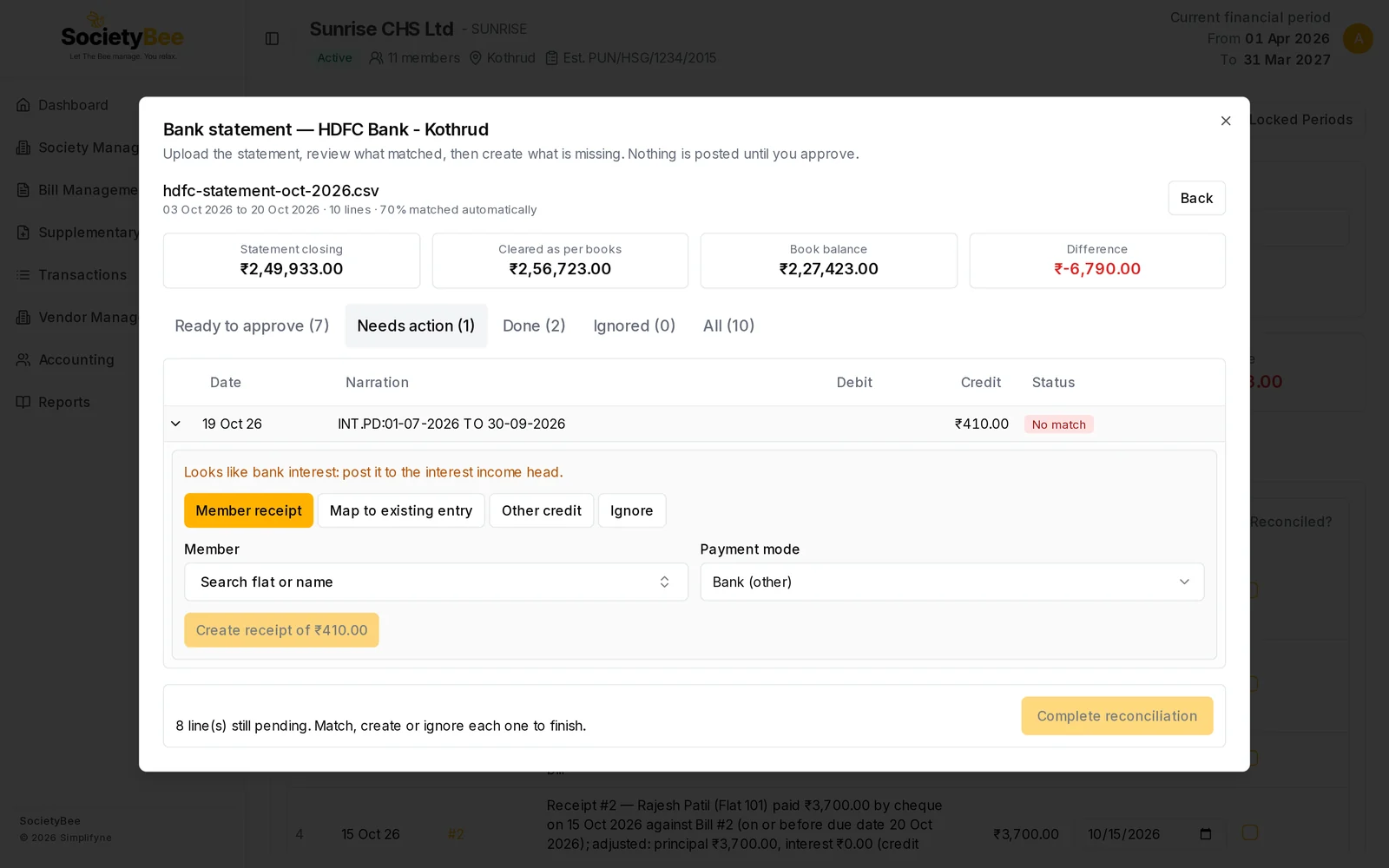
| Credit | Member receipt, Map to existing entry, Other credit, Ignore |
| Debit | Create voucher, Map to existing entry, Ignore |
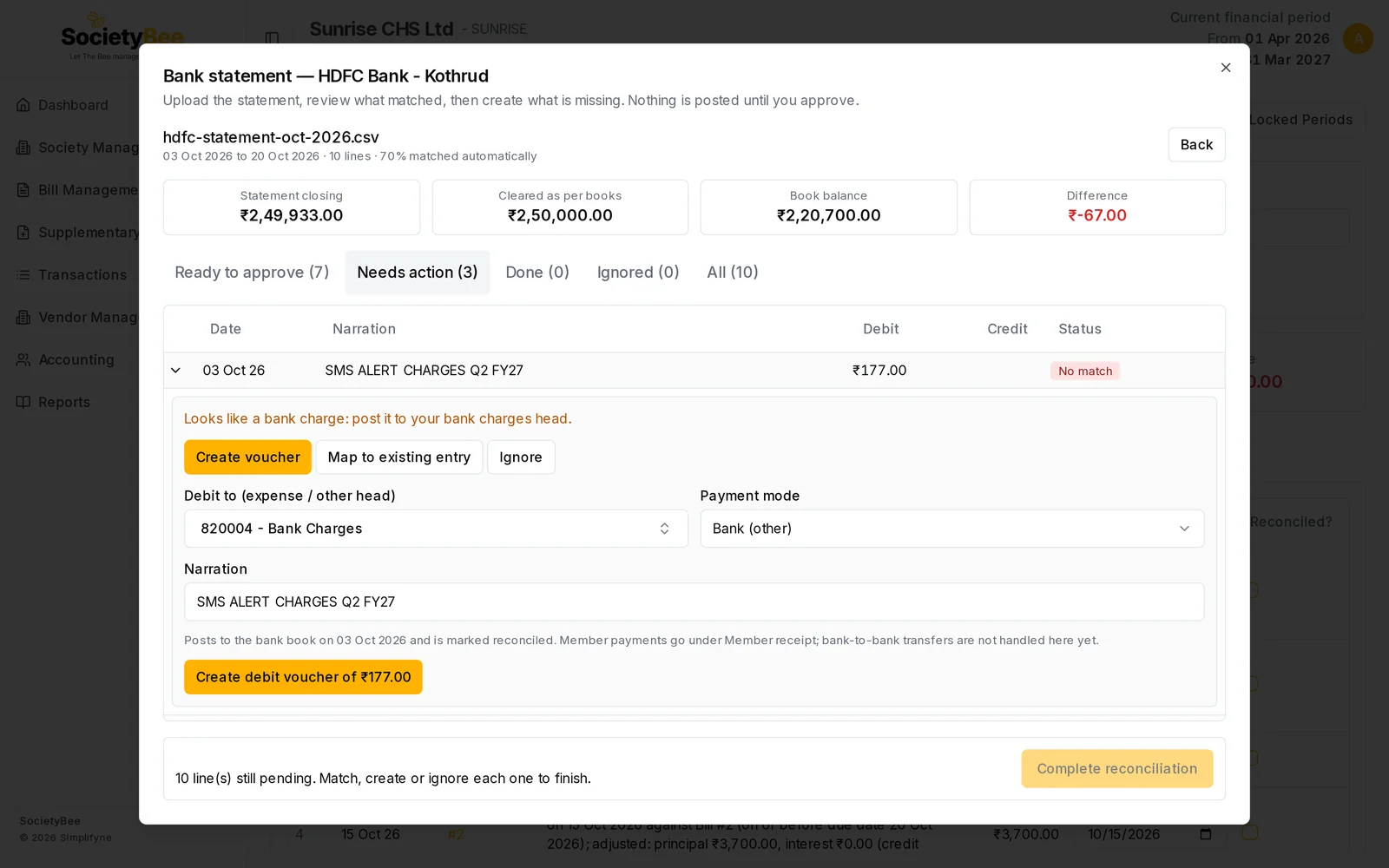
SocietyBee may show a hint above the buttons, such as Looks like a bank charge: post it to your bank charges head. The hints are bank charge, bank interest, TDS challan, returned cheque and cash deposit.
Member receipt
Use it for a member's payment that is not in your books.
Choose the member
The member is suggested from the name in the narration. The note under the box says why, for example Suggested: name: SNEHA DESHPANDE. Change it if it is wrong.
Check the Payment mode
It is guessed from the narration: UPI, NEFT / RTGS / IMPS, Cheque, Bank (other) or Other.
Read the dues note
It says Due on latest bill: ₹… and adds (matches this payment) when the amounts are equal. When nothing is due it says the payment will be taken as an advance.
Press Create receipt of ₹…
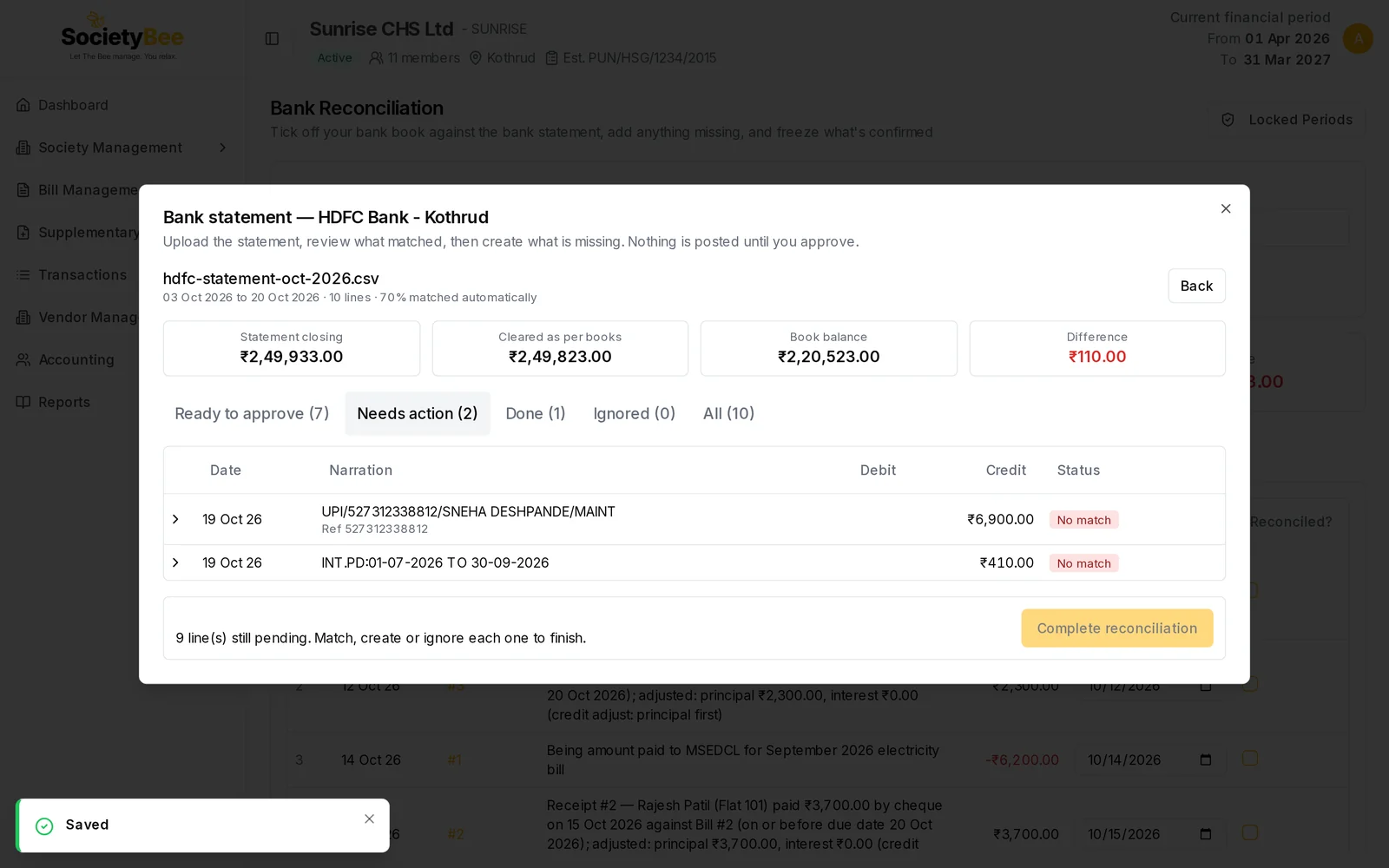
A receipt is created on the date of the statement line, the line is marked reconciled and the line moves to Done.
Create voucher, or Other credit
Use it for charges and income that are not member payments, such as bank charges or bank interest.
Choose the account head
Open Debit to (expense / other head) for a debit, or Credit to (income / other head) for a credit, and type to search. For bank charges choose Bank Charges. For interest on a savings account choose Interest Received From Bank - SB Account.
Check the Payment mode and Narration
The narration starts as the statement's text. You can edit it.
Press Create voucher
The button reads Create debit voucher of ₹… or Create credit voucher of ₹…. The voucher is posted to the bank book on the line's date and marked reconciled.
Transfers between your own bank accounts are not handled in this panel. Post them with a contra voucher through Add Voucher. See Add a missing voucher.
Map to existing entry
Use it when the entry is already in your books but SocietyBee did not pair it, for example because the date or reference differs. The panel lists unreconciled entries of exactly the same amount within 13 months of the line. Press Match beside the right one. If none is listed, the message says so, and you should create the entry instead.
Ignore
Use it for a line that should not be in this book, for example a transaction of another account. Type an optional Reason and press Ignore this line. The reason shows later on the line.
Special lines
| Hint | What to do |
|---|---|
| Bank charge | Create a voucher to the bank charges head |
| Bank interest | Choose Other credit and the interest income head |
| TDS challan | Record the TDS deposit first, then use Map to existing entry. See TDS reports and deposits. |
| Returned cheque | Cancel the original receipt first so the line can be matched to its reversal. See Cancel or correct a receipt. |
| Cash deposit | Pick the member or the head it belongs to |
Complete the reconciliation
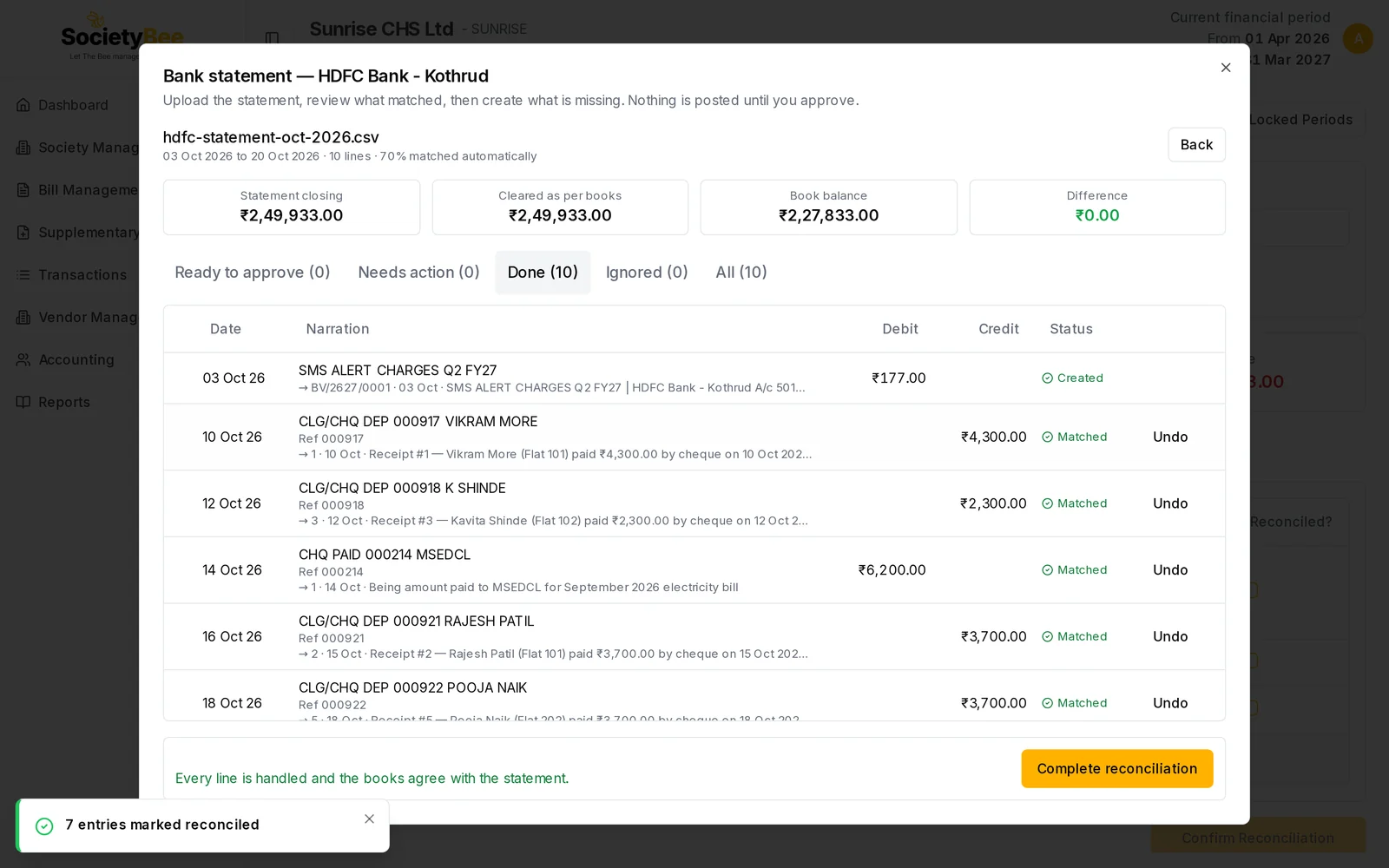
When no line is pending, the message under the table says Every line is handled and the books agree with the statement.
Check the Difference
It should be ₹0.00 in green. If not, it is shown in red with the message Books differ from the statement by ₹… and a box for a Reason for the difference.
Press Complete reconciliation
The button stays grey while any line is pending, and, when the Difference is not zero, until you type a reason. The message Reconciliation completed appears and the screen says This statement is fully reconciled.
A row is added under Past Reconciliations, with the note Bank statement: and the file name.
Undo a line
On a line in Done or Ignored, press Undo. A matched line goes back to pending and its entry loses its bank date. A line whose receipt or voucher was created here is not offered Undo. To remove such an entry, cancel the receipt or reverse the voucher, or undo the whole upload. See Upload a bank statement. Once a statement is reconciled, lines can no longer be undone from this screen. Use Undo reconciliation on the entry. See Reconciled transactions and history.
Fields and buttons
| Control | What it does |
|---|---|
| Tick box on a line | Includes the line in Approve |
| Approve N | Marks the ticked proposed matches as reconciled |
| Member receipt | Creates a receipt for a member from a credit line |
| Other credit / Create voucher | Posts a voucher to an account head |
| Map to existing entry | Links the line to an entry you pick with Match |
| Ignore | Skips the line, with an optional reason |
| Undo | Reverses a match or an ignore |
| Back | Returns to the upload list |
| Complete reconciliation | Closes the statement |
Common mistakes and questions
A line says No match but I know the entry exists. Open the line and choose Map to existing entry. The search looks 13 months either side, so it finds entries the automatic match skipped.
The Difference is not zero after I handled every line. Check that no outstanding entry was ticked by mistake, and that every line of the file was imported. If the difference is a known amount, type the reason and complete.
I created a receipt for the wrong member. Cancel the receipt from the Receipts page. See Cancel or correct a receipt. Then match the line again.
What happens next
Entries left in In Books, Not in Bank Statement are the ones the bank has not shown yet. Freeze the finished period. See Freeze a period.