SocietyBee
    Billing
    Automated maintenance & charge billing
    Collections
    Track payments, send reminders
    Accounting
    Double-entry ledger & bank reconciliation
    Reports & Compliance
    Bye-law compliant statutory reports
    BeeAgent AI
    Natural language queries on your data
    For CAs & Accountants
    Manage all societies from one login
    For Treasurers
    Simple billing & audit-ready records
    For Managing Committee
    Visibility without the spreadsheets
    Docs
    Step-by-step guides for every module
    Blog
    Society management guides & tips
    Glossary
    Accounting & society terms explained
    vs MyGate
    Accounting vs gate security app
    vs ApnaComplex
    Multi-society CA login vs per-society pricing
    vs SocietyRun
    BeeAgent AI & zero gateway commission
    vs NoBrokerHood
    Accounting vs marketplace app
    vs Excel
    Audit trail & statutory reports vs spreadsheets
    Pricing
    Sign inStart free →
    Society Onboarding
    Member Onboarding
    Bills
    Receipts
    Vouchers
    Vendors, TDS and GST
    Reports
    • Reports at a glance
    • The Defaulters report
    • Send notices to defaulters
    • Day books
    • Account ledger
    • Member ledgers
    • Trial balance
    • Balance sheet and income and expenditure
    Supplementary Bills
    Bank Reconciliation
    Docs / Reports

    Day books

    See every entry of one cash, bank or other book with its opening balance, running balance and closing balance, open any voucher from it, and download it as Excel or PDF.

    Who can do this:admin 4 min read Checked 18 Oct 2026

    Before you start

    • Bank books, cash book and chart of accounts

    What this does

    A day book is the list of every entry made in one book, such as the cash book or a bank book, in date order. It shows the opening balance, each entry with the balance after it, and the closing balance. Use it to compare your books with the bank passbook or the cash in hand.

    Where to find it

    Go to Reports > Day Books.

    Steps

    1. Open Select Book

      Press the box next to Select Book :. A list shows every book of the society with its code and name, for example HDFC - HDFC Bank - Kothrud and C - Cash Book. You can type to search.

    2. Pick a book

      The page loads that book's entries. Until you choose, the table says Select a book to view its ledger.

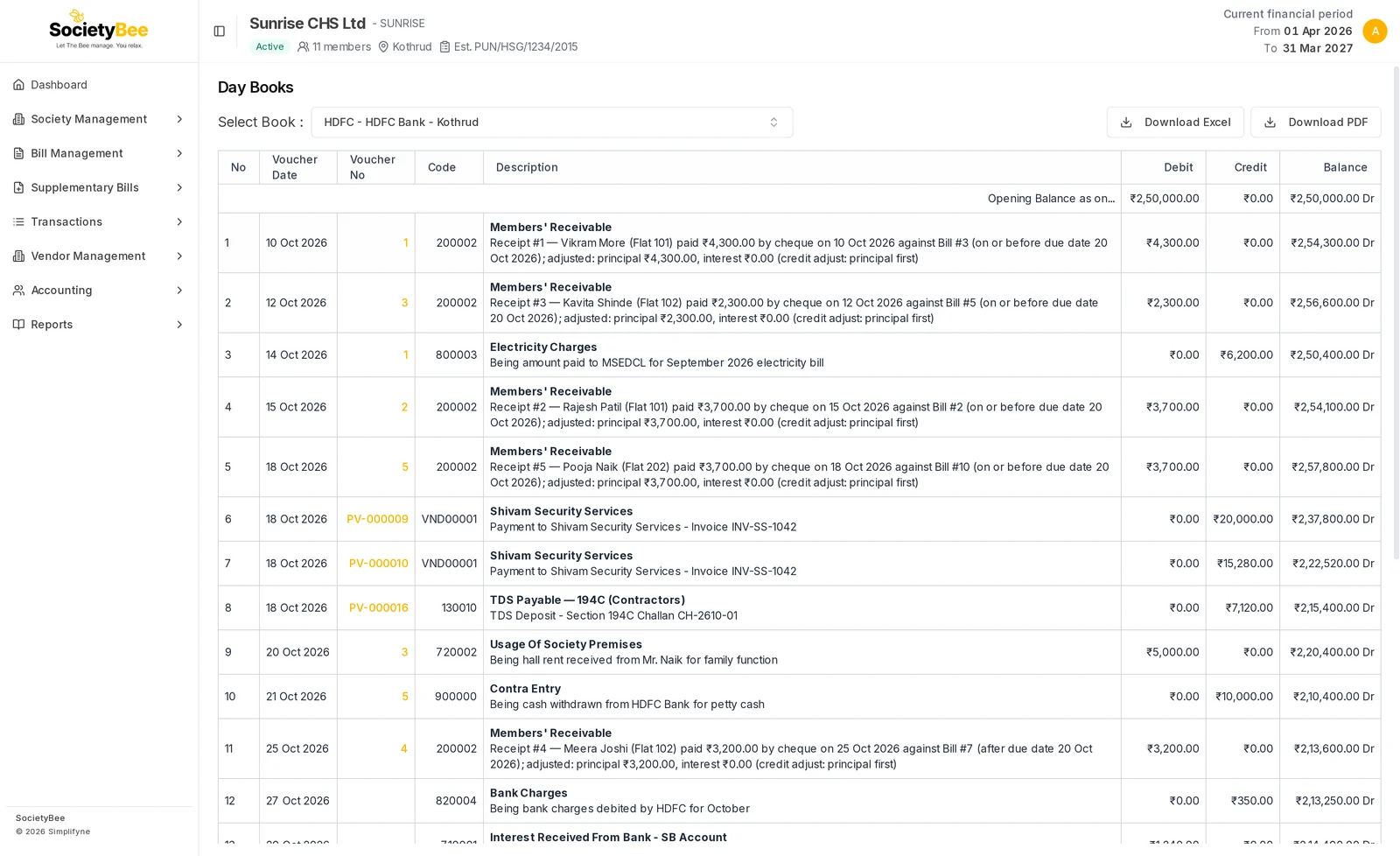
    3. Read the entries

      Every entry is one row. Press the voucher number to open the voucher.

    4. Download if needed

      Download Excel and Download PDF appear once the book has entries.
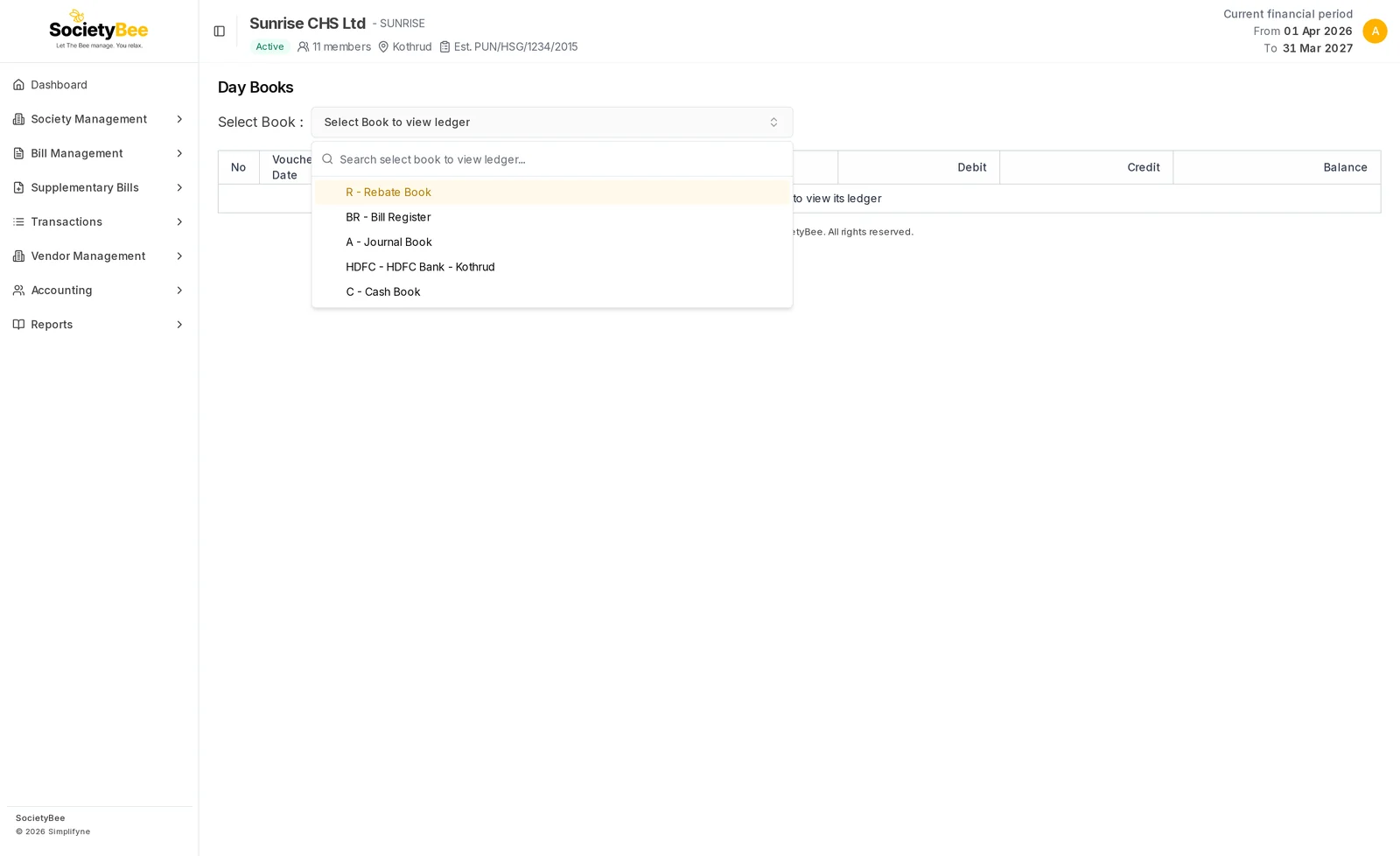
    Select Book drop-down listing Rebate Book, Bill Register, Journal Book, HDFC Bank Kothrud and Cash Book
    Choose the book.
    Day book of HDFC Bank Kothrud with an opening balance of 2,50,000 rupees and entries listing receipts, an electricity payment, vendor payments, a TDS deposit and a contra, each with a running balance
    The HDFC bank book. The balance column is the running balance after each entry.

    The columns

    ColumnMeaning
    NoRow number
    Voucher DateThe date of the entry
    Voucher NoThe voucher, receipt or bill number. Press it to open the entry, and correct or cancel it if allowed.
    CodeThe code of the other side of the entry, for example 200002 for Members' Receivable
    DescriptionThe account name in bold, then the narration
    DebitMoney in to this book
    CreditMoney out of this book
    BalanceThe balance after this entry, with Dr or Cr
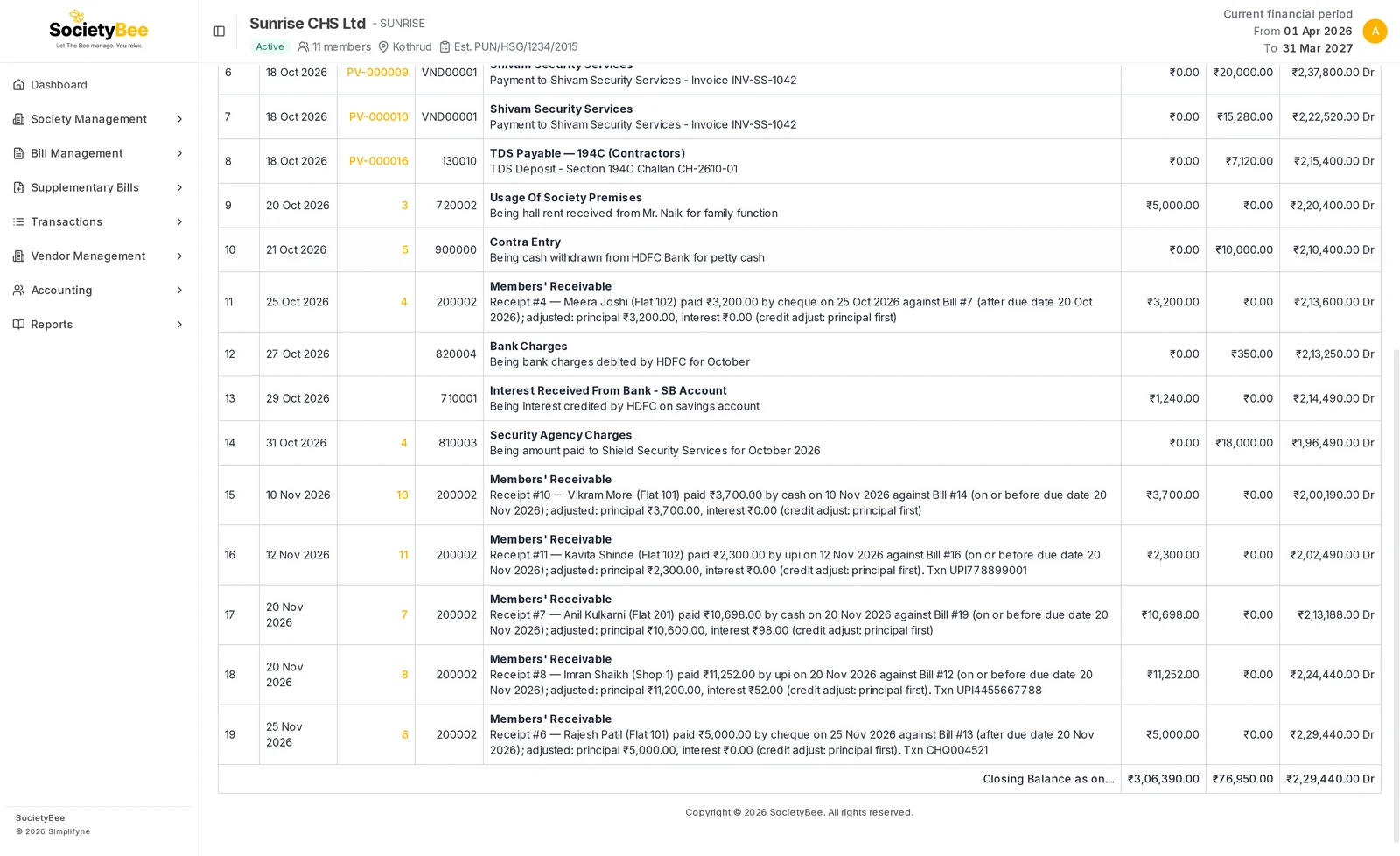
    End of the HDFC day book with receipts, a bank charge, interest credited and a closing balance row showing total debit 3,06,390 rupees, total credit 76,950 rupees and a balance of 2,29,440 rupees Dr
    The closing balance row. The debit total includes the opening balance.

    The first row, Opening Balance as on..., shows what the book held when it was created, as set in its opening balance. The last row, Closing Balance as on..., shows the total debit, total credit and the final balance. The debit total includes the opening balance when it is a debit.

    Note

    A bank or cash book normally shows a Dr balance, which means money is there. A Cr balance on a bank book means the account is overdrawn in the books. Check for a missed receipt or a wrong entry.

    Compare with the passbook

    1. Open the bank book

      Pick the bank, for example HDFC - HDFC Bank - Kothrud.

    2. Compare the closing balance

      Compare it with the passbook balance on the same date. A small gap is usually cheques not yet cleared.

    3. Find a difference

      Tick off each row against the passbook. For a long statement, use the Bank Reconciliation page under Transactions.

    Fields and buttons

    ControlWhat it does
    Select BookChooses the book to show
    Voucher No linkOpens the voucher
    Download ExcelDownloads the whole book as shown
    Download PDFDownloads the same as a PDF

    Common mistakes and questions

    The book shows no entries. The page says No entries in this book yet. Nothing has been posted to it. Check you picked the right book.

    There is no date filter. A day book shows every entry of the book, from the book's opening balance onward, and the closing balance is as of the last entry. To look at one period, download the Excel and filter by date.

    The opening balance looks wrong. Opening balances are set when you create the book. See Bank and cash books.

    A voucher is missing. A cancelled or corrected voucher is not listed, and neither is its reversing entry. See The voucher list.

    What happens next

    For one account across all books, see Account ledger.

    Related guides

    • Account ledger
    • Voucher details, edit and cancel
    PreviousSend notices to defaultersNext Account ledger

    On this page

    1. What this does
    2. Where to find it
    3. Steps
    4. The columns
    5. Compare with the passbook
    6. Fields and buttons
    7. Common mistakes and questions
    8. What happens next
    SocietyBee

    Built in Mumbai by Simplifyne Technologies Private Limited. Serving housing societies across India.

    Enquiries

    +91 95949 04493
    admin@societybee.in

    Product

    • Billing
    • Collections
    • Accounting
    • Reports & Compliance
    • BeeAgent AI
    • For CAs & Accountants
    • For Treasurers
    • For Managing Committee

    Resources

    • Docs
    • Blog
    • Glossary
    • SocietyBee vs MyGate
    • SocietyBee vs ApnaComplex
    • SocietyBee vs SocietyRun
    • SocietyBee vs NoBrokerHood
    • SocietyBee vs Excel

    Company

    • About
    • Trust & Security
    • Pricing
    • Early Access
    • Book a Demo
    • Contact
    • Privacy Policy
    • Terms & Conditions
    • Refund Policy

    🇮🇳 We serve housing societies across India

    Operating team based in Mumbai.

    © 2026 Simplifyne Technologies Private Limited.

    All rights reserved.