
Bank books, cash book and chart of accounts
See the books your society starts with, add a bank account, set opening balances for cash and bank, and understand the account list and head groups behind your accounts.
Before you start
What this page does
Every receipt, payment and voucher in SocietyBee is recorded against a book (where the money moved) and an account (what it was for). This guide covers three screens under the Accounting menu:
- Cash / Bank Books: your cash book and each bank account.
- Account Master: the full list of account ledgers (the chart of accounts).
- Account Head Group: the groups that organise those accounts.
When you create a society, SocietyBee sets up a standard list of accounts and a few system books for you. You mostly add your bank account and enter opening balances.
Where to find it
Open the Accounting menu in the left sidebar. It has three items: Account Head Group, Account Master and Cash / Bank Books. Only an admin can see this menu.
Cash / Bank Books
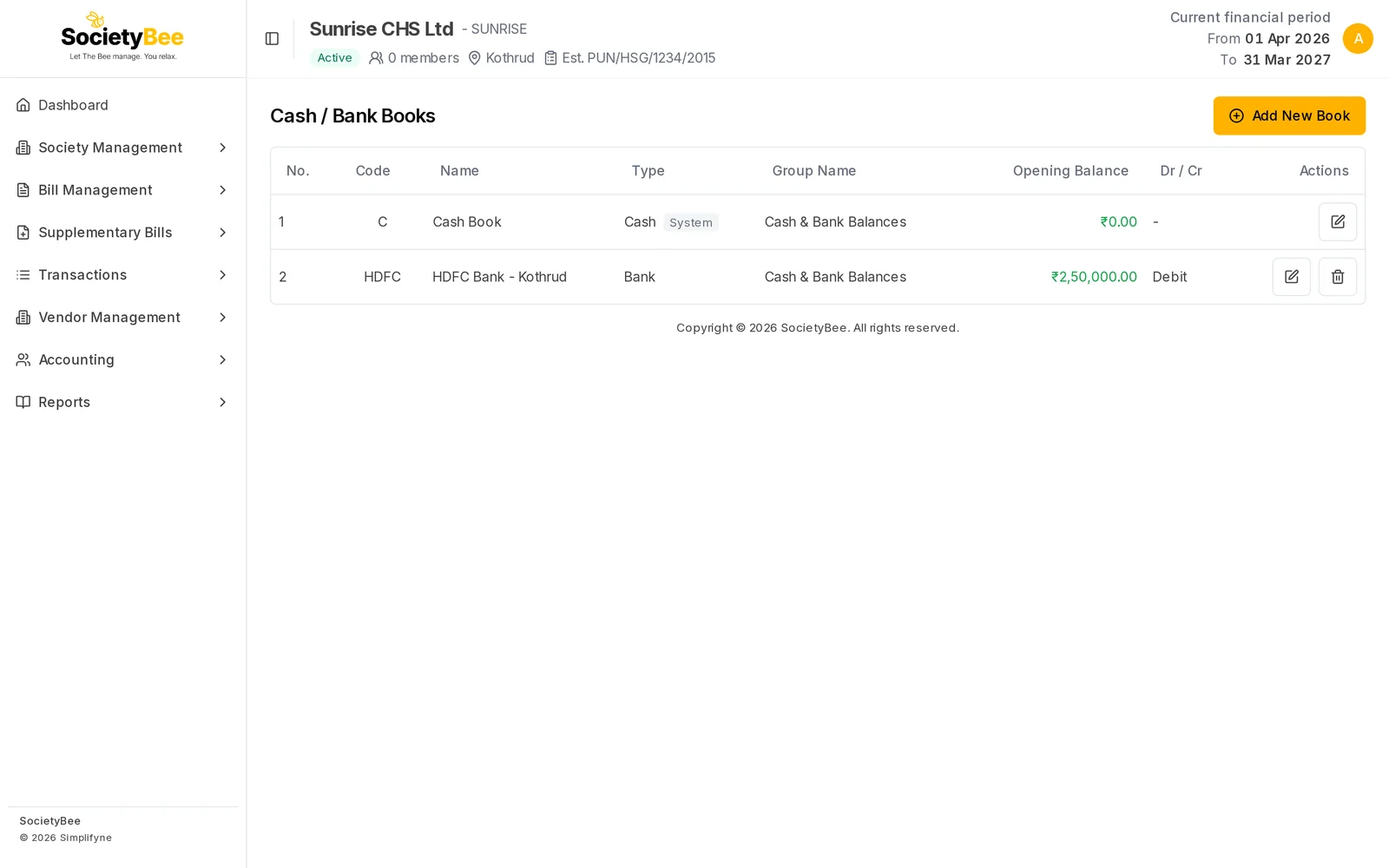
The list shows Code, Name, Type, Group Name, Opening Balance and Dr / Cr (Debit means money you hold). The Cash Book is a System book. You can edit its name, group and opening balance, but its code and type cannot be changed and it cannot be deleted. Other system books, such as the Bill Register and Journal Book, work in the background and are not listed here.
Add a bank account
Click Add New Book
The Add New Book dialog opens.
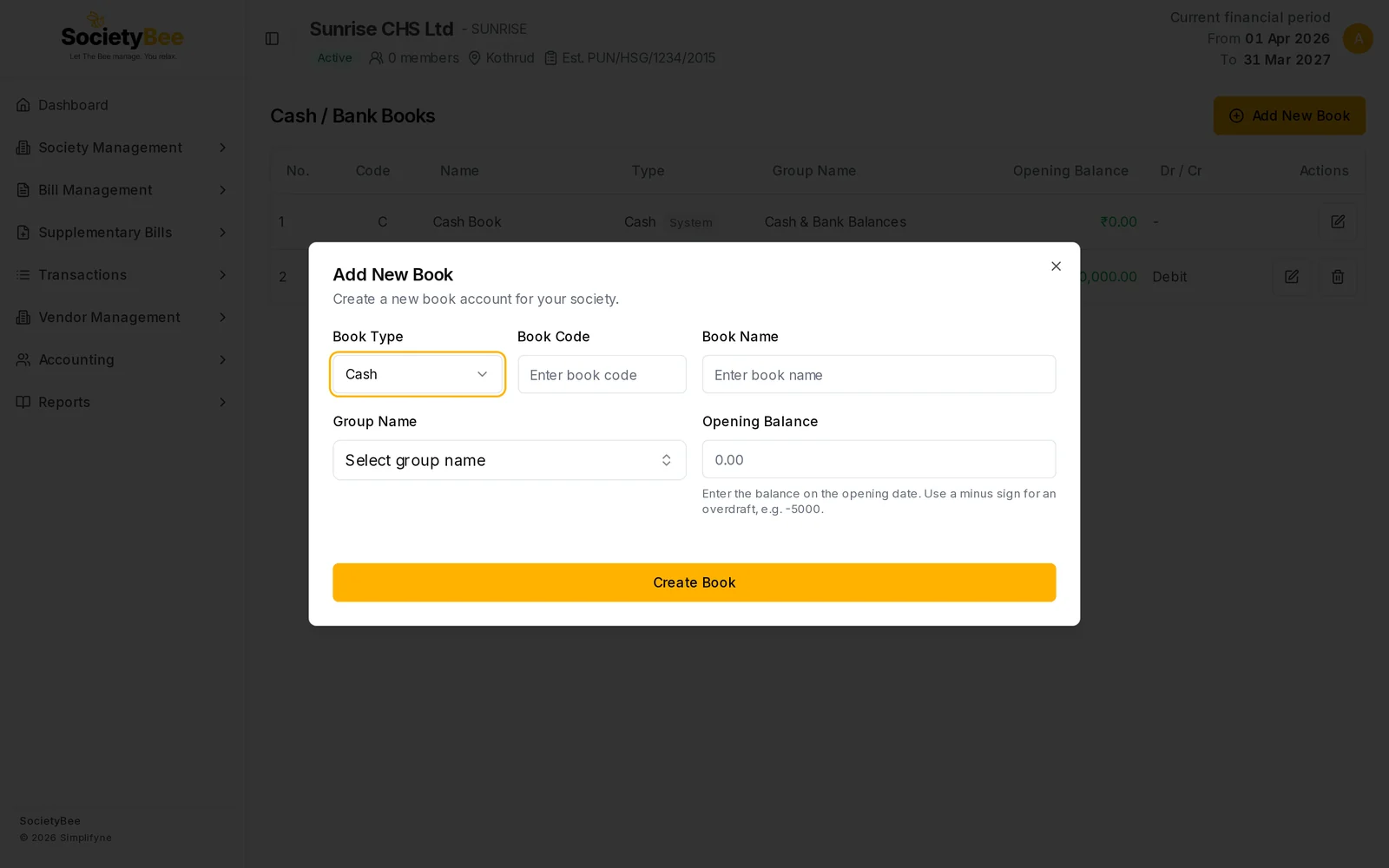
Add New Book. Choose Book Type first. Choose the Book Type
Pick Bank for a bank account or Cash for an extra cash box. Choosing Bank adds fields for the account details.
Enter the Book Code and Book Name
The code is a short unique label, for example
HDFC. The name is what you will see in lists, for exampleHDFC Bank - Kothrud.Choose the Group Name
Pick Cash & Bank Balances - (assets). This is the group where cash and bank books belong.
Enter the Opening Balance
Type the balance on the opening date. Use a minus sign for an overdraft, for example
-5000. See Opening balances and arrears.Fill the bank details (bank only)
Enter Account Number, IFSC Code, Branch Name and Address. You can also upload a Payment QR Code, which is printed on the maintenance bill as "Scan to pay" (PNG, JPG or WebP, square, 500 x 500 px recommended, max 1 MB).
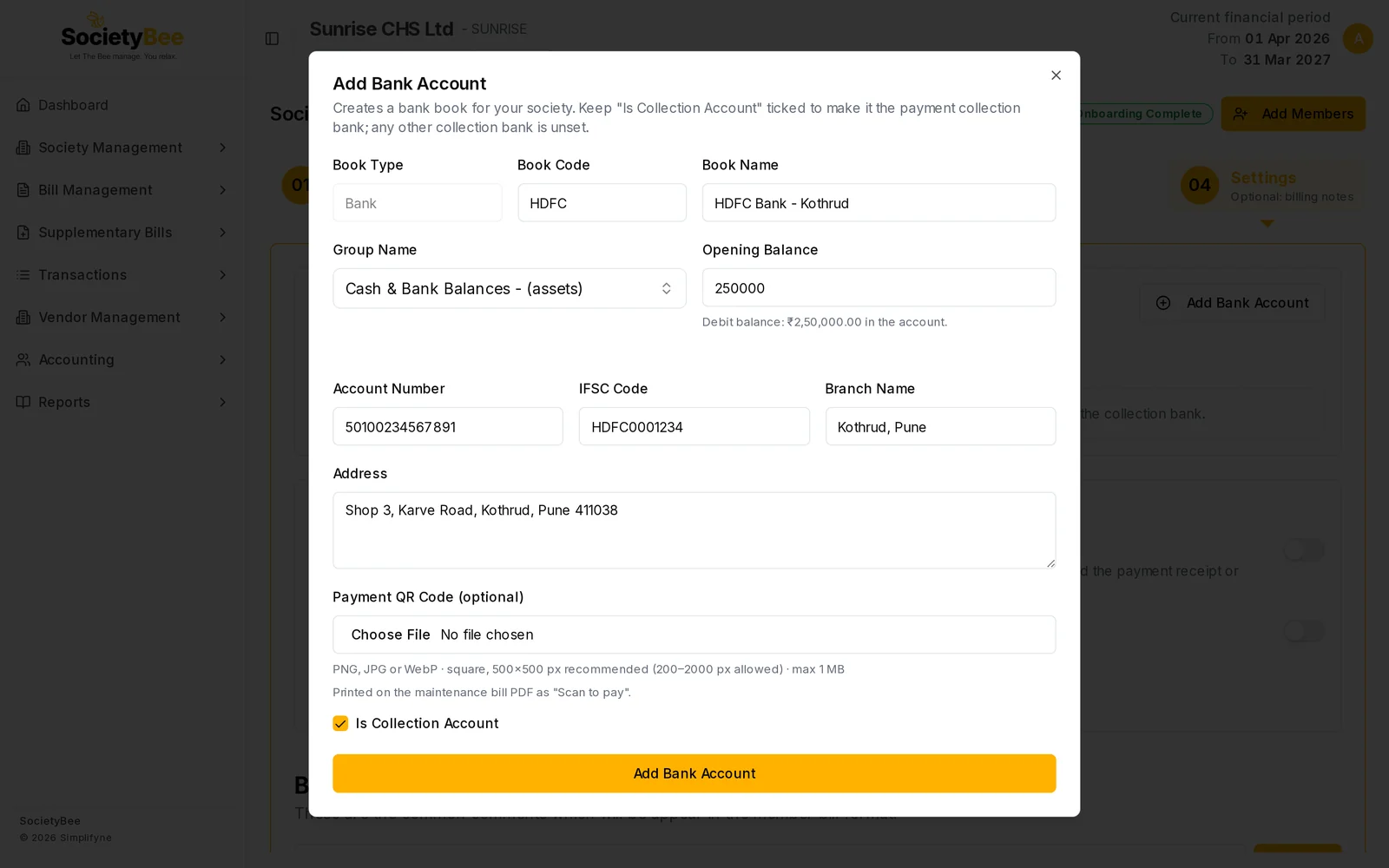
A completed bank account. The same dialog opens from the Settings step. Tick Is Collection Account if members pay into this bank
The collection account is the bank whose details print on bills and where online payments are recorded. Only one bank can be the collection bank, and ticking this switches any other one off.
Press the Add button
The bank appears in the list. Add Bank Account is the button label when you add from the Settings step. Create Book is the label in the Add New Book dialog.
Edit a book or set the opening cash
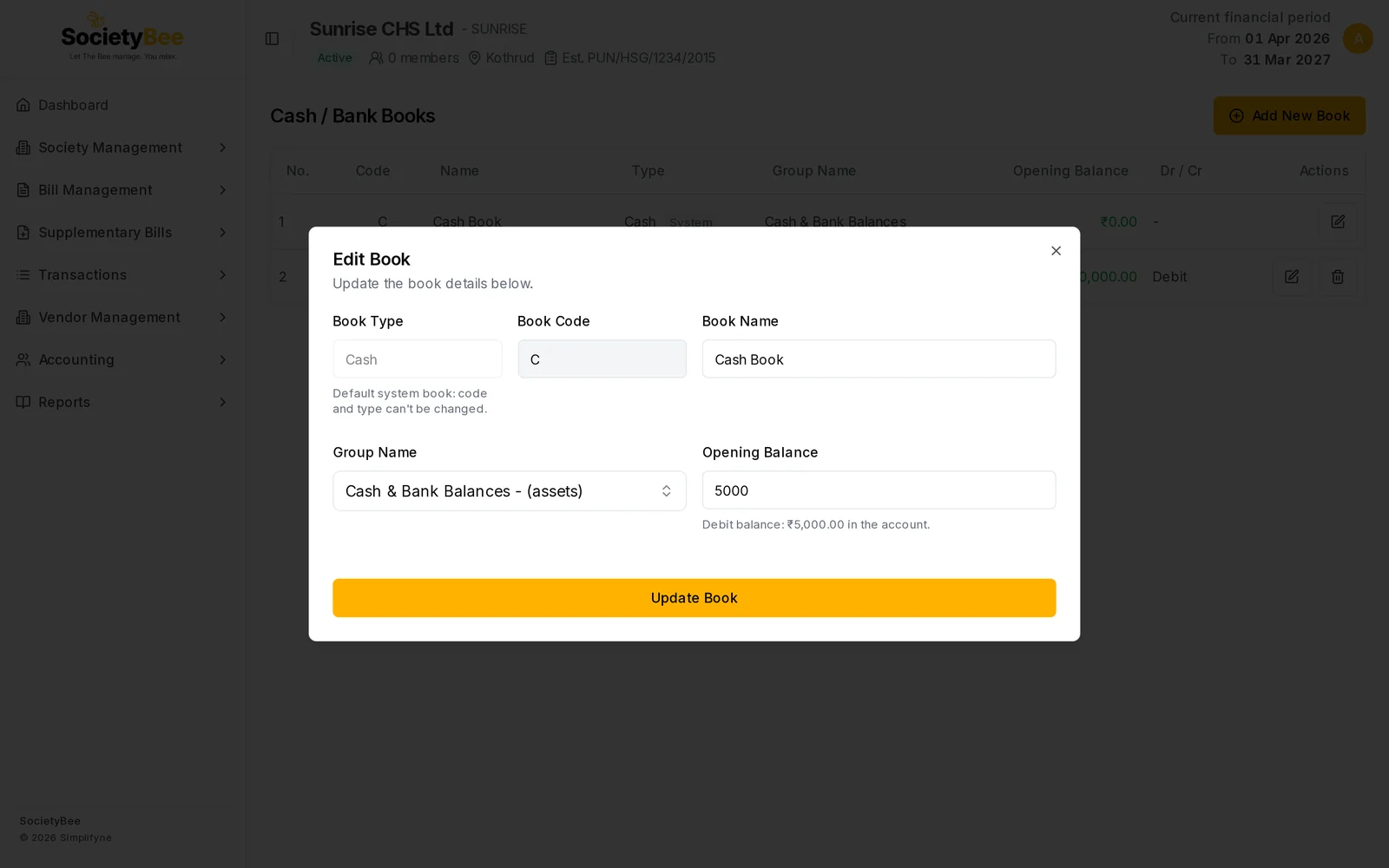
Click the edit icon on a row to open Edit Book. For the Cash Book, the note Default system book: code and type can't be changed appears. Change the Opening Balance and press Update Book. The dialog shows what you entered as Debit balance: ₹5,000.00 in the account.
The bin icon on a bank row deletes that book after a confirmation. Do not delete a book that already has receipts or payments.
Account Master (chart of accounts)
Account Master lists every account ledger of the society, with its Code, Account type (Liabilities, Assets, Income, Expenses), Name, Group Name, Last Year Balance and Opening Balance. Your bill headings, such as Maintenance Charges, are accounts in this list.
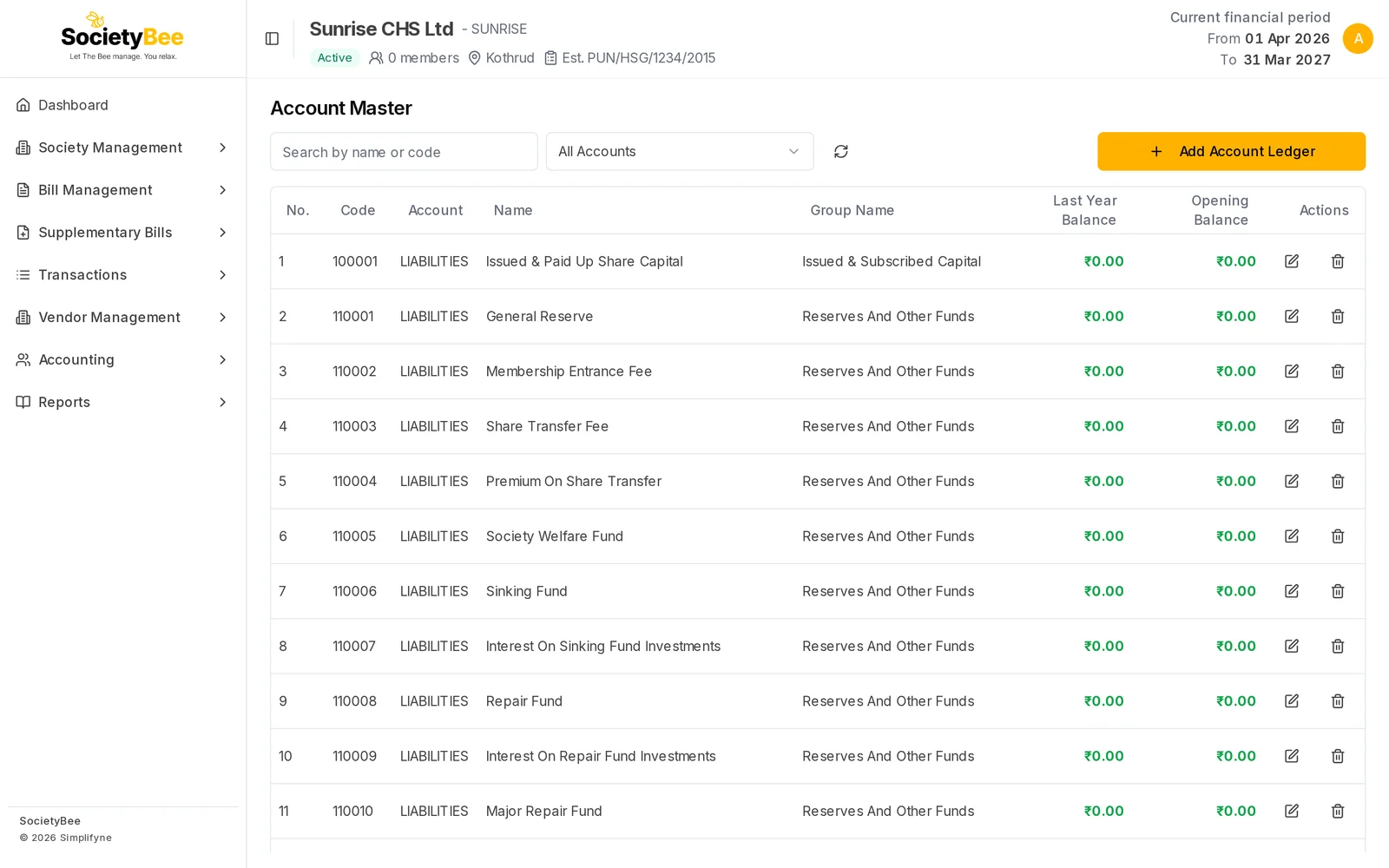
- Search by name or code finds an account quickly.
- The All Accounts filter narrows the list by account type.
- The refresh button reloads the list.
- The edit and bin icons on each row change or remove an account.
Add a new account ledger
Click Add Account Ledger. The dialog tells you the last code used in each type, for example In Income last code is 720006, so you can pick the next number.
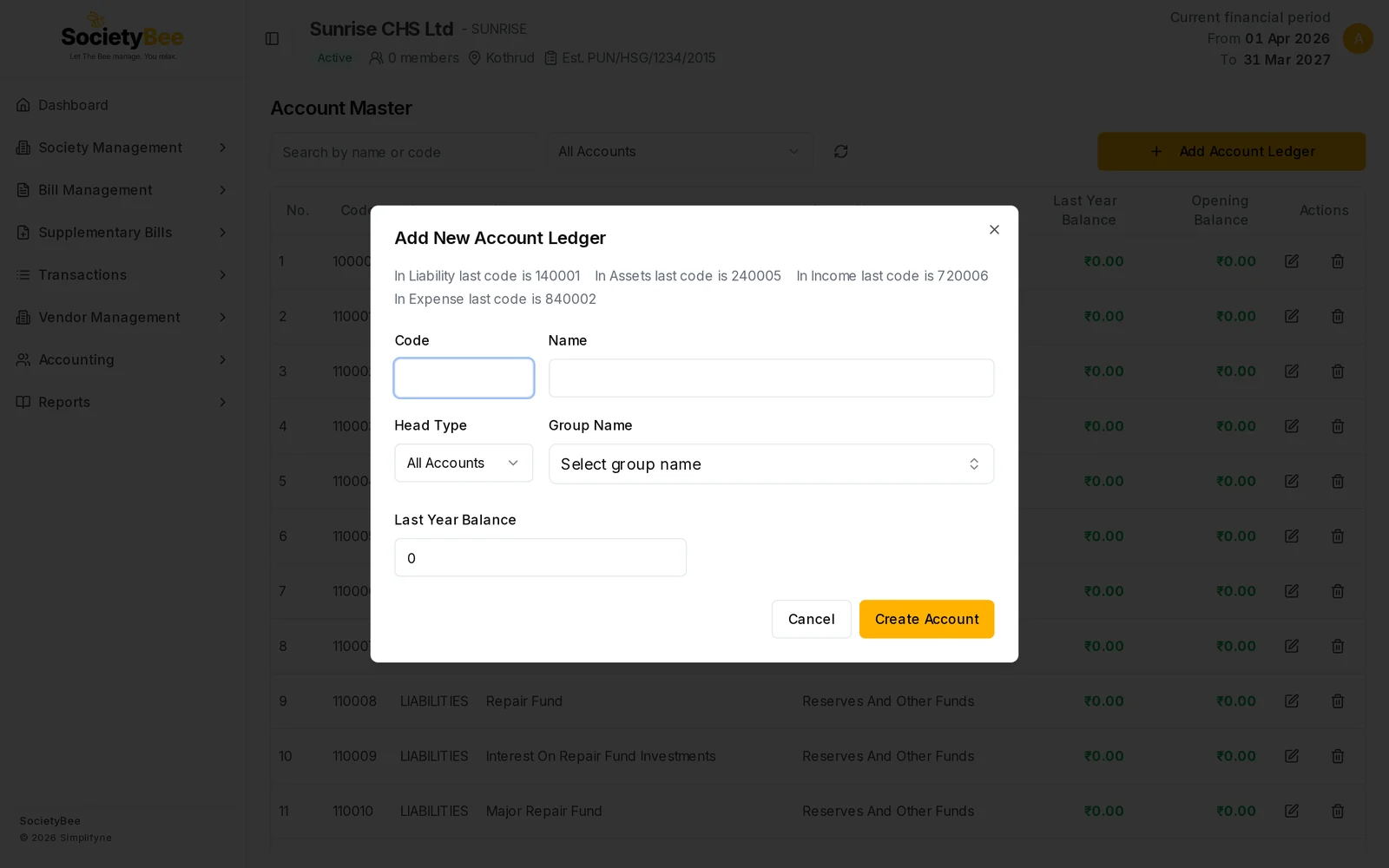
Fill the Code, Name, Head Type and Group Name, set the Last Year Balance if there is one, and press Create Account.
Account Head Group
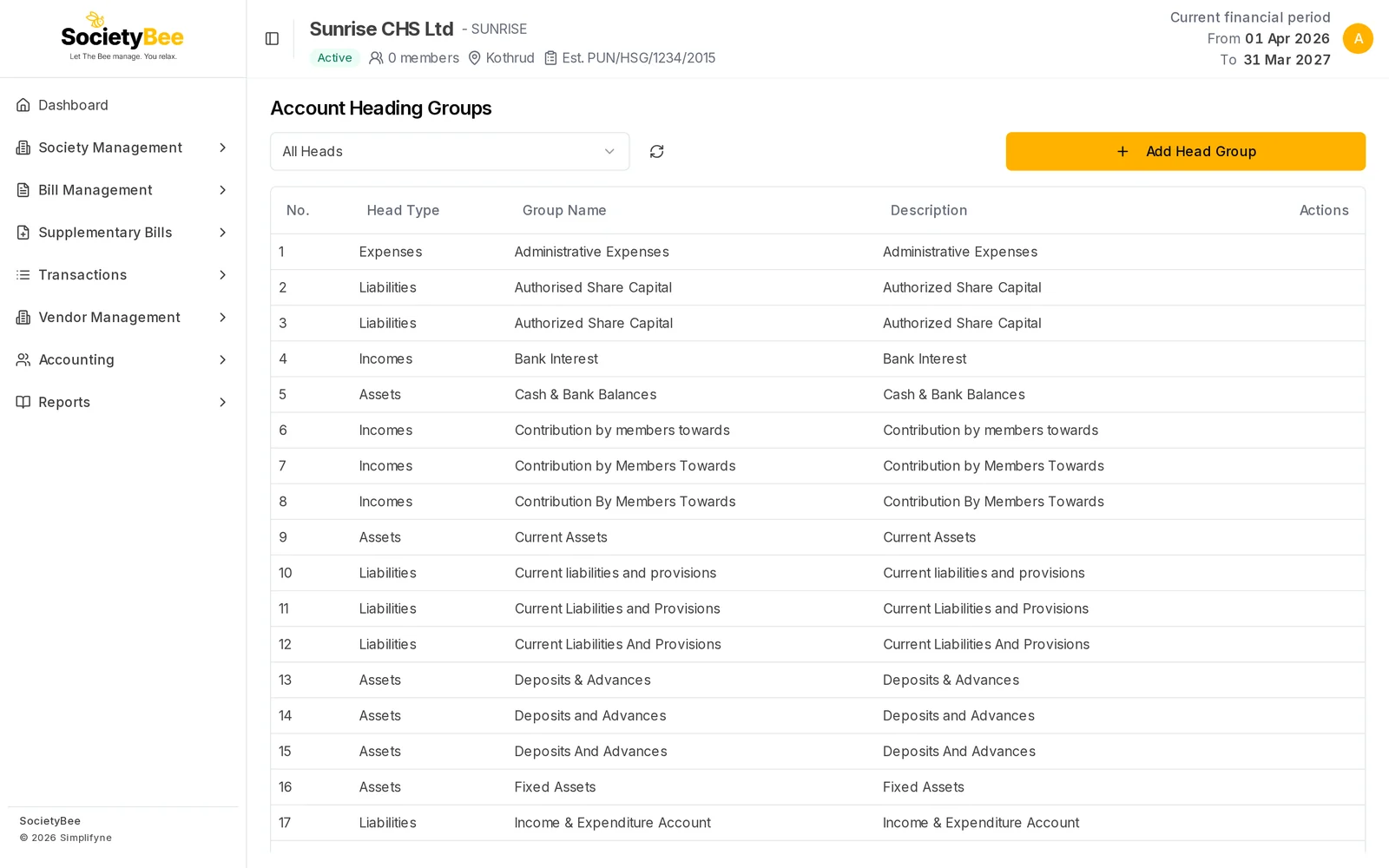
A head group collects accounts under a type, for example Cash & Bank Balances under Assets. The list shows Head Type, Group Name and Description, and a filter lets you view one head type. Use Add Head Group only when you need a group that does not exist. Most societies never need to.
Fields and buttons
| Field or button | What it means | Example |
|---|---|---|
| Book Type | Bank or Cash | Bank |
| Book Code | Short unique label | HDFC |
| Book Name | Name shown in lists | HDFC Bank - Kothrud |
| Group Name | Where the book sits in the accounts | Cash & Bank Balances - (assets) |
| Opening Balance | Balance on the opening date. Minus sign for overdraft. | 250000 |
| Account Number / IFSC Code / Branch Name / Address | Bank details printed on bills | 50100234567891, HDFC0001234 |
| Payment QR Code (optional) | Image printed as "Scan to pay" on the bill | PNG, 500 x 500 |
| Is Collection Account | This bank receives member payments | Ticked |
| Create Book / Add Bank Account | Save the new book | |
| Update Book | Save changes to a book | |
| Add Account Ledger | Open the new account dialog | |
| Create Account | Save the new account | |
| Add Head Group | Add a new group |
Common mistakes and questions
Can I delete the Cash Book? No. It is a system book. You can change its name, group and opening balance.
Which opening balance do I enter, cash or bank? Enter the balance as it stands on the first day of your books, from the bank statement or cash count. Use a minus sign only for an overdraft.
I added the bank but it is not the collection bank. Open Settings under Society Information and choose it in the Collection bank list.
What happens next
Go on to Opening balances and arrears, then add members.