
Collection bank, WhatsApp reminders and bill comments
Choose the bank that receives payments, switch on WhatsApp due-date reminders and receipt messages, and add common notes that print on every bill.
Before you start
What this page does
The Settings step is optional. Your society is already fully onboarded once Bill Headings are saved, but this page lets you add three useful things: the Payment Collection Bank that members pay into, WhatsApp notifications for reminders and receipts, and Bill Comments, short notes printed on every member bill.
Where to find it
Go to Society Management > Information and open the Settings tab (step 04, labelled Optional: billing notes).
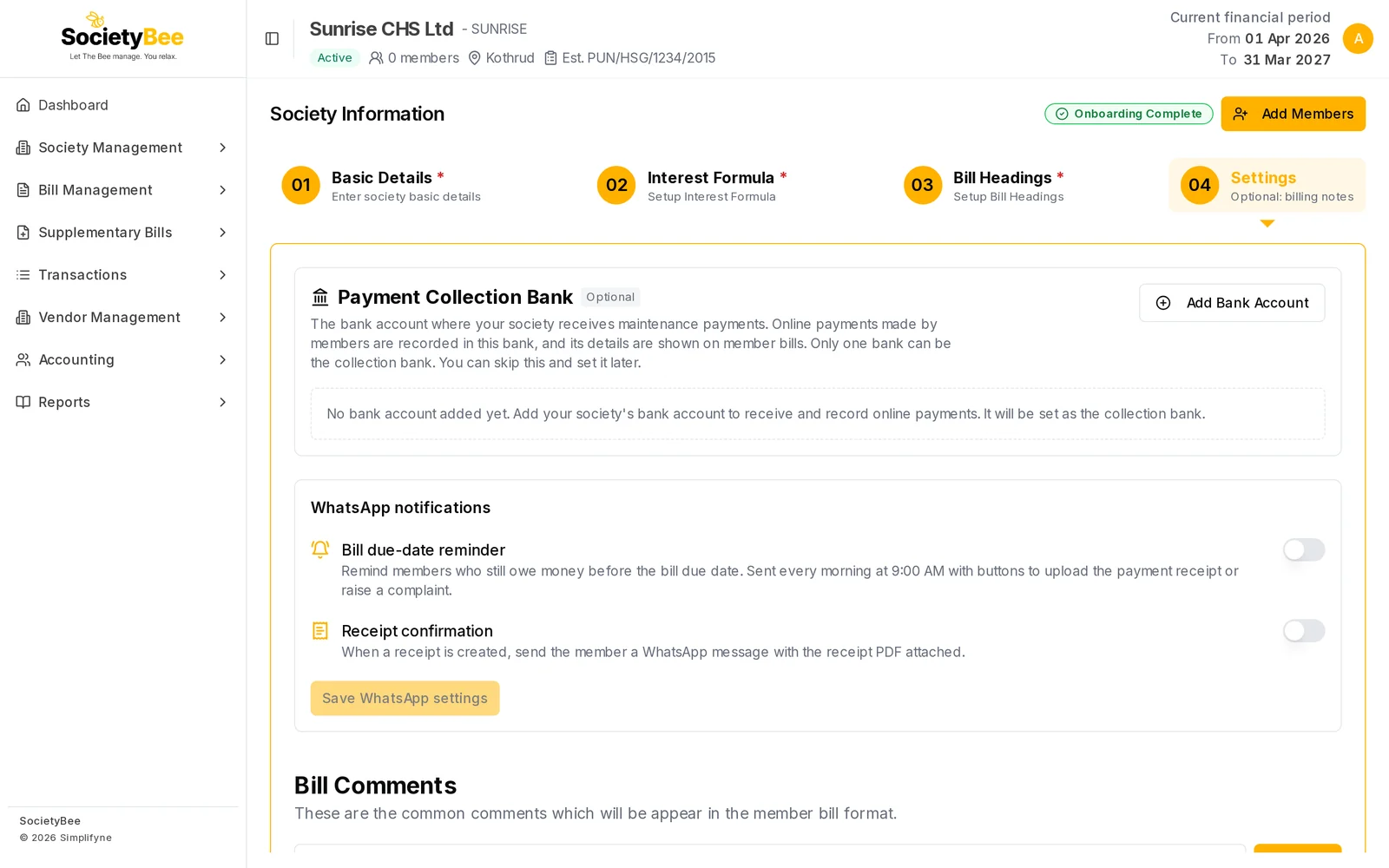
Payment Collection Bank
This is the bank account where your society receives maintenance. Online payments made by members are recorded in this bank, and its details are shown on member bills. Only one bank can be the collection bank.
Click Add Bank Account
If no bank exists yet, the box says No bank account added yet. A dialog opens. It creates a bank book for your society, and the same bank also appears under Bank books and cash book.
Fill in the bank details and add it
Enter the details and press Add Bank Account. Keep Is Collection Account ticked so this becomes the collection bank. Any other collection bank is switched off. The full field list is in Bank books and cash book.
Check the details shown
The page now shows a Collection bank list with the bank's Account No, IFSC and Branch underneath. To change it later, pick another bank in the list, or choose None to clear it.
WhatsApp notifications
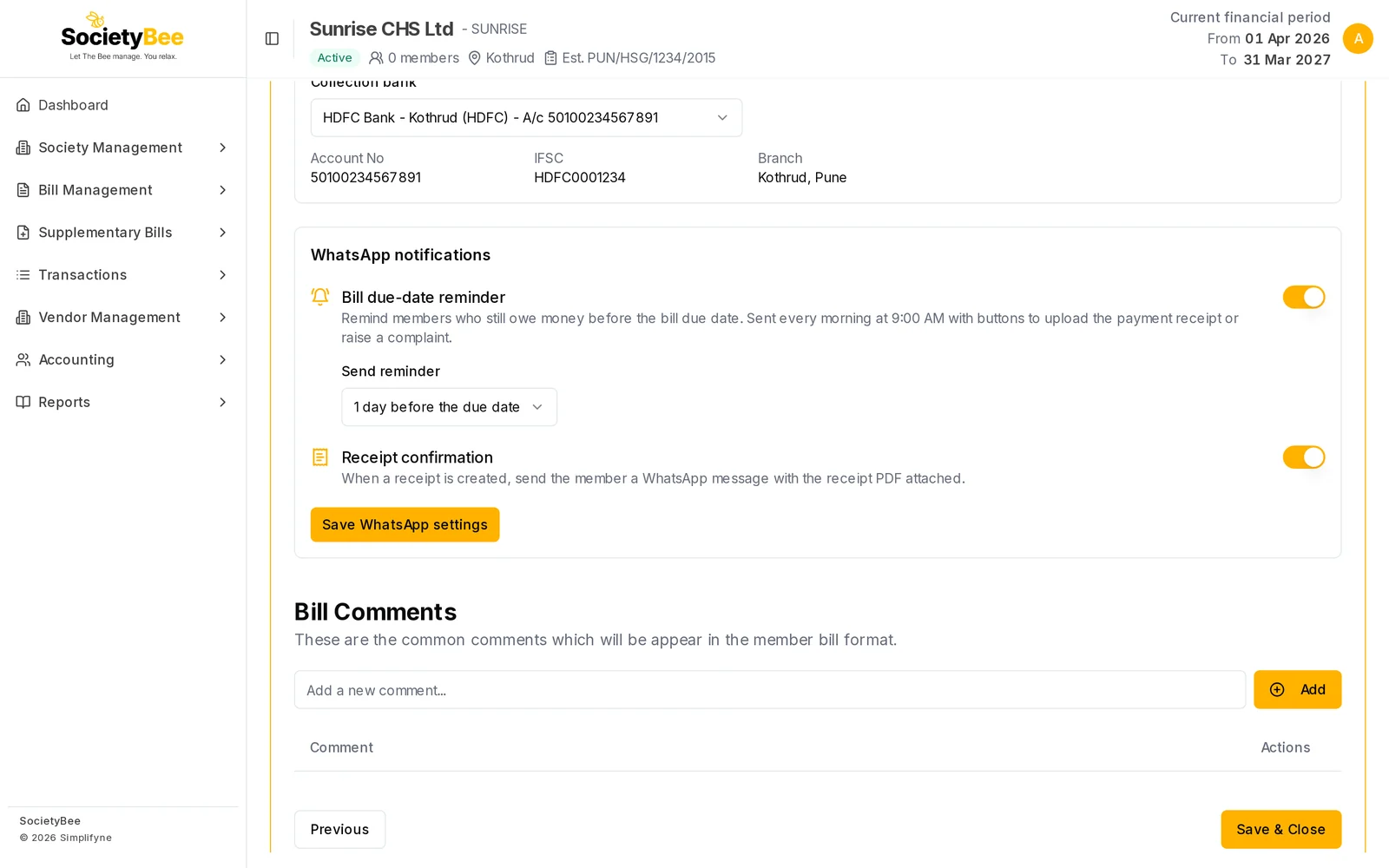
Bill due-date reminder
Switch this on to remind members who still owe money before the bill due date. The message goes out every morning at 9:00 AM and has buttons to upload the payment receipt or raise a complaint.
Choose when to remind
When the reminder is on, a Send reminder list appears. Choose On the due date, or 1, 2, 3, 5 or 7 days before the due date. The default is 1 day before.
Receipt confirmation
Switch this on to send the member a WhatsApp message with the receipt PDF attached whenever a receipt is created.
Save WhatsApp settings
Press Save WhatsApp settings. The button is greyed out until you change something.
Bill Comments
Bill comments are the common notes that appear in the member bill format. Typical examples are who cheques should be made out to, how interest is charged, and what to quote in the payment reference.
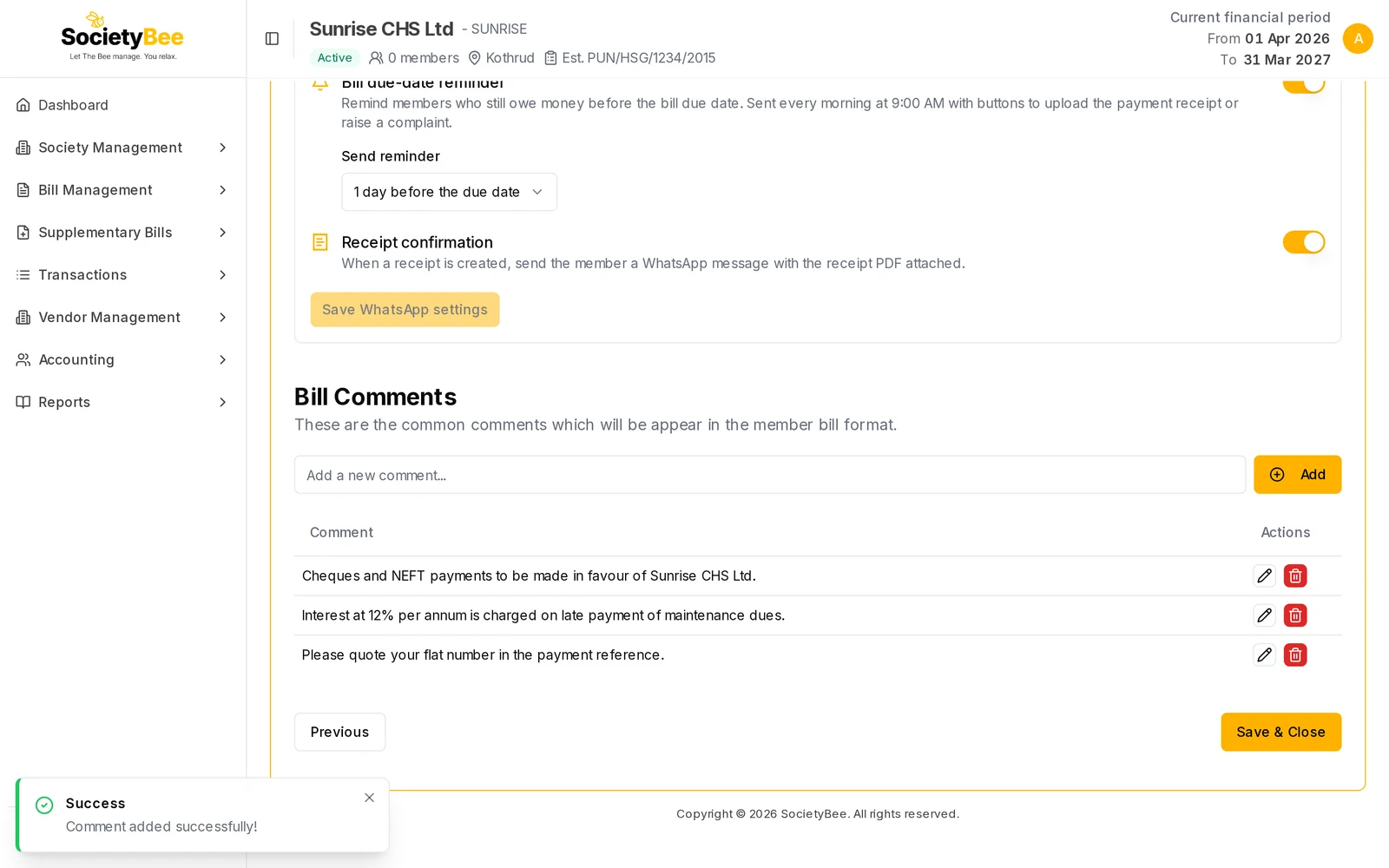
Type a comment and press Add
Write one comment in the box Add a new comment... and press Add. It appears in the table below.
Edit a comment
Click the pencil next to a comment, change the text, then press Enter or click away to save.
Delete a comment
Click the red bin next to the comment.
Finish
Press Save & Close to go to the Dashboard. Previous goes back one page.
Fields and buttons
| Field or button | What it means | Example |
|---|---|---|
| Add Bank Account | Opens a dialog to create a bank book | |
| Collection bank | The one bank that receives member payments. None clears it. | HDFC Bank - Kothrud |
| Bill due-date reminder (switch) | WhatsApp reminder to members who still owe | On |
| Send reminder | When the reminder goes out: on the due date, or 1, 2, 3, 5 or 7 days before | 1 day before the due date |
| Receipt confirmation (switch) | WhatsApp message with the receipt PDF when a receipt is created | On |
| Save WhatsApp settings | Saves both switches and the reminder day | |
| Add a new comment | A note printed on every bill | Please quote your flat number in the payment reference. |
| Pencil / bin | Edit or delete a comment | |
| Previous | Go back one page | |
| Save & Close | Go to the Dashboard |
Common mistakes and questions
Do I have to fill the Settings step? No. It is optional, and you can come back later.
Members are not getting WhatsApp reminders. Check that Bill due-date reminder is switched on and saved. A member must also have a mobile number on their profile.
What happens next
Your society is set up. Next, add your bank books and cash book if you have not yet, enter opening balances, and then add members.