
Society basic details and bill settings
Fill in your society's registration, address and bill settings on the first Society Information step, and see how the bill dates are worked out for you.
Before you start
What this page does
The Basic Details step stores who your society is, where it is, and how it bills. It is the first of the Society Information steps. Everything you enter here is printed on bills and receipts, and the bill settings decide your billing calendar.
Where to find it
Open your society, then go to Society Management > Information. The first tab is Basic Details (route /<society code>/info/step1).
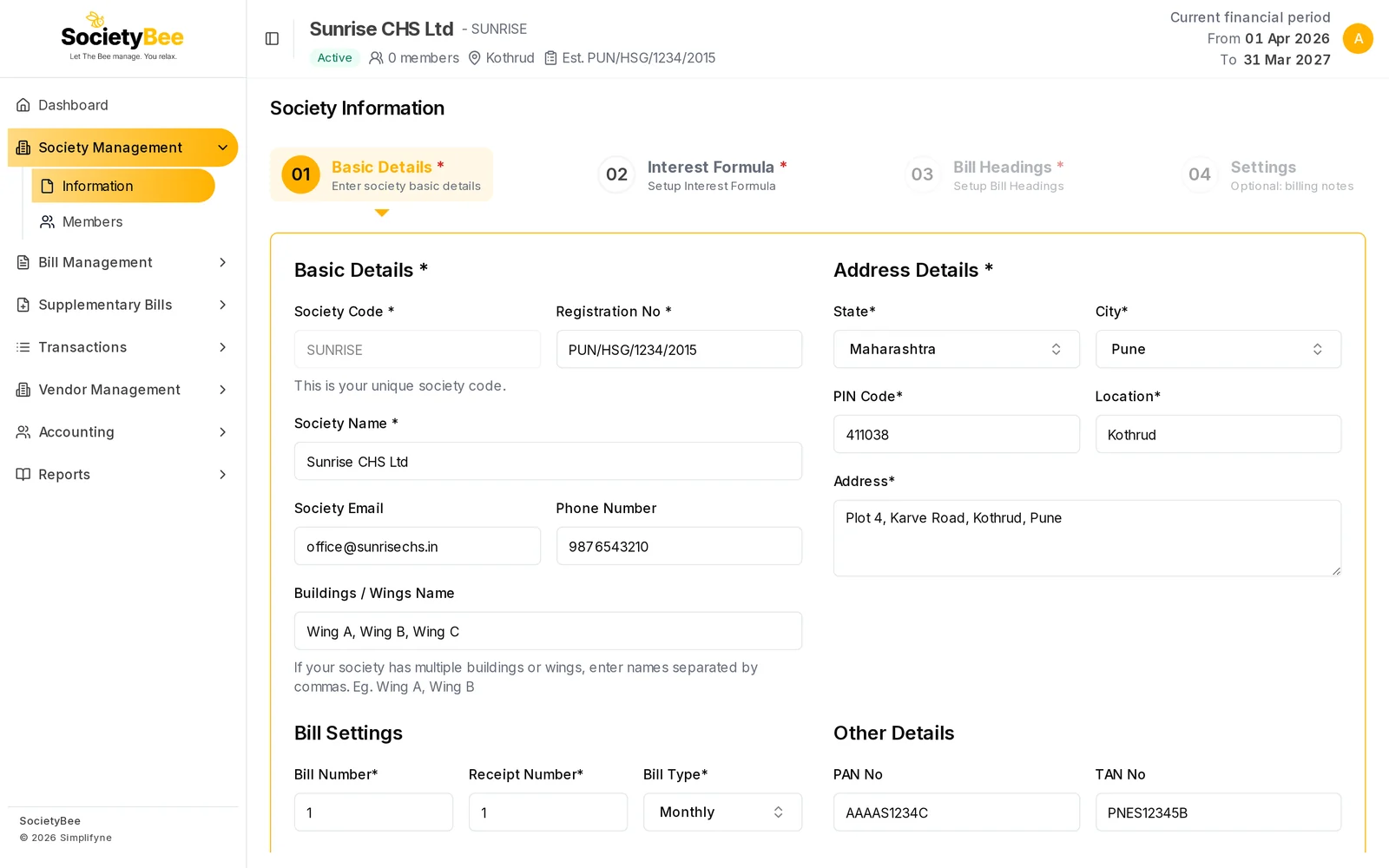
Fill in the page
Check the Society Code and enter the Registration No
The Society Code is shown greyed out. It is your unique society code and cannot be changed. Type your society's Registration No exactly as on the registration certificate.
Enter the Society Name
Type the full legal name. It is printed at the top of every bill.
Add contact details (optional)
Society Email and Phone Number are optional, but add them so members know where to reach the office.
Add buildings or wings (optional)
If you have more than one building, type their names in Buildings / Wings Name, separated by commas. Example:
Wing A, Wing B.Fill the address
Choose the State, then the City. The city list loads after you pick the state. Then enter the PIN Code (6 digits), Location and full Address.
Set the starting Bill Number and Receipt Number
These are the numbers your next bill and receipt will get. A new society usually starts both at
1. If you are moving from another system, enter the next unused number so numbering continues without a gap.Choose the Bill Type (frequency)
Pick how often you bill. See the table below. Changing it recalculates the bill dates straight away.
Pick the Current Bill Start Date
Choose the first day of the bill period you are about to bill. The Current Bill End Date and Next Bill Date fill in automatically.
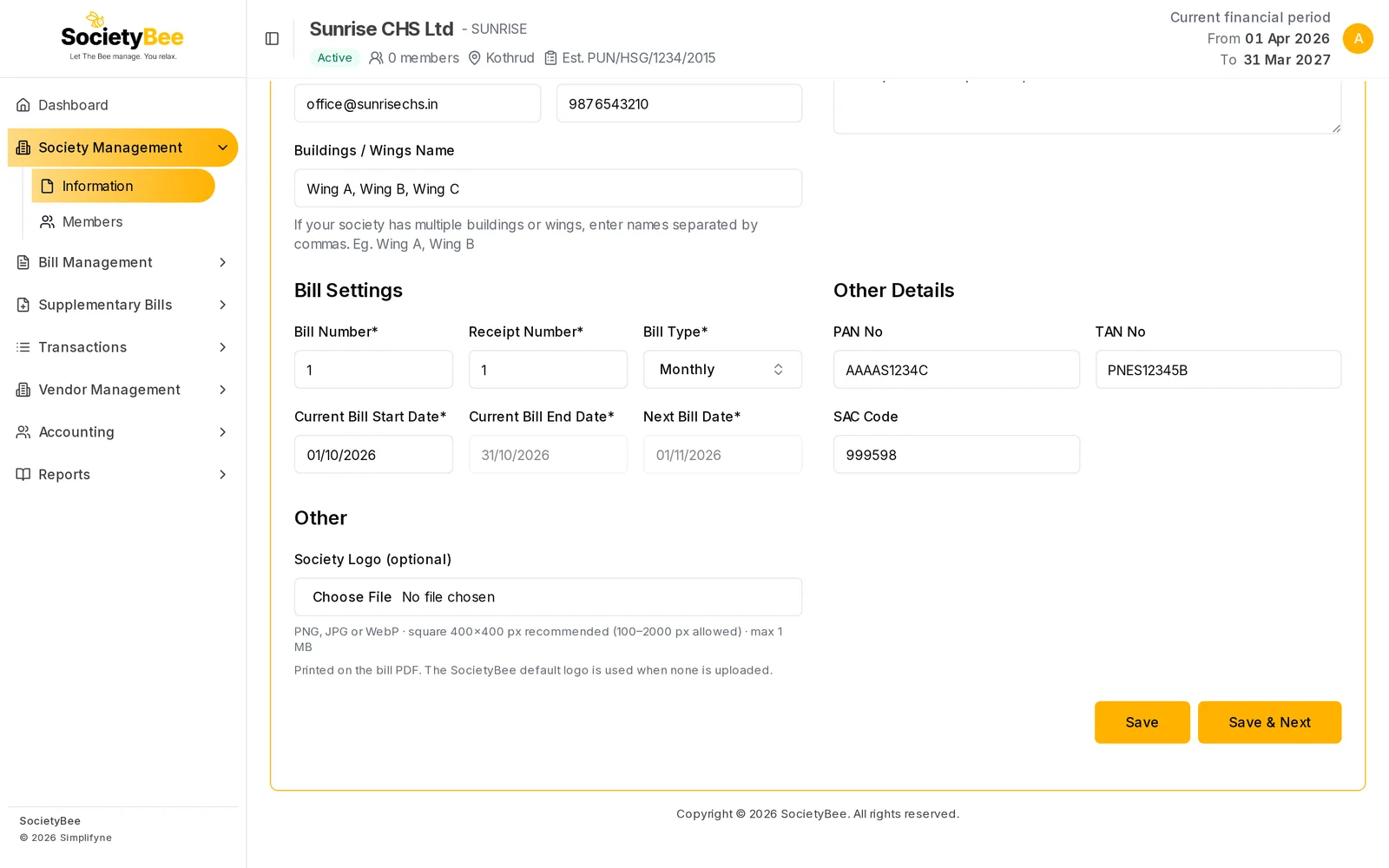
Start date 01/10/2026 with Monthly billing gives end date 31/10/2026 and next bill date 01/11/2026. Upload the logo (optional)
Add your society logo. It is printed on the bill PDF. If you skip it, the SocietyBee logo is used. Accepted: PNG, JPG or WebP, square 400 x 400 px recommended (100 to 2000 px allowed), max 1 MB.
Add tax details (optional)
Enter PAN No, TAN No and SAC Code if you have them. TAN is 10 characters and is converted to capital letters as you type.
Save
Press Save & Next to store everything and move to the Interest Formula step. See the buttons table below.
Fields and buttons
| Field or button | What it means | Example | Required |
|---|---|---|---|
| Society Code | Your unique code, used in the web address. Read-only. | ABC123 | Fixed |
| Registration No | Registration number of the society | PUN/HSG/1234/2015 | Yes |
| Society Name | Legal name printed on bills | Sunrise CHS Ltd | Yes |
| Society Email | Office email | office@sunrise.in | No |
| Phone Number | Office phone | 9876543210 | No |
| Buildings / Wings Name | Comma-separated building names | Wing A, Wing B | No |
| State, City | Where the society is. City depends on State. | Maharashtra, Pune | Yes |
| PIN Code | 6-digit postal code | 411001 | Yes |
| Location | Area or locality | Kothrud | Yes |
| Address | Full postal address | Plot 4, Karve Road | Yes |
| Bill Number | Number the next bill will get (minimum 1) | 1 | Yes |
| Receipt Number | Number the next receipt will get (minimum 1) | 1 | Yes |
| Bill Type | Billing frequency | Monthly | Yes |
| Current Bill Start Date | First day of the period being billed | 01-10-2026 | Yes |
| Current Bill End Date | Worked out for you. Greyed out. | 31-10-2026 | Automatic |
| Next Bill Date | Worked out for you. Greyed out. | 01-11-2026 | Automatic |
| Society Logo | Image printed on the bill PDF | PNG, 400 x 400 | No |
| Remove current logo | Deletes the saved logo | No | |
| PAN No / TAN No / SAC Code | Tax identifiers | No | |
| Save | Saves and stays on this page. A success message appears. Hidden while the society is still in its first setup. | ||
| Save & Next | Saves and opens the Interest Formula step |
How the bill dates are worked out
You only choose the Bill Type and the Current Bill Start Date. SocietyBee adds the period for you:
| Bill Type | Period length | If start date is 01-10-2026, end date is | Next bill date is |
|---|---|---|---|
| Monthly | 1 month | 31-10-2026 | 01-11-2026 |
| Bi-Monthly | 2 months | 30-11-2026 | 01-12-2026 |
| Quarterly | 3 months | 31-12-2026 | 01-01-2027 |
| Half-Yearly | 6 months | 31-03-2027 | 01-04-2027 |
| Yearly | 12 months | 30-09-2027 | 01-10-2027 |
Common mistakes and questions
I get "Form Validation Error. Please check the form field." A required field is empty or invalid. Look for the red message under each field. The usual causes are a missing Registration No, a PIN code that is not 6 digits, or a Bill/Receipt Number below 1.
Can I change the Society Code later? No. It is fixed when the society is created.
Should the Bill Number be 1 if we already issued bills elsewhere? No. Enter the next unused number, so your numbering carries on from the old system.
What happens next
After saving, the society moves on to the Interest Formula step, where you define how late payment interest is charged. Bill Headings and the remaining steps follow. Once Bill Headings are saved, onboarding shows as complete and you can add members.