
Set up bill headings
Add the charges that appear on every member bill, such as Maintenance, Sinking Fund and Water, and decide which ones earn interest or carry GST.
Before you start
What this page does
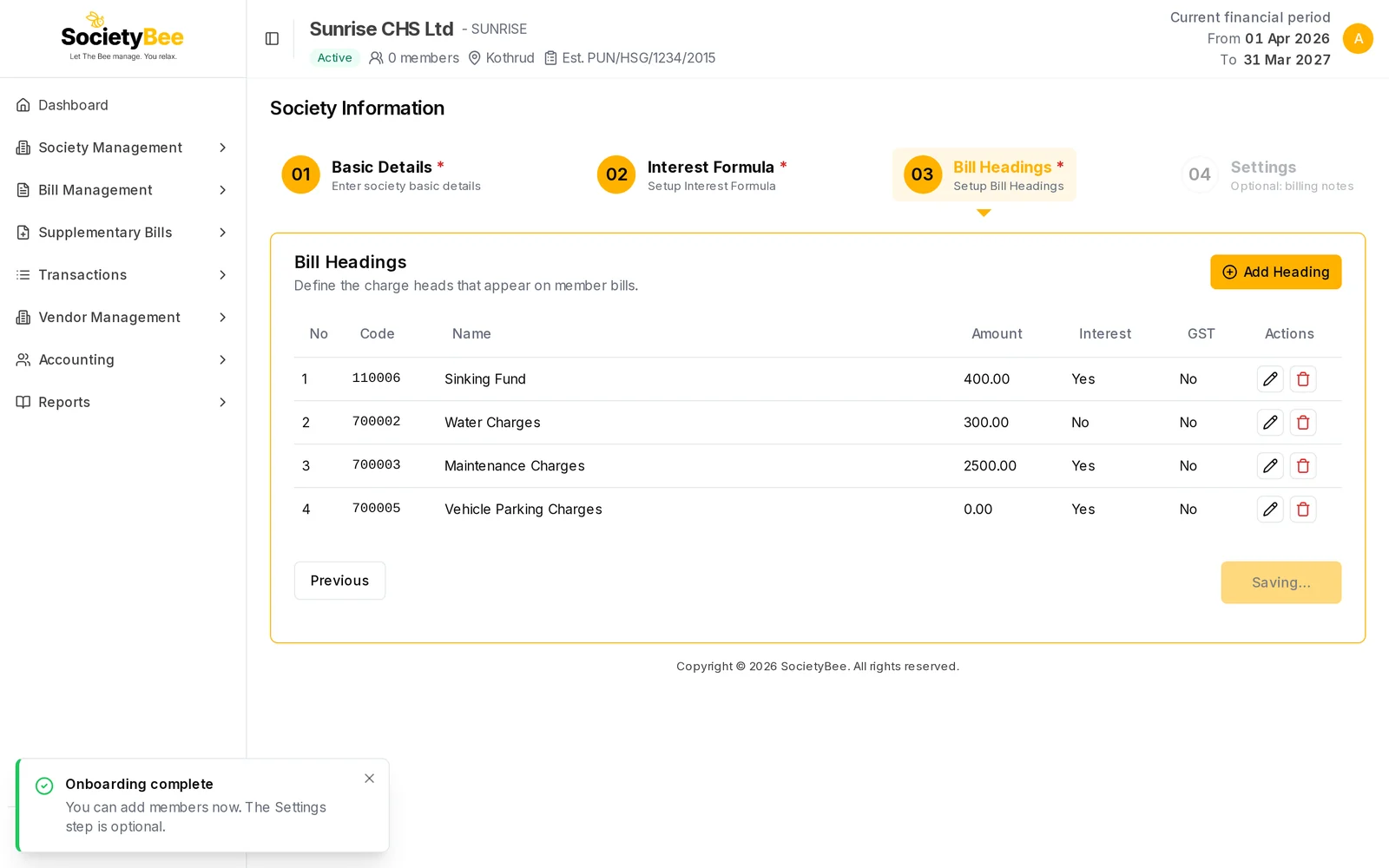
A bill heading is one line of charge on a member's bill, for example Maintenance Charges or Water Charges. The Bill Headings step is where you choose these lines, give each a default amount, and say whether it earns late-payment interest or carries GST. Saving this step completes your society's onboarding.
Where to find it
Go to Society Management > Information and open the Bill Headings tab (step 03). You reach it with Save & Next from the Interest Formula tab.
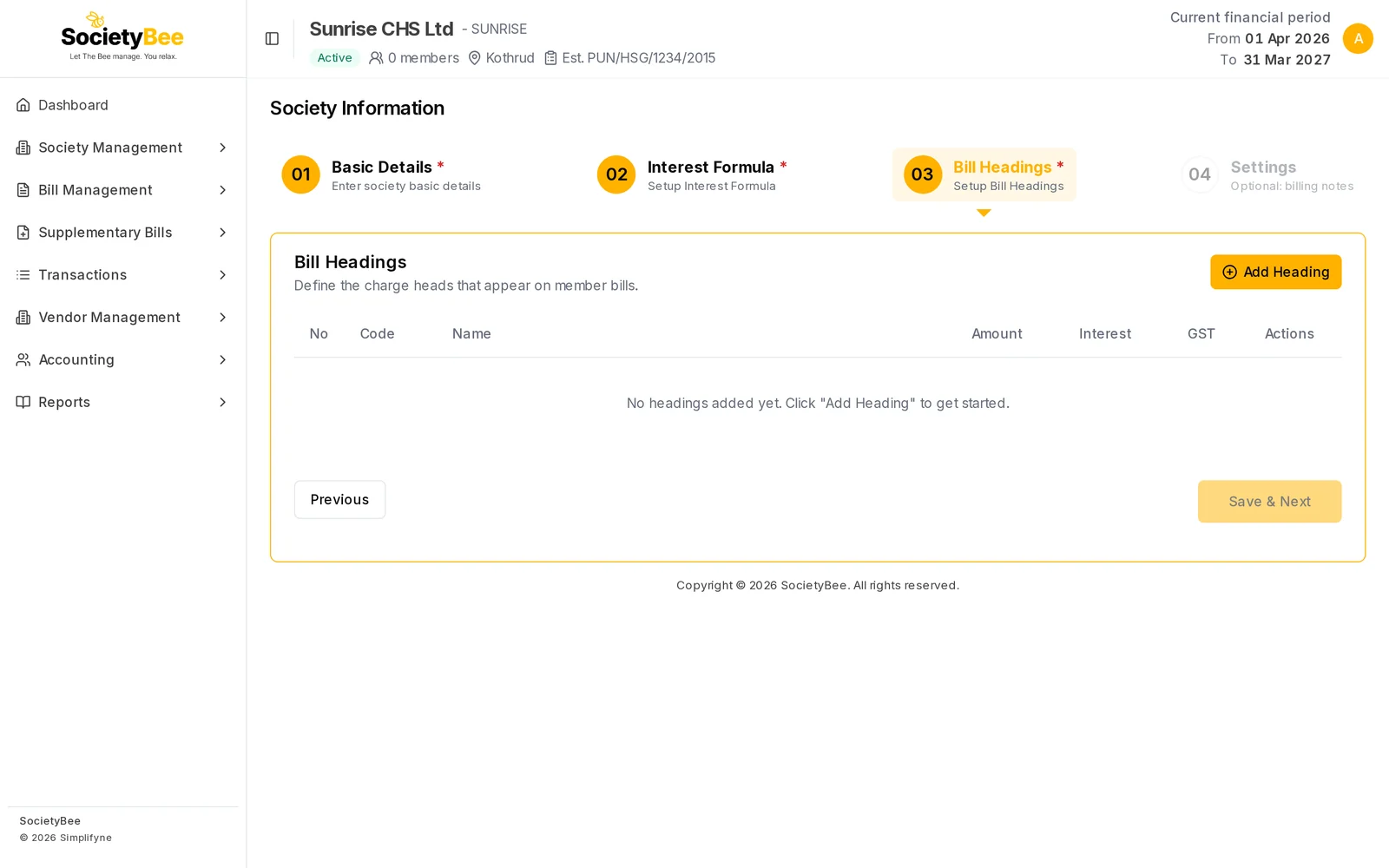
Add a heading that already exists
Your society already comes with a standard list of accounts, so most charges are one search away.
Click Add Heading
A panel called Add Bill Heading slides in from the right.
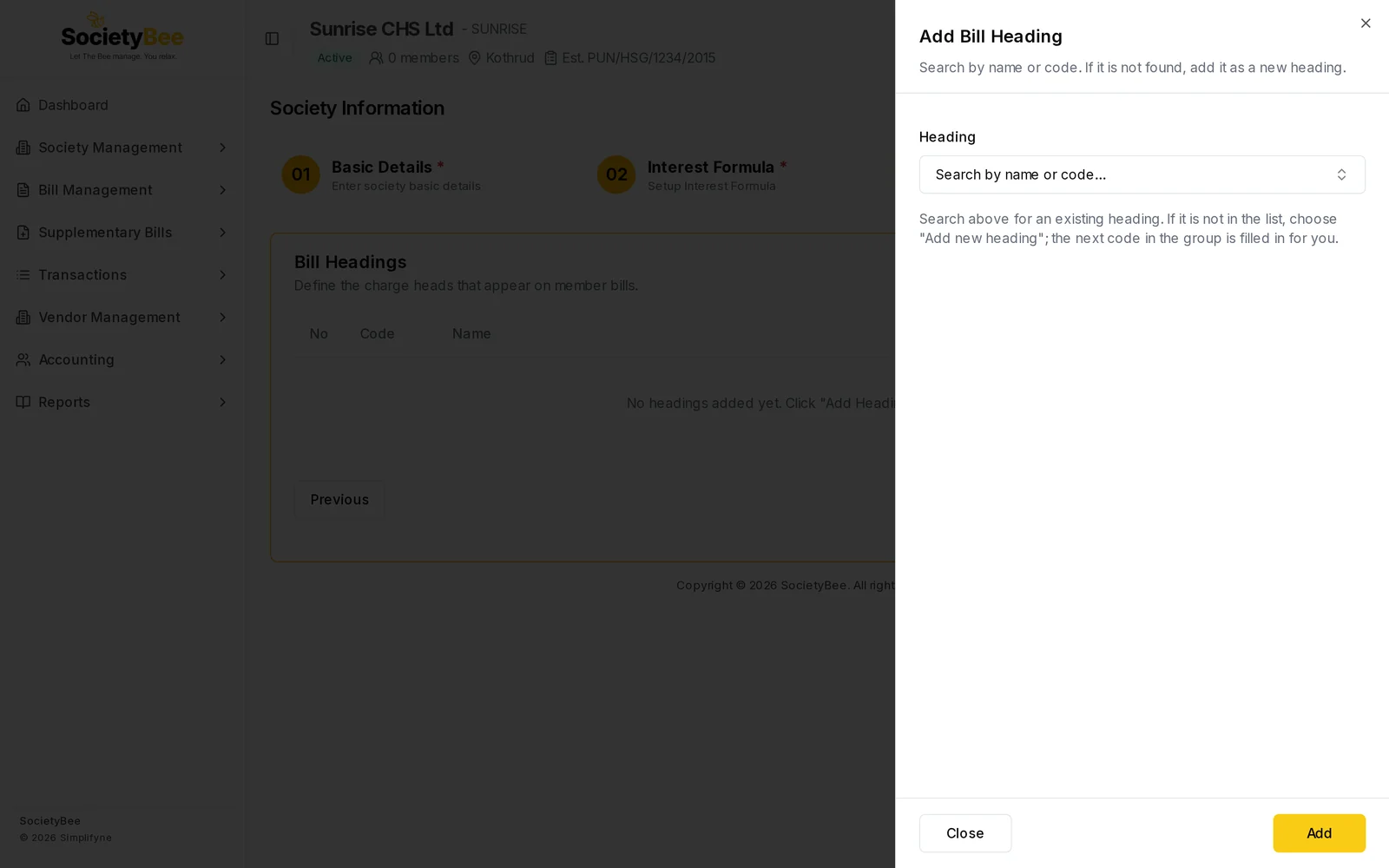
The Add Bill Heading panel. Search for the charge
Click the Heading box and type a name or code, for example
Maintenance. The list shows matching accounts with their group. A heading that is already on the bill shows already added and cannot be picked again.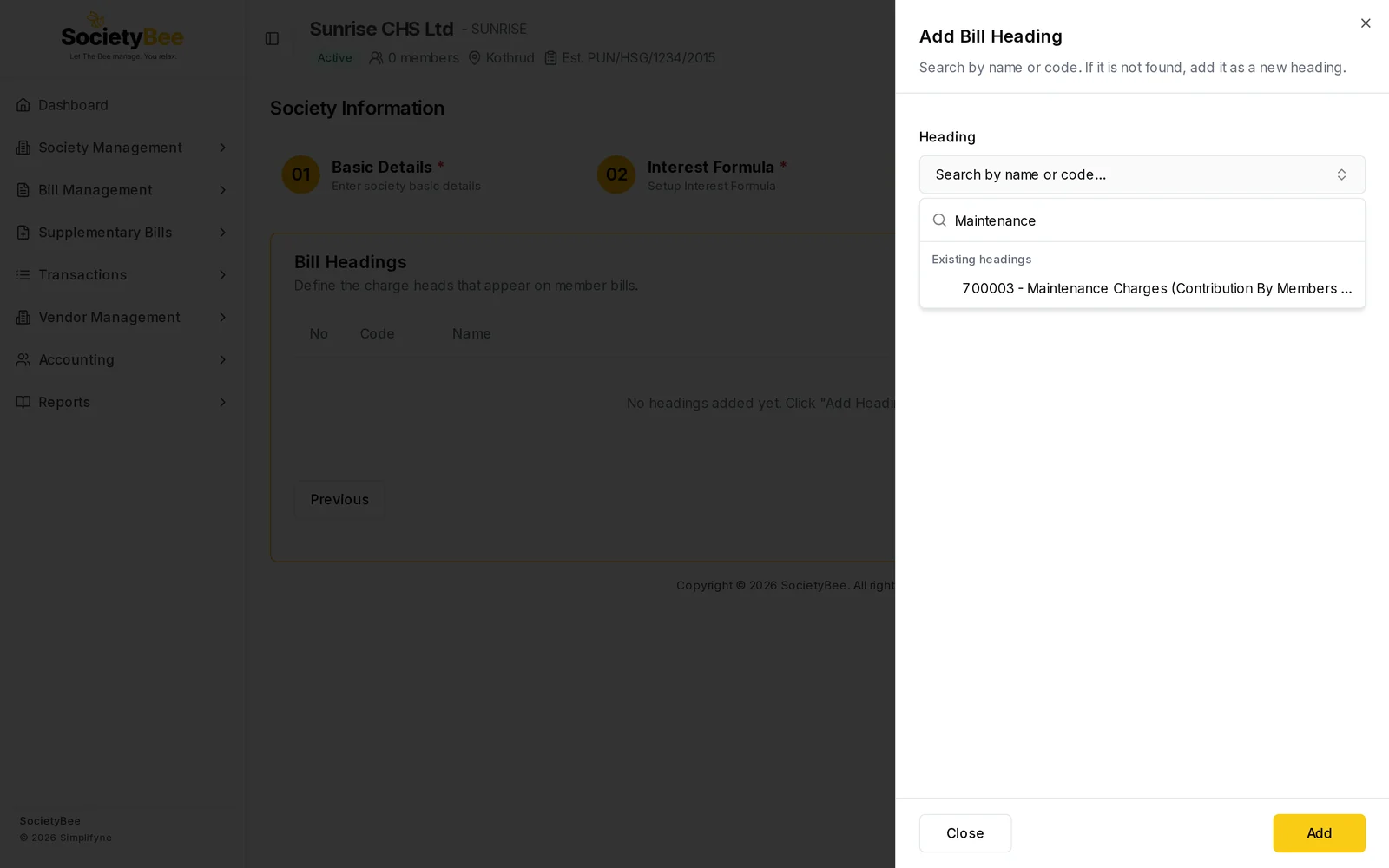
Type part of the name or the account code. Pick the account and enter the Amount
Click the matching line. Then type the Amount every member pays for this heading. If amounts differ between members, leave it at
0and set each member's amount later when you add members.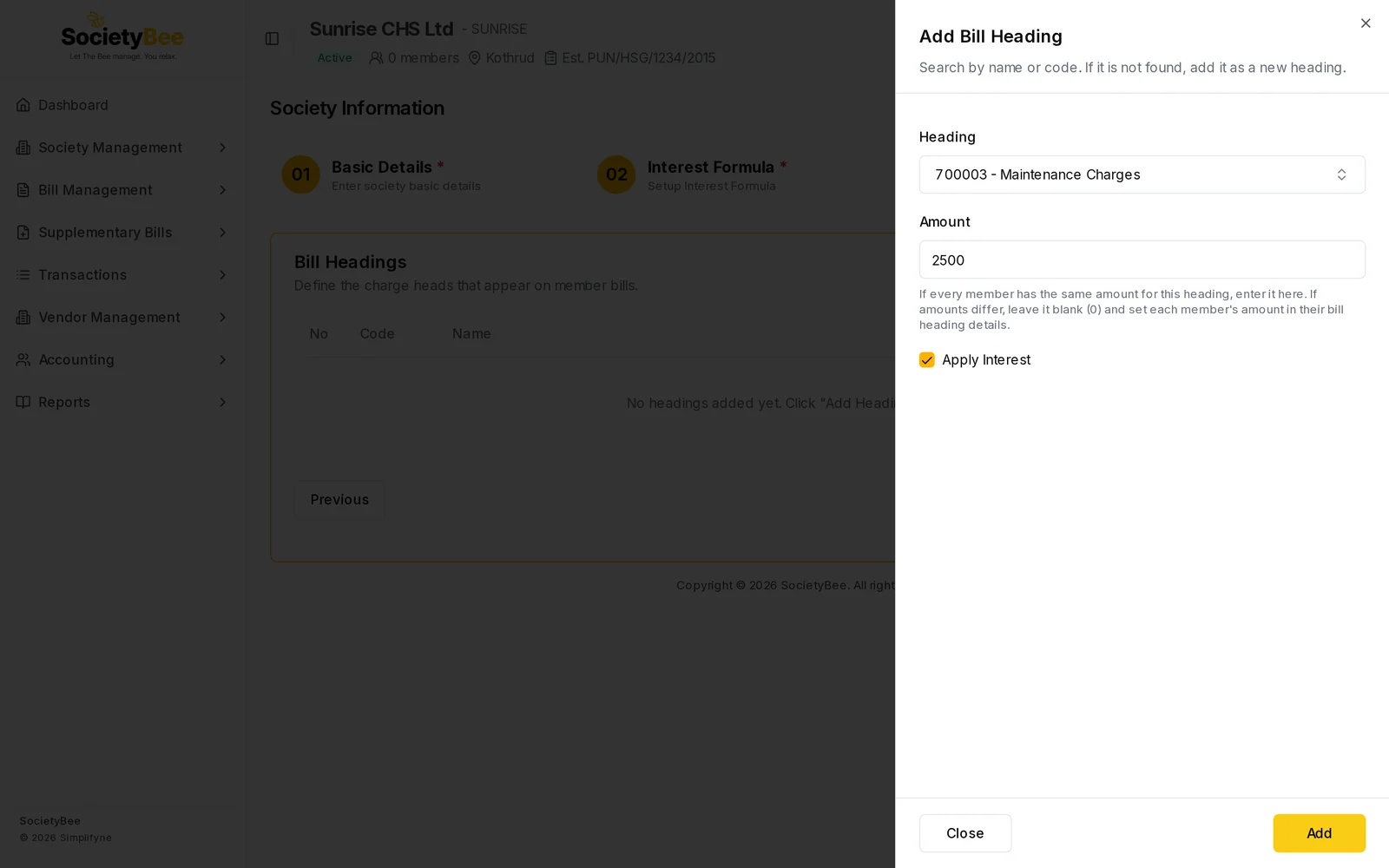
Maintenance Charges at ₹2,500 with Apply Interest ticked. Choose Apply Interest and Apply GST
Apply Interest is ticked by default. Untick it for charges that should never earn interest, such as Water. Apply GST appears only if your society is GST registered.
Press Add
The heading is added to the table and the panel stays open so you can add the next one. Press Close when you are done.
Add a heading that is not in the list
If you type a name and nothing matches, choose Add "your name" as new heading (or press Enter). Fill in:
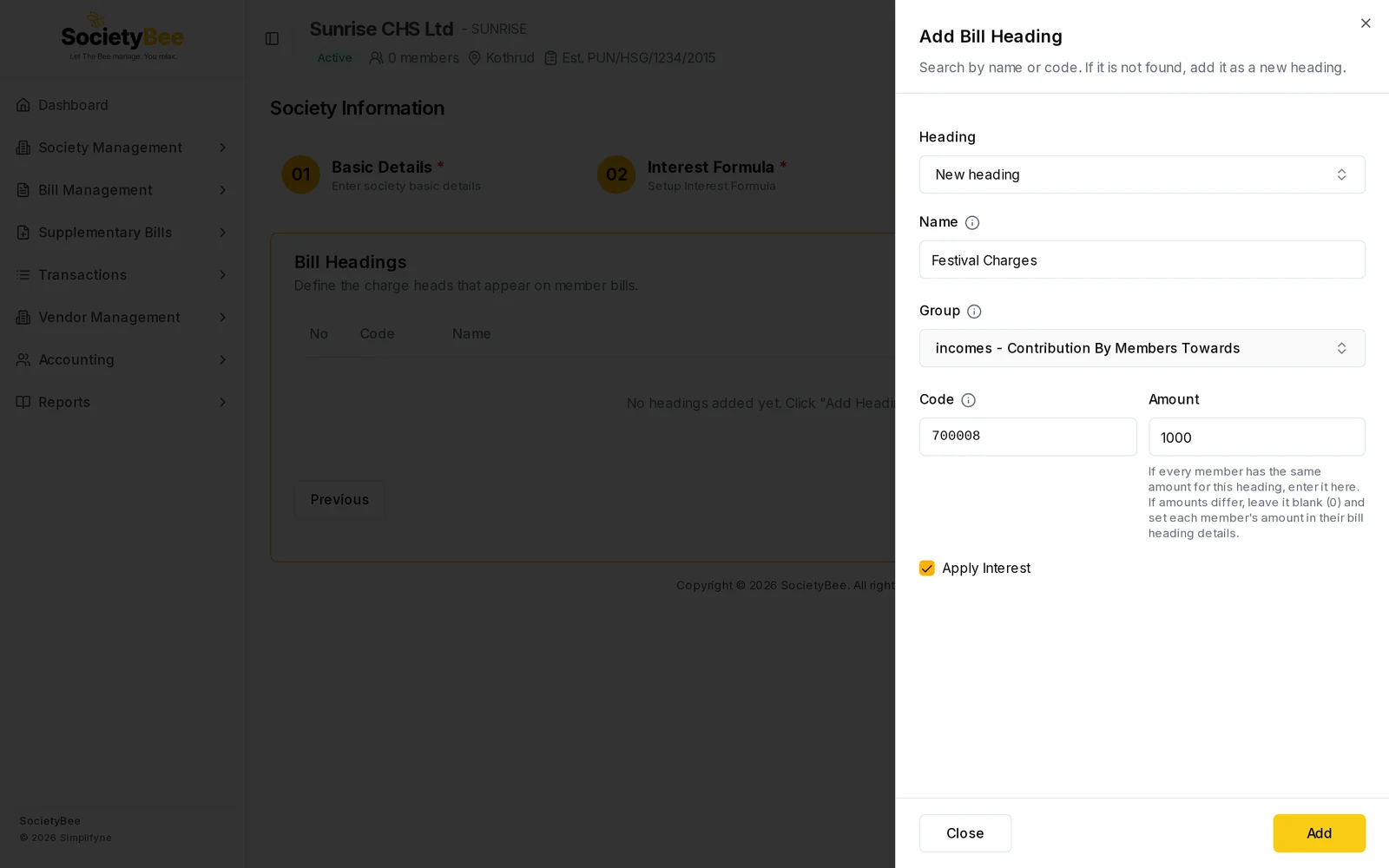
- Name: the charge members see on their bill, for example Festival Charges.
- Group: decides where the charge is shown in the accounts. For regular charges such as maintenance, water, parking or non-occupancy, choose incomes - Contribution By Members Towards. For a Sinking, Repair or Major Repair Fund, choose liabilities - Reserves And Other Funds, because fund contributions are not income under the bye-laws.
- Code: filled in from the group (the next number after the group's last code). You can change it, but it must not match an existing code.
- Amount, Apply Interest, Apply GST: same as above.
If the name or code already exists, a red message tells you to pick the existing heading from the search instead.
Edit or delete a heading
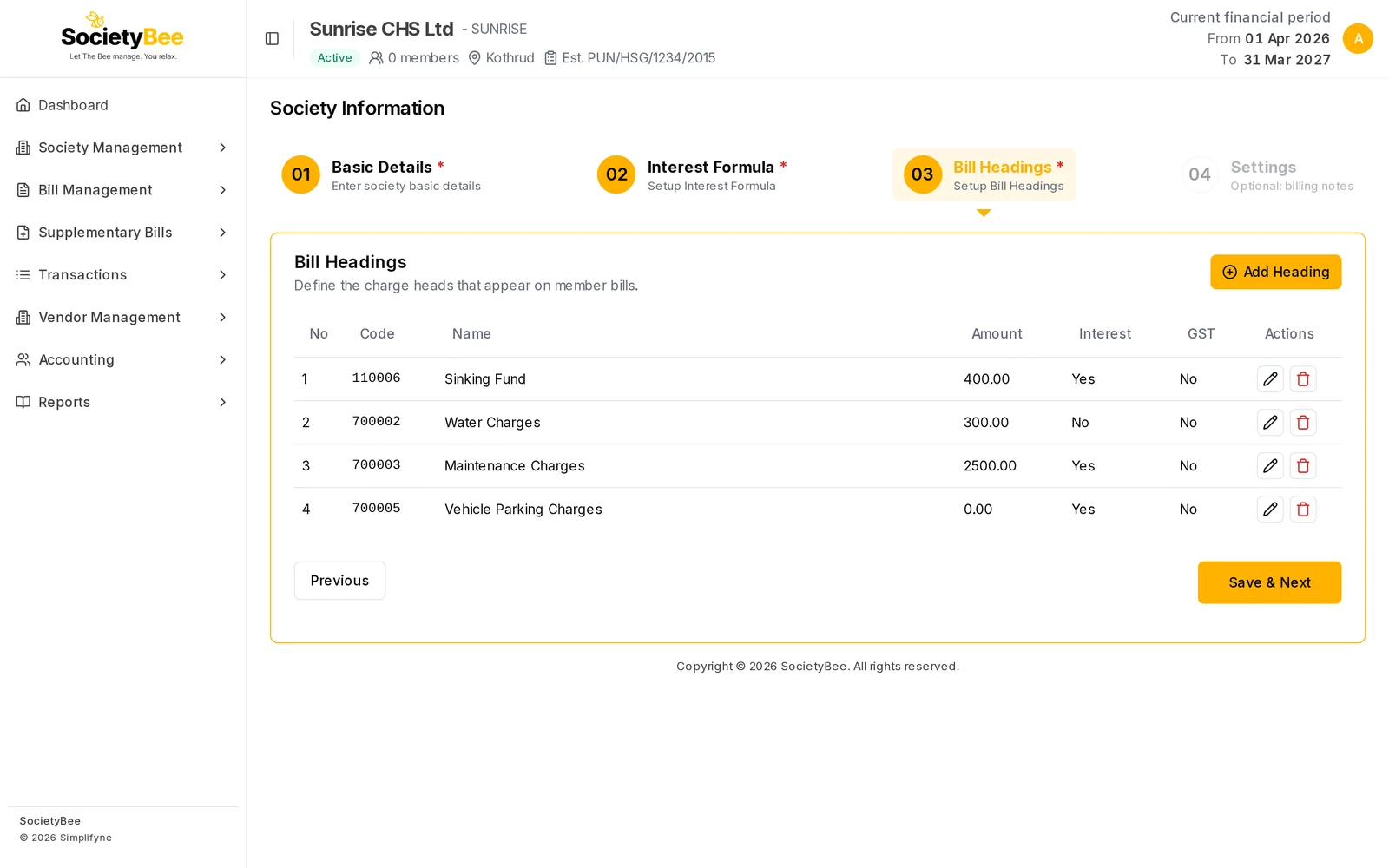
Each row in the table has two buttons on the right.
-
Pencil (edit): opens Edit Heading. You can change the New Amount, Apply Interest and Apply GST. The code and name cannot be changed here. The dialog shows a note that changes apply to all member bills using this heading. In practice the new amount becomes the default for members you add after the change. Members who are already added keep their own amounts, which you change on each member or with Bill Correction.
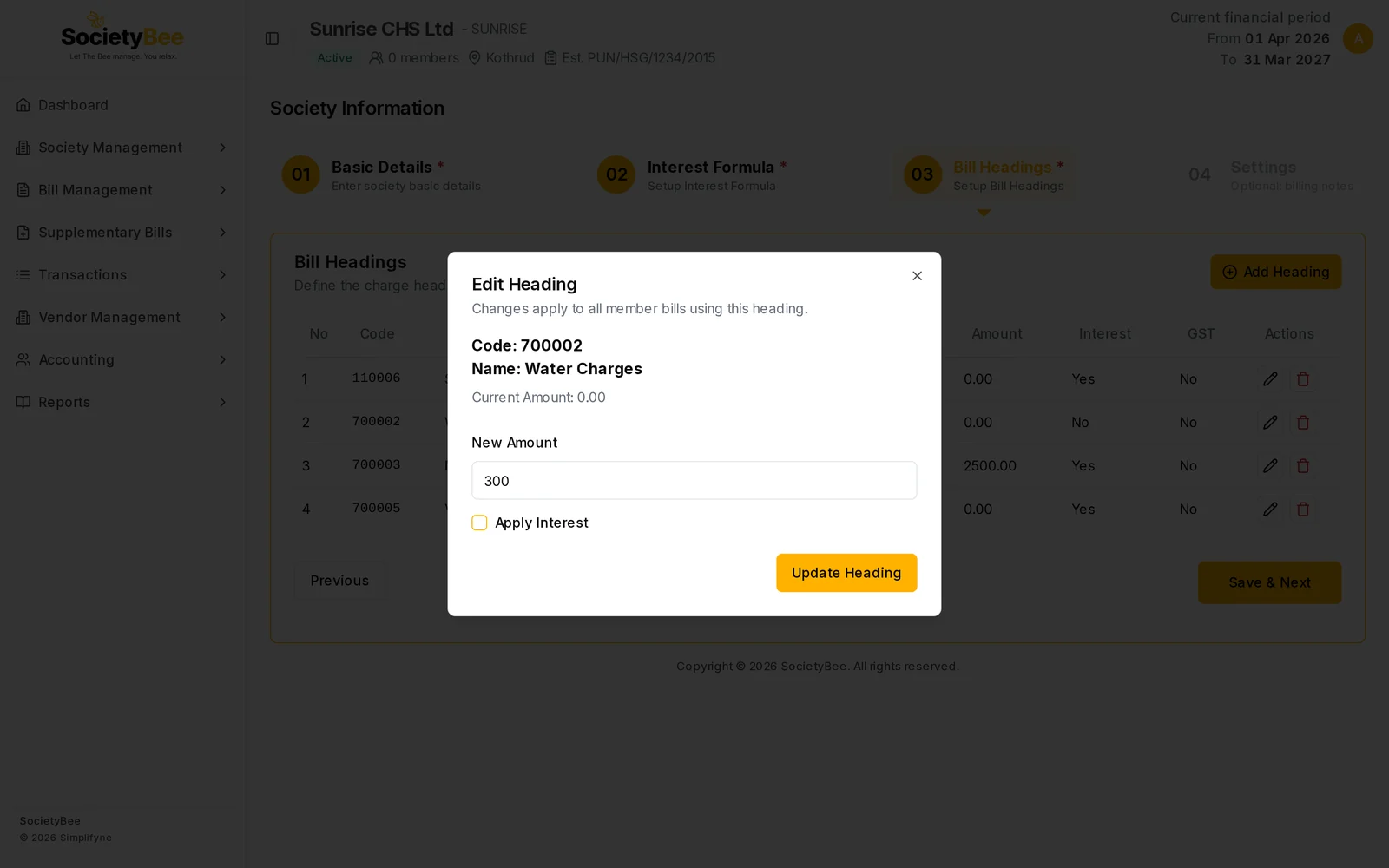
Edit Heading. Press Update Heading to save. -
Bin (delete): opens a confirmation. Deleting cannot be undone and affects all member bills that use the heading.
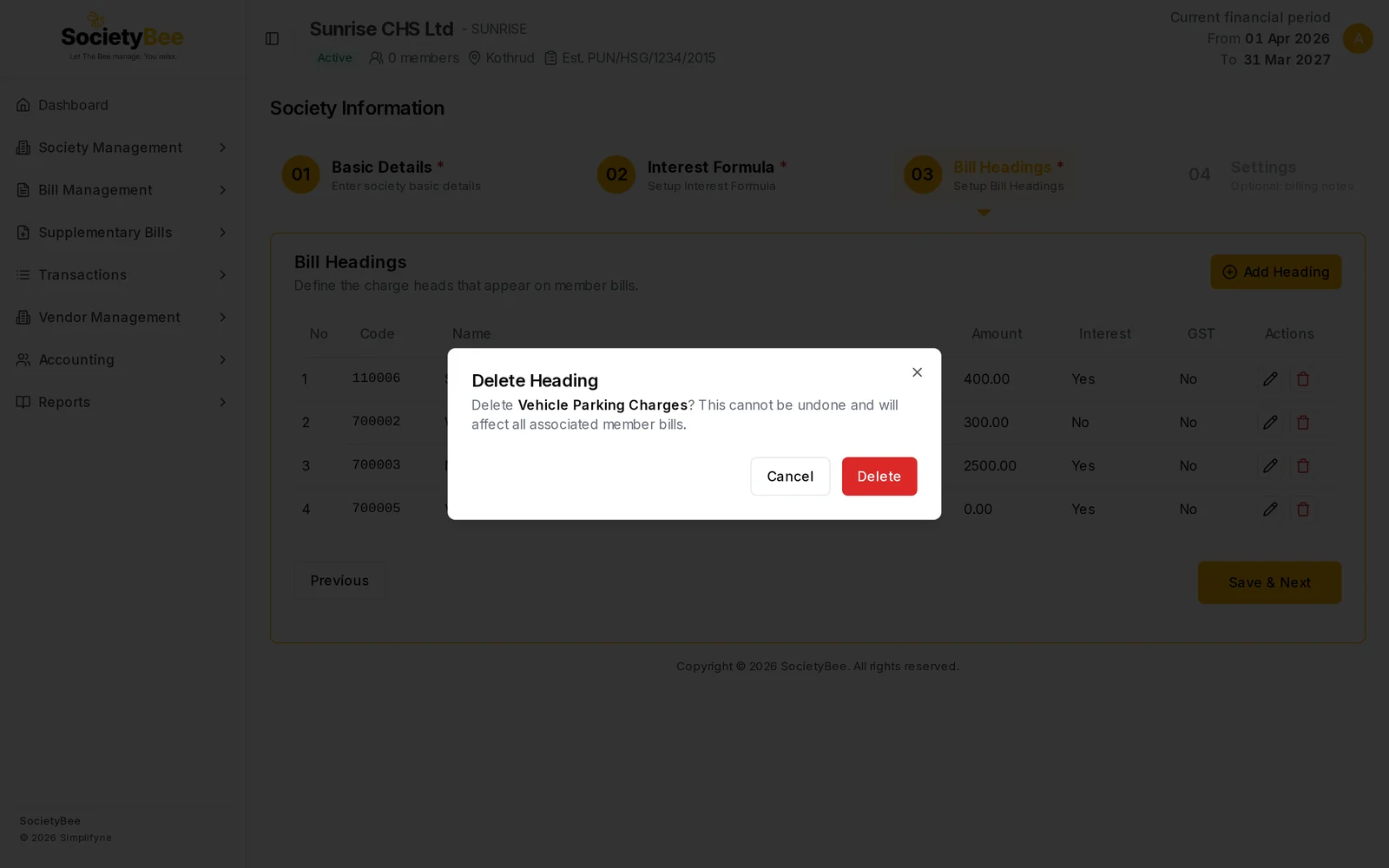
Press Cancel to keep the heading.
Finish the step
Press Save & Next. This button is switched off until you have added at least one heading. The first time you save, the page shows Onboarding complete: You can add members now. The Settings step is optional.
Fields and buttons
| Field or button | What it means | Example |
|---|---|---|
| Heading (search) | Find an existing account by name or code | Maintenance |
| Name | Charge name shown on the bill (new heading only) | Festival Charges |
| Group | Where the charge sits in the accounts (new heading only) | incomes - Contribution By Members Towards |
| Code | Account code, filled from the group (new heading only) | 700008 |
| Amount | Amount every member pays. Leave 0 if it differs per member. | 2500 |
| Apply Interest | Late payment of this charge earns interest | Ticked |
| Apply GST | GST is added on this charge (GST registered societies only) | Unticked |
| Add / Close | Add the heading, or close the panel | |
| Table columns | No, Code, Name, Amount, Interest, GST, Actions | |
| Pencil / bin | Edit or delete a heading | |
| Update Heading | Save an edit | |
| Previous | Back to Interest Formula | |
| Save & Next | Complete this step and open Settings (needs at least one heading) |
Common mistakes and questions
I added a heading with Amount 0. Is that wrong?
No. Use 0 when each member pays a different amount, like Vehicle Parking Charges. Fill each member's amount when you add members.
Why can't I press Save & Next? You need at least one heading in the table.
I picked the wrong heading. How do I fix it? Delete the heading and add the right one. Do this before you generate bills.
Should Water earn interest? That is your society's decision. Many societies charge interest only on maintenance and funds. Untick Apply Interest for charges that should not earn it.
What happens next
Your society is ready for members. Go to Settings to add a collection bank, WhatsApp reminders and bill comments, or go straight to adding members.