
Create your society
Add your housing society to SocietyBee with its registration details, address, bill frequency and first bill period in a single form.
Before you start
What this page does
Onboard Your Society is the one form that creates your society. You enter who the society is, where it is, and how it will bill. After you submit, SocietyBee sets up the standard accounts and books for you and takes you to the next onboarding step.
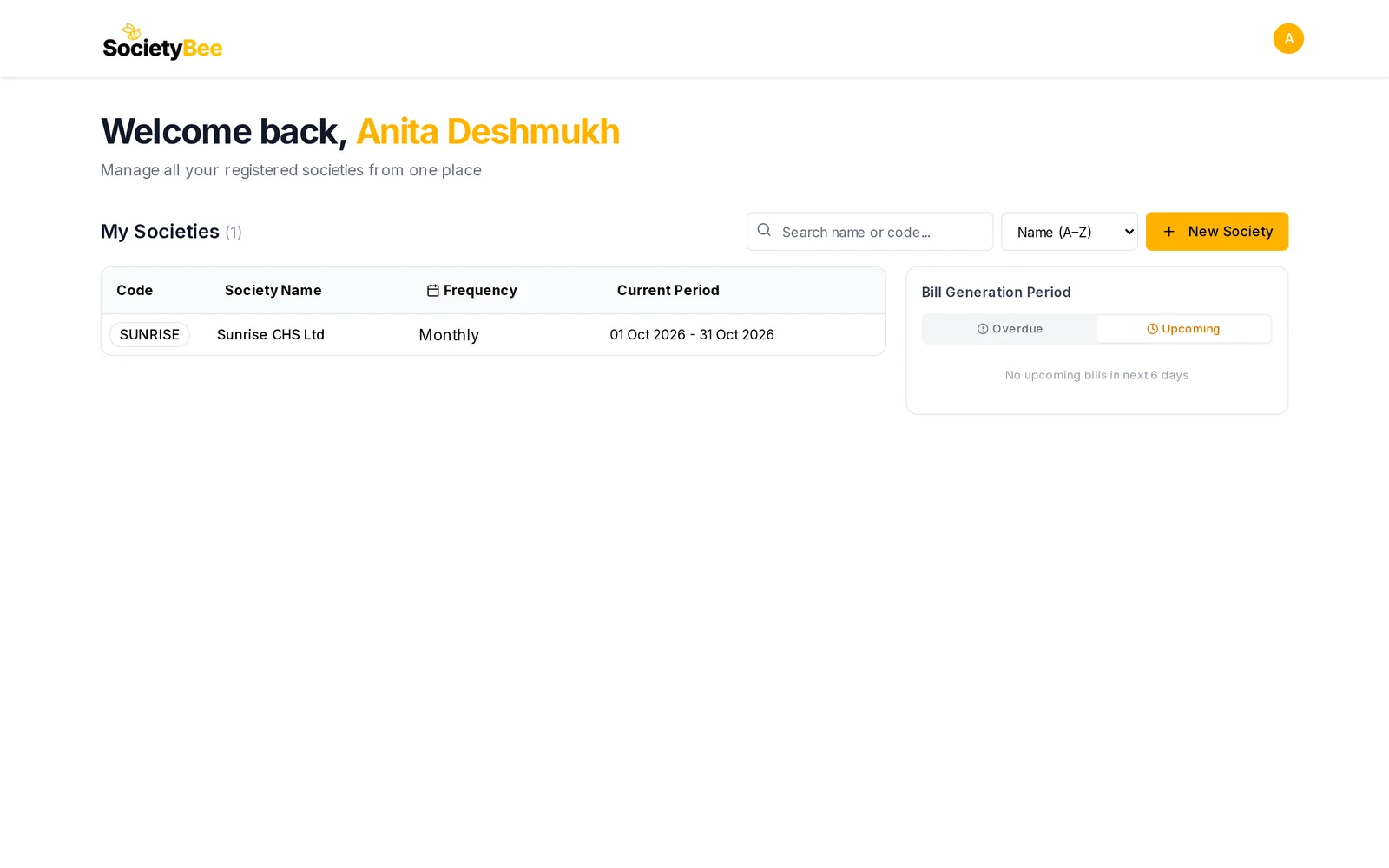
Where to find it
After you verify your email, press Onboard Your Society. To add another society later, open the society list and press New Society.
Fill in the form
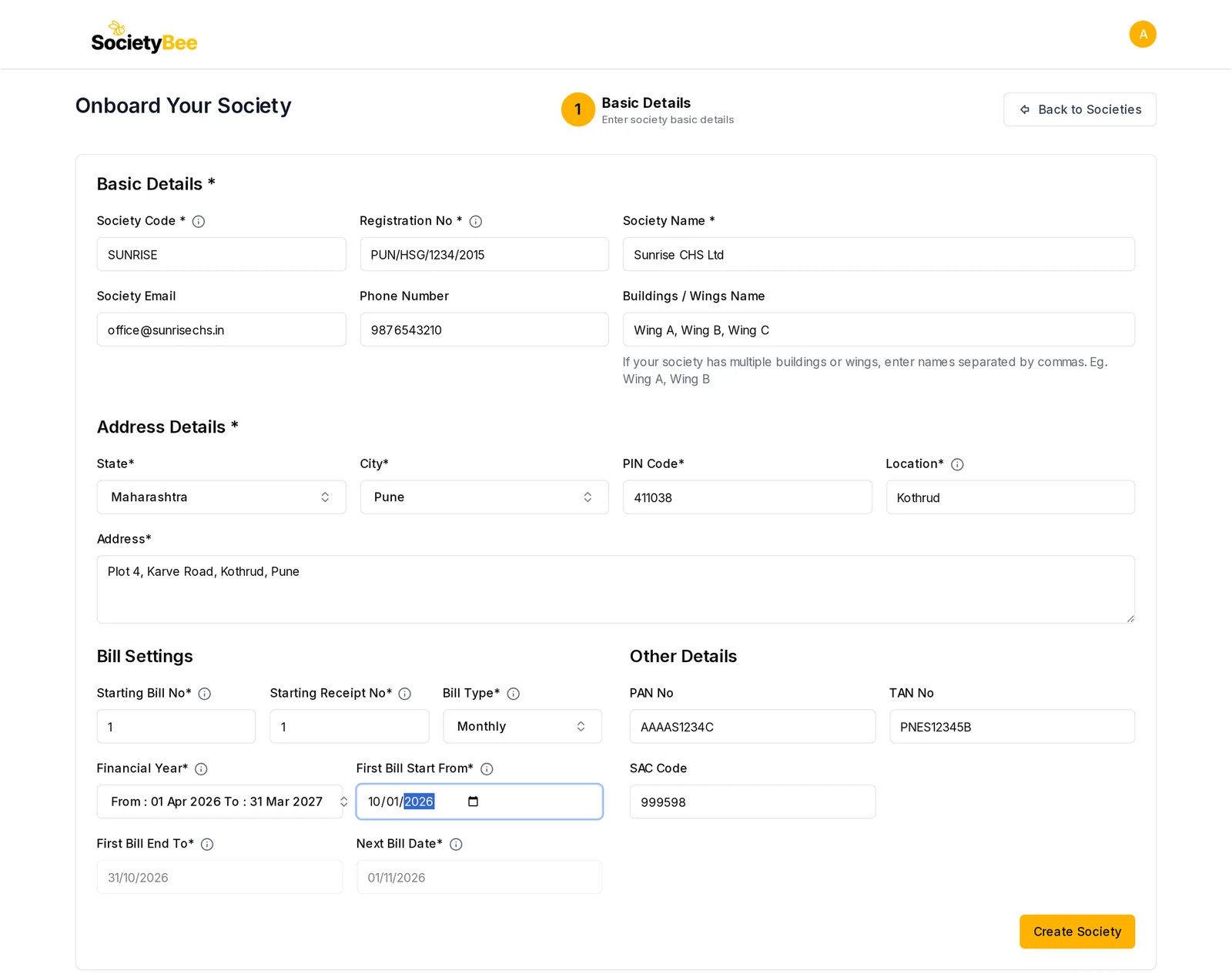
Choose a Society Code
A short code of your choice, for example
SAGor001. It must be unique within your account, uses letters and numbers only, and is saved in capital letters. It appears in your society's web address, for example/SUNRISE/dashboard. You cannot change it later.Enter the Registration No and Society Name
Copy the Registration No from your registration certificate issued by the Registrar of Co-operative Societies, for example
MUM/WR/HSG/TC/1234/2010. It is printed on bills and reports. Then type the full Society Name.Add contact details and wings (optional)
Society Email and Phone Number are optional. If you have more than one building, list them in Buildings / Wings Name, separated by commas, for example
Wing A, Wing B, Wing C. They become the choices when you add members.Fill in the address
Choose the State and then the City. Enter the PIN Code (6 digits), the Location (the area or locality, for example Kandivali West) and the full Address.
Set the Starting Bill No and Starting Receipt No
These are the numbers given to your first bill and first receipt in SocietyBee. Later ones continue from there. Moving from another software or manual books? Enter your last bill number plus one, and your last receipt number plus one. A new society uses
1.Choose the Bill Type
How often you bill members: Monthly, Bi-Monthly, Quarterly, Half-Yearly or Yearly.
Choose the Financial Year
The financial year (1 April to 31 March) from which you will keep accounts in SocietyBee, for example From : 01 Apr 2026 To : 31 Mar 2027.
Pick First Bill Start From
The start date of the first billing period you will generate in SocietyBee. For a monthly society that starts with the October bill, choose 01 Oct 2026. First Bill End To and Next Bill Date fill in automatically and are greyed out.
Add tax details (optional)
PAN No, TAN No and SAC Code are optional and can be added later.
Press Create Society
A message says Creating your society. Please wait, this may take a moment. When it finishes, you are taken to the Interest Formula step.
Fields and buttons
| Field | What it means | Example |
|---|---|---|
| Society Code | Unique short code, in capitals. Cannot be changed. | SUNRISE |
| Registration No | From the registration certificate | PUN/HSG/1234/2015 |
| Society Name | Full legal name | Sunrise CHS Ltd |
| Society Email, Phone Number | Optional contact details | office@sunrisechs.in |
| Buildings / Wings Name | Optional, comma separated | Wing A, Wing B, Wing C |
| State, City | Where the society is | Maharashtra, Pune |
| PIN Code | 6 digits | 411038 |
| Location | Area or locality | Kothrud |
| Address | Full address | Plot 4, Karve Road, Kothrud, Pune |
| Starting Bill No | Number of the first bill | 1 |
| Starting Receipt No | Number of the first receipt | 1 |
| Bill Type | Billing frequency | Monthly |
| Financial Year | Year you start keeping accounts | 01 Apr 2026 to 31 Mar 2027 |
| First Bill Start From | Start of the first bill period | 01-10-2026 |
| First Bill End To | Worked out for you | 31-10-2026 |
| Next Bill Date | Worked out for you | 01-11-2026 |
| PAN No, TAN No, SAC Code | Optional tax details | |
| Create Society | Save the society | |
| Back to Societies | Leave without saving |
Common mistakes and questions
It says the society code is already used. Another society in your account has that code. Choose a different one.
Can I change the Society Code, Bill Type or dates later? You cannot change the code. You can change most other details afterwards on the Basic Details page.
I see a validation error. A required field is empty or wrong. Look for the red message under each field. The PIN code must be 6 digits and the bill and receipt numbers must be at least 1.
What happens next
Your society exists and has its standard accounts. Go on to the Interest Formula step, which is tab 02 on the same Society Information page as Basic Details.