
GST and TDS settings
Switch on GST for member bills and TDS for vendor payments, and set the limits your society follows.
Before you start
What this page does
Below the interest settings, the Interest Formula tab has two optional boxes. GST Settings is for societies registered under GST and decides when GST is added to a member's bill. TDS Settings is for societies that deduct TDS when they pay vendors. If your society does neither, leave both boxes switched off.
Where to find it
Go to Society Management > Information > Interest Formula and scroll below Interest & Payment Settings.
Set up GST for member bills
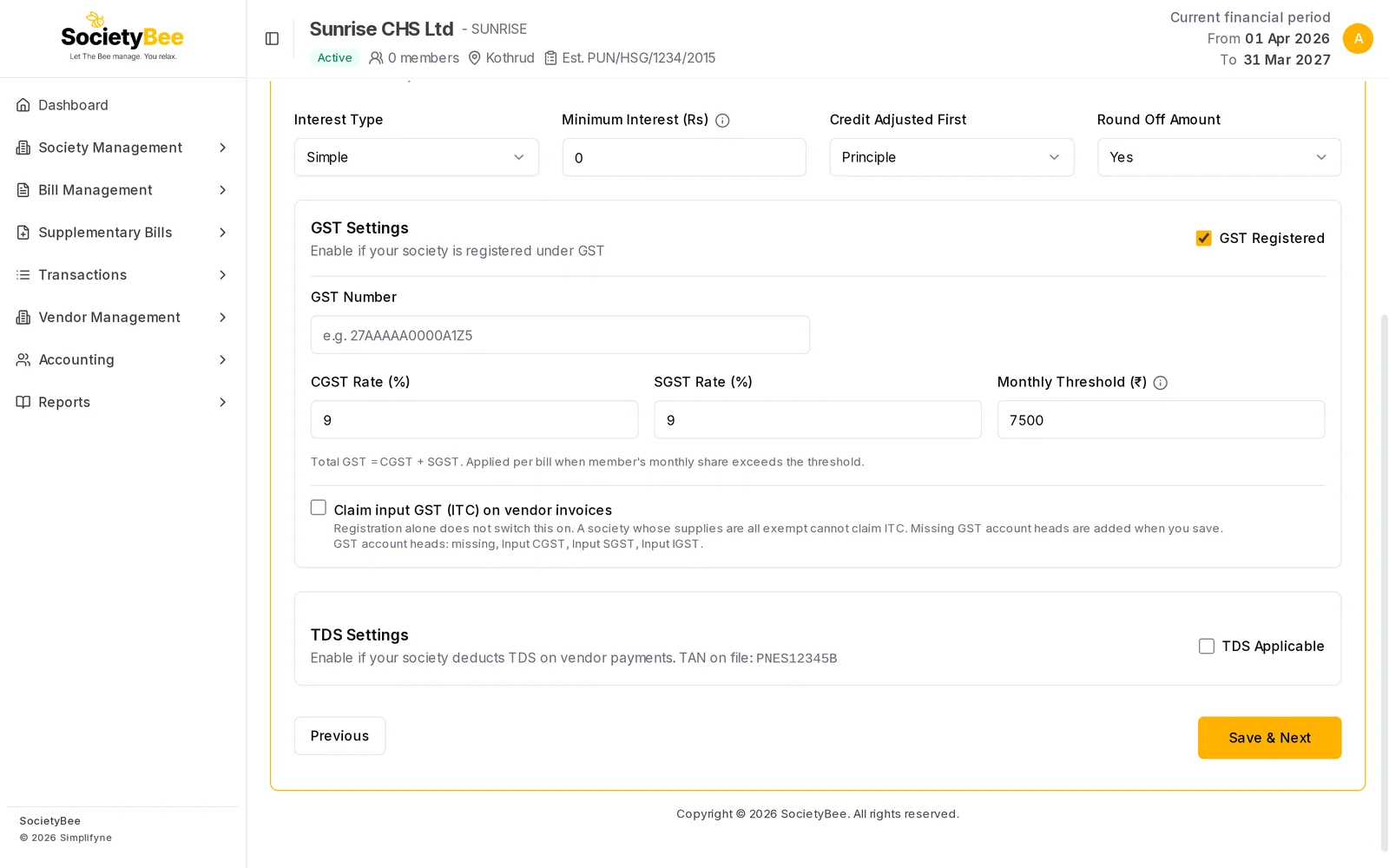
Tick GST Registered
Do this only if your society has a GST registration. The GST fields open below the tick box.
Enter the GST Number
Type the 15-character GSTIN, for example
27AAAAA0000A1Z5. Letters turn into capitals as you type. The number is checked for the correct GSTIN format, and it is required when GST is ticked.Check the CGST and SGST rates
Both start at
9(percent), so total GST is 18%. Change them only if your CA tells you to. Each can be between 0 and 28.Check the Monthly Threshold
The default is
7500. GST is added to a member's bill only when that member's monthly maintenance is more than this amount, the usual rule for housing societies. A member below the threshold is billed without GST.Mark the headings that carry GST
GST is charged only on bill headings where you tick Apply GST. That tick box appears in Bill Headings only when the society is GST registered.
Input GST (ITC) on vendor invoices
Below the threshold you will see Claim input GST (ITC) on vendor invoices. Being registered does not switch this on by itself, because a society whose supplies are all exempt cannot claim input credit. Tick it only when your CA confirms you can claim it, then enter the date Input GST applies from. Only vendor invoices dated on or after that day claim credit, and earlier entries are not changed. The page also lists which GST account heads are present. Any missing ones (Input CGST, Input SGST, Input IGST) are added when you save.
Set up TDS for vendor payments
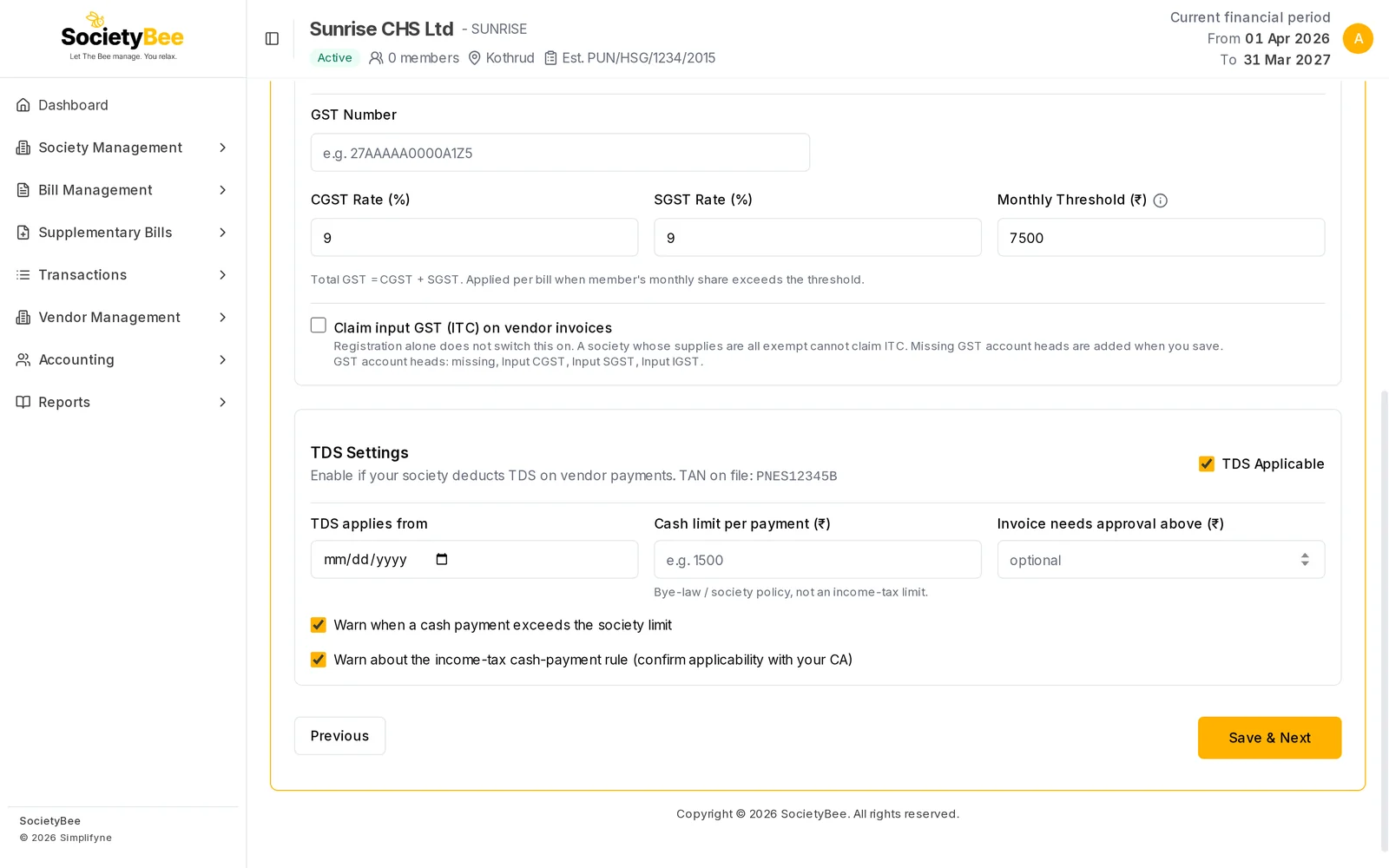
Make sure the TAN is filled in
The box shows TAN on file. If it says none, add the TAN under Other Details on the Basic Details step first.
Tick TDS Applicable
This turns TDS on for vendor invoices and payments.
Choose TDS applies from
Pick the date from which TDS is deducted. Earlier invoices are not affected.
Set the cash limit per payment (optional)
Cash limit per payment is your society's own limit for a single cash payment, in rupees. It comes from your bye-laws or committee policy and is not an income-tax limit.
Set the approval limit (optional)
Invoice needs approval above records an approval limit for large vendor invoices. It is saved with your settings, but SocietyBee does not yet stop or flag vendor invoices above it. Leave it blank if you do not use it.
Choose the warnings
Keep Warn when a cash payment exceeds the society limit ticked to get a warning when a cash payment crosses your limit. Keep Warn about the income-tax cash-payment rule ticked to get a reminder about the income-tax cash rule. Confirm applicability with your CA.
Save
Press Save & Next. The settings are stored with the rest of the Interest Formula tab.
Fields and buttons
| Field | What it means | Example | Who can change |
|---|---|---|---|
| GST Registered | Society has a GST registration | Ticked | Admin, employee |
| GST Number | 15-character GSTIN, required when GST Registered is ticked | 27AAAAA0000A1Z5 | Admin, employee |
| CGST Rate (%) | Central GST rate, 0 to 28 | 9 | Admin, employee |
| SGST Rate (%) | State GST rate, 0 to 28 | 9 | Admin, employee |
| Monthly Threshold (₹) | GST applies only above this monthly maintenance | 7500 | Admin, employee |
| Claim input GST (ITC) on vendor invoices | Claim credit on GST paid to vendors | Unticked | Admin |
| Input GST applies from | First invoice date that claims credit | 01-10-2026 | Admin |
| TDS Applicable | Society deducts TDS on vendor payments | Unticked | Admin |
| TDS applies from | Date TDS starts | 01-10-2026 | Admin |
| Cash limit per payment (₹) | Society policy limit for one cash payment | 1500 | Admin |
| Invoice needs approval above (₹) | Optional approval limit for vendor invoices. Saved, but not yet enforced on invoices. | 25000 | Admin |
| Warn when a cash payment exceeds the society limit | Warning on cash payments above your limit | Ticked | Admin |
| Warn about the income-tax cash-payment rule | Reminder about the income-tax cash rule | Ticked | Admin |
Common mistakes and questions
The GST Number field shows an error. The number must be 15 characters in the GSTIN format. Check for a missing letter or digit.
Members are not getting GST even though GST is on. Check two things: the heading must have Apply GST ticked, and the member's monthly maintenance must be above the threshold.
It says TDS or Input GST was not saved: the PAN inside the GSTIN does not match the society PAN. Characters 3 to 12 of the GST Number are the society's PAN. They must match the PAN in Basic Details. The rest of the settings are saved, but TDS and Input GST are not switched on until the GST Number is corrected.
I cannot tick TDS Applicable. Only an admin can change TDS and input GST. Ask your society admin, or sign in as the admin.
What happens next
Continue to Bill Headings to define the charges, and mark which of them earn interest or carry GST.