
Set bill heading amounts for a member
Check and change what each member pays for every charge, add or remove a heading for one member, and see their total bill amount.
Before you start
What this page does
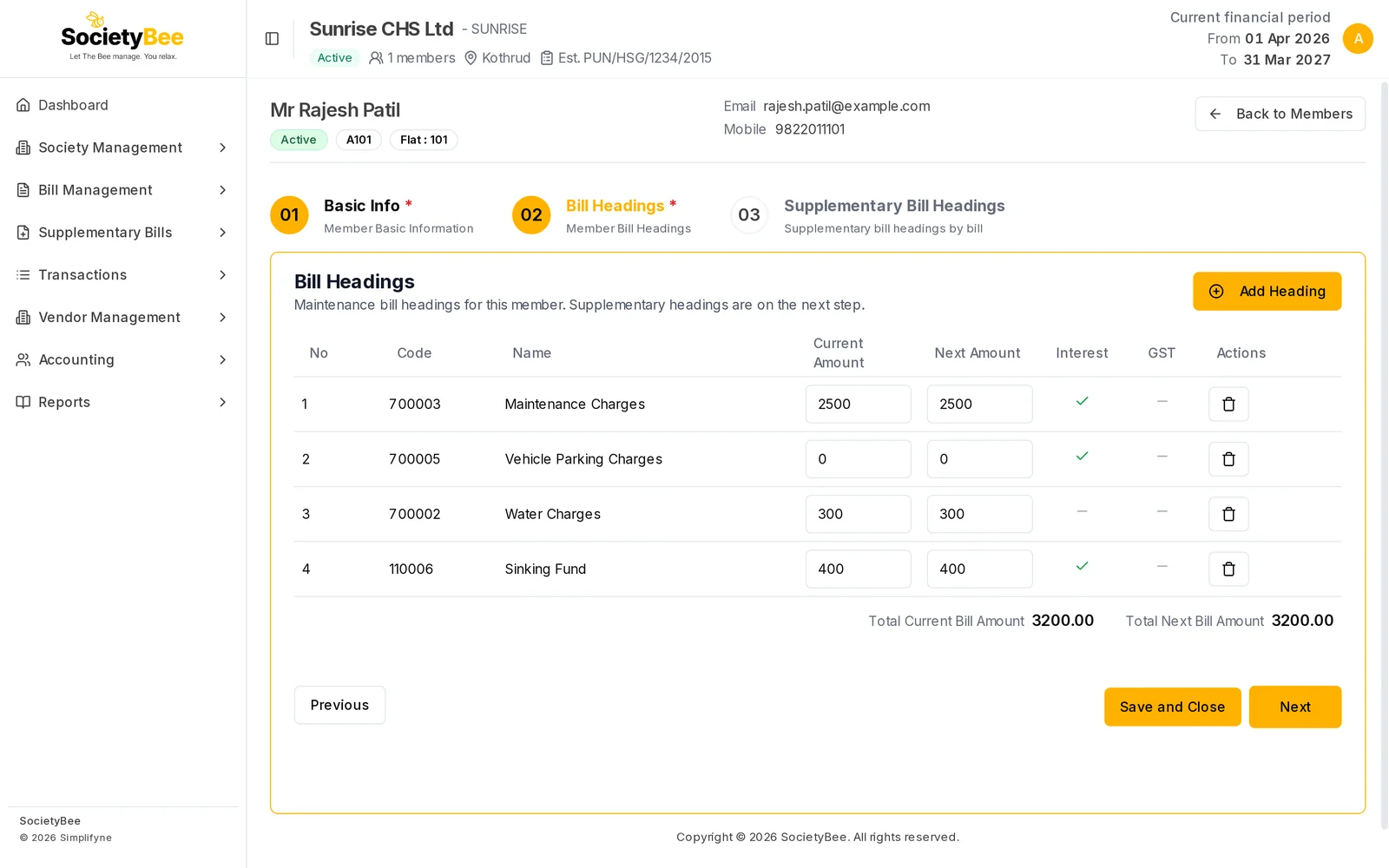
The Bill Headings tab of a member lists every charge on that member's bill and the amount they pay. When a member is created, SocietyBee copies your society's headings and their default amounts here. This is where you give one member a different amount, such as extra parking, or take a charge off for them.
Where to find it
You land here after Create & Continue on a new member. For an existing member, go to Society Management > Members, press the gear icon on the member's row, and open the Bill Headings tab (tab 02).
Change an amount
Find the heading in the table
The table shows No, Code, Name, Current Amount, Next Amount, Interest, GST and Actions. The Interest and GST columns show a tick when that heading earns interest or carries GST. These come from the society's bill headings.
Type the new Current Amount
Click the Current Amount box and type the amount, for example
500for Vehicle Parking Charges. It saves as you type. There is no Save button for the amounts. When you change the Current Amount, the Next Amount is set to the same value.Leave the Next Amount alone
Next Amount is stored as a note of the amount planned for later. Bill generation reads only the Current Amount, and it does not copy the Next Amount into it. To change what the next bill charges, change the Current Amount.
Check the totals
Total Current Bill Amount and Total Next Bill Amount under the table add up all headings, so you can see what the member's bill will be before interest and arrears.
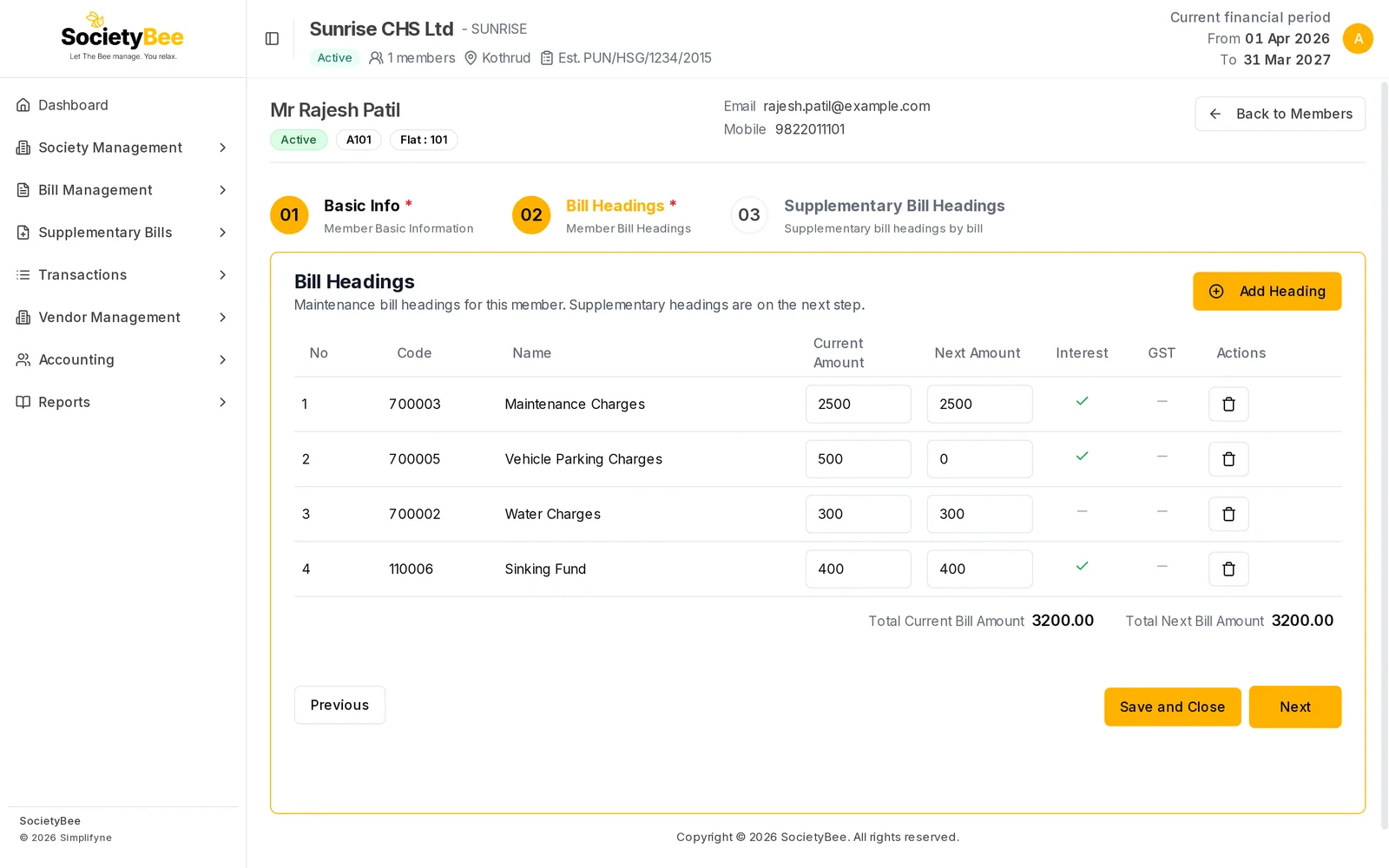
Vehicle Parking Charges set to ₹500 for this member. The totals add up to ₹3,700.
Members with different amounts
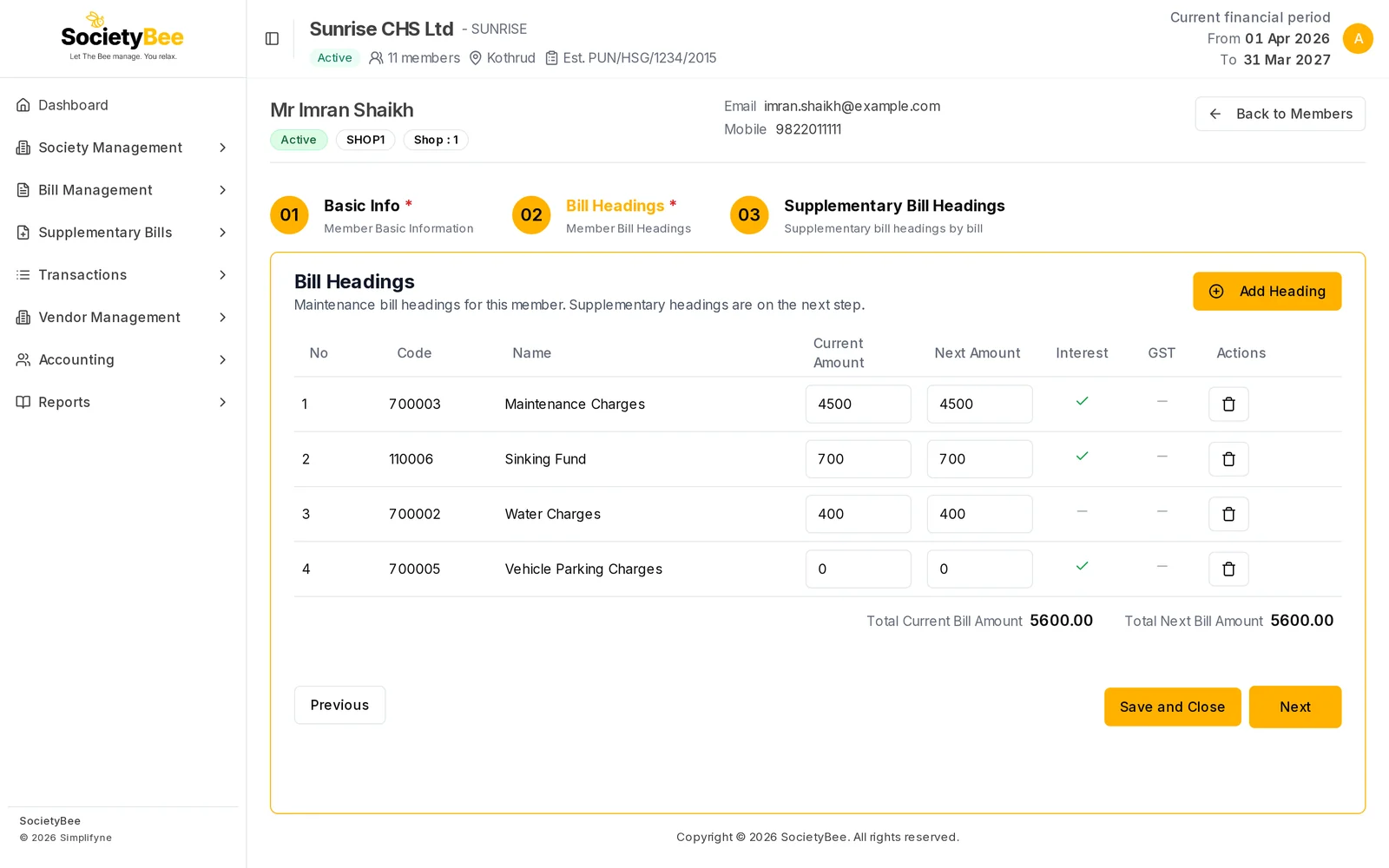
Not every member pays the same. Flats of different sizes pay different maintenance, and a shop pays more. Set each member's own amounts here, or fill them in the Excel sheet when you upload members in bulk.
Add or remove a heading for one member
-
Add Heading: press it to open Add New Heading. Choose a Society Heading from the list, enter the Current Amount and Next Amount, and press Add Heading. The list shows the society's headings that this member does not already have. If every heading is already on the member, the list is empty.
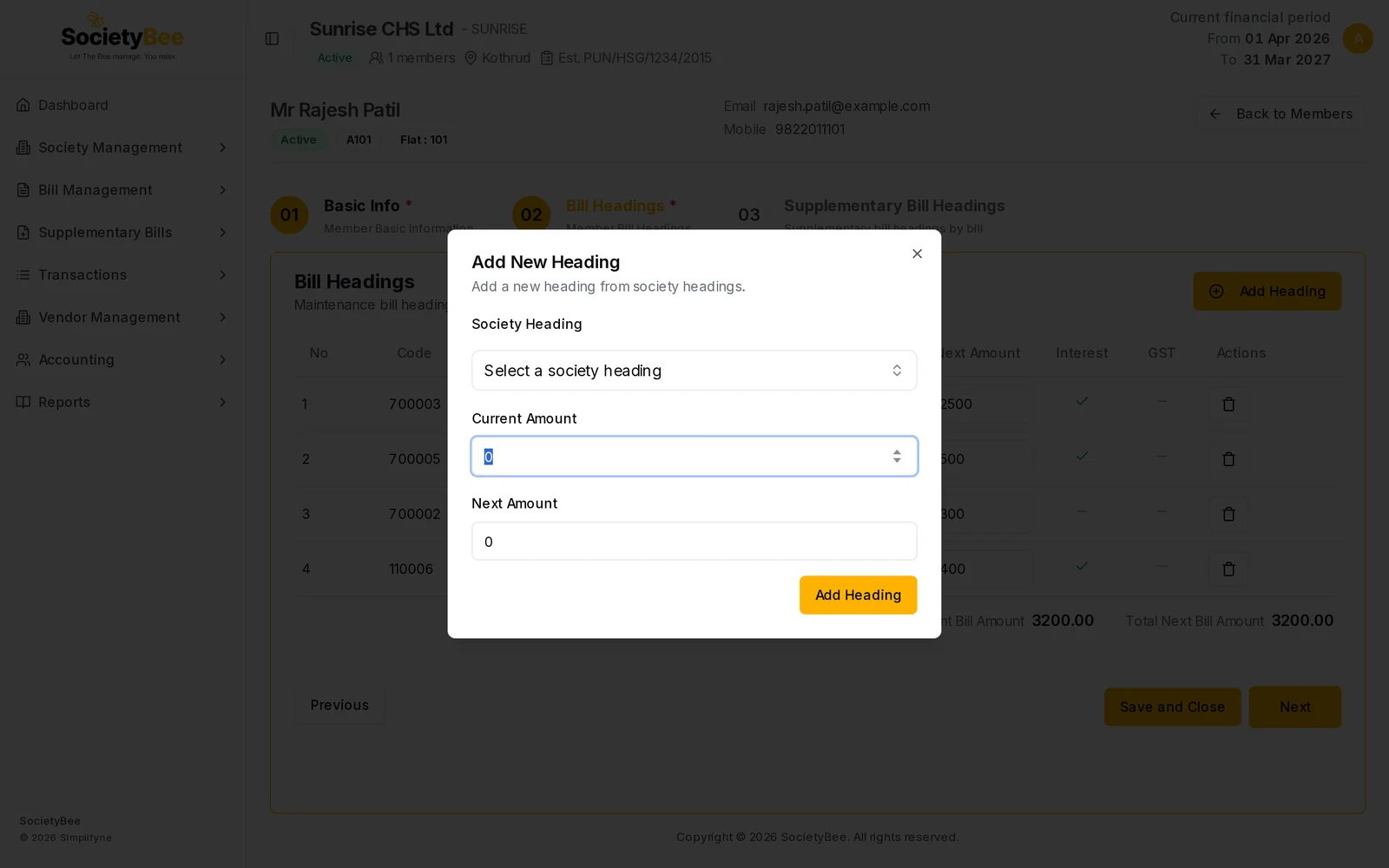
Add New Heading. -
Bin icon: removes that heading from this member only, after you confirm. Other members keep it.
Move on
- Previous goes back to Basic Info.
- Save and Close returns to the member list.
- Next opens the Supplementary Bill Headings tab.
Fields and buttons
| Field or button | What it means | Example |
|---|---|---|
| Current Amount | What the member pays for this heading. Saves as you type. | 500 |
| Next Amount | An amount noted for later. It follows the Current Amount when you change that. Bills use only the Current Amount. | 500 |
| Interest (tick) | This heading earns interest if paid late. Set on the society heading. | |
| GST (tick) | GST is charged on this heading. Set on the society heading. | |
| Bin | Remove the heading for this member | |
| Add Heading | Add a society heading to this member | |
| Total Current Bill Amount | Sum of the Current Amounts | 3700.00 |
| Total Next Bill Amount | Sum of the Next Amounts | 3700.00 |
| Previous / Save and Close / Next | Navigation |
Common mistakes and questions
Does changing a member's amount change the society heading? No. The society heading keeps its default amount. You are changing only this member's copy.
I changed the society heading amount but the member still shows the old one. Members keep their own copy. Change it on each member, or use bill correction, covered in the Bills guides.
A member does not use parking. Should I delete the heading?
No. Leave the amount at 0. A zero amount adds nothing to the bill.
What happens next
Go to the next tab for supplementary bill headings, or press Save and Close if the member has none.