
Create a vendor invoice
Enter a vendor's bill with its invoice number, dates and amounts, see TDS and GST worked out as you type, and save it as pending or post it straight to an expense account.
Before you start
What this does
An invoice records one bill from a vendor. When you type the amount, SocietyBee works out the TDS and the net amount payable for you. You can post the invoice to the books right away by choosing the expense account, or save it first and post it later.
Where to find it
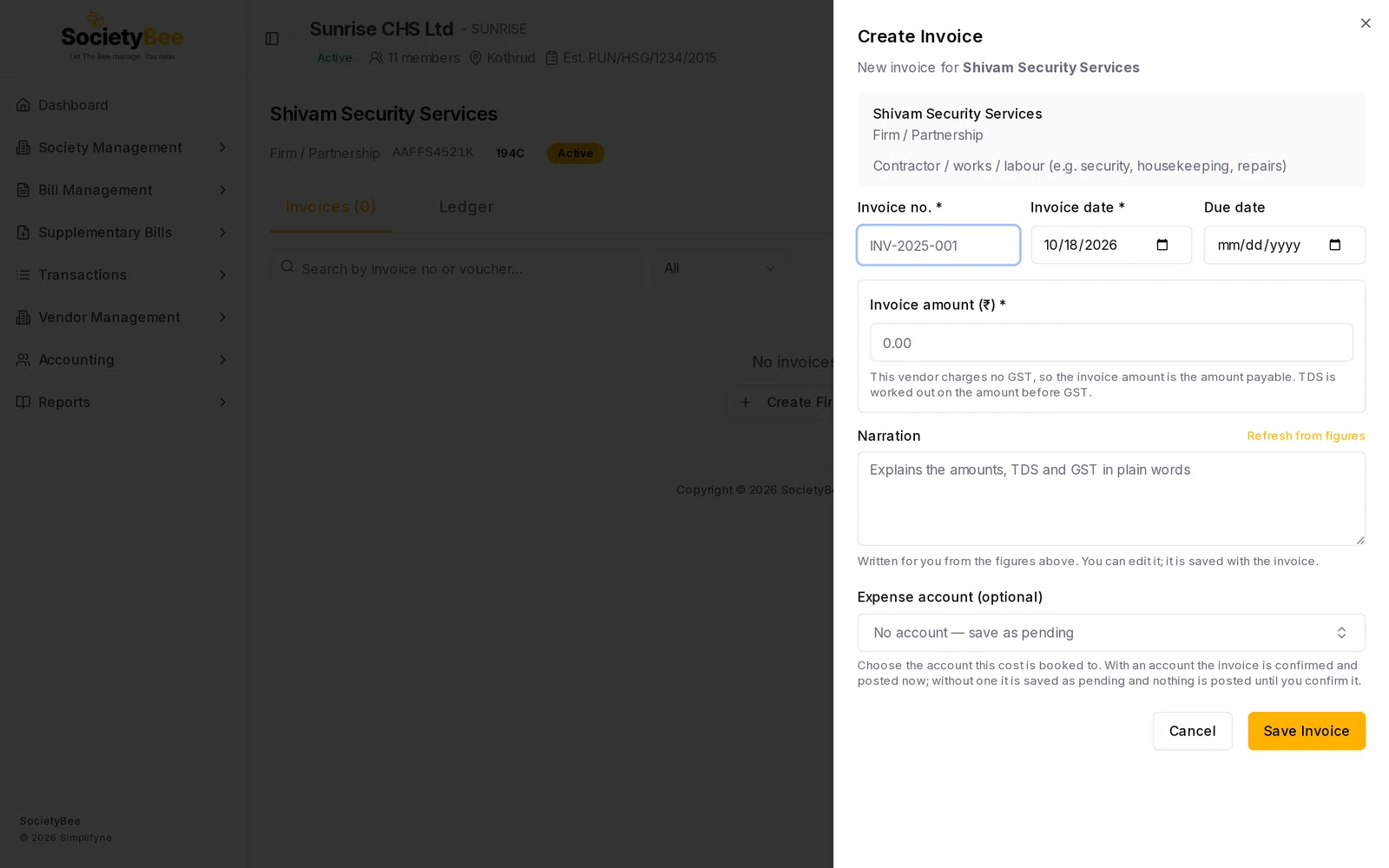
Open the vendor from Vendor Management > Vendors, then press Create Invoice. A panel slides in from the right with the title Create Invoice, and a grey box at the top shows the vendor name, type and what the vendor is paid for.
Steps
Enter the invoice number and dates
Type the Invoice no. from the vendor's bill. Invoice date starts as today, so change it to the date on the bill. Due date is optional.
Enter the amount
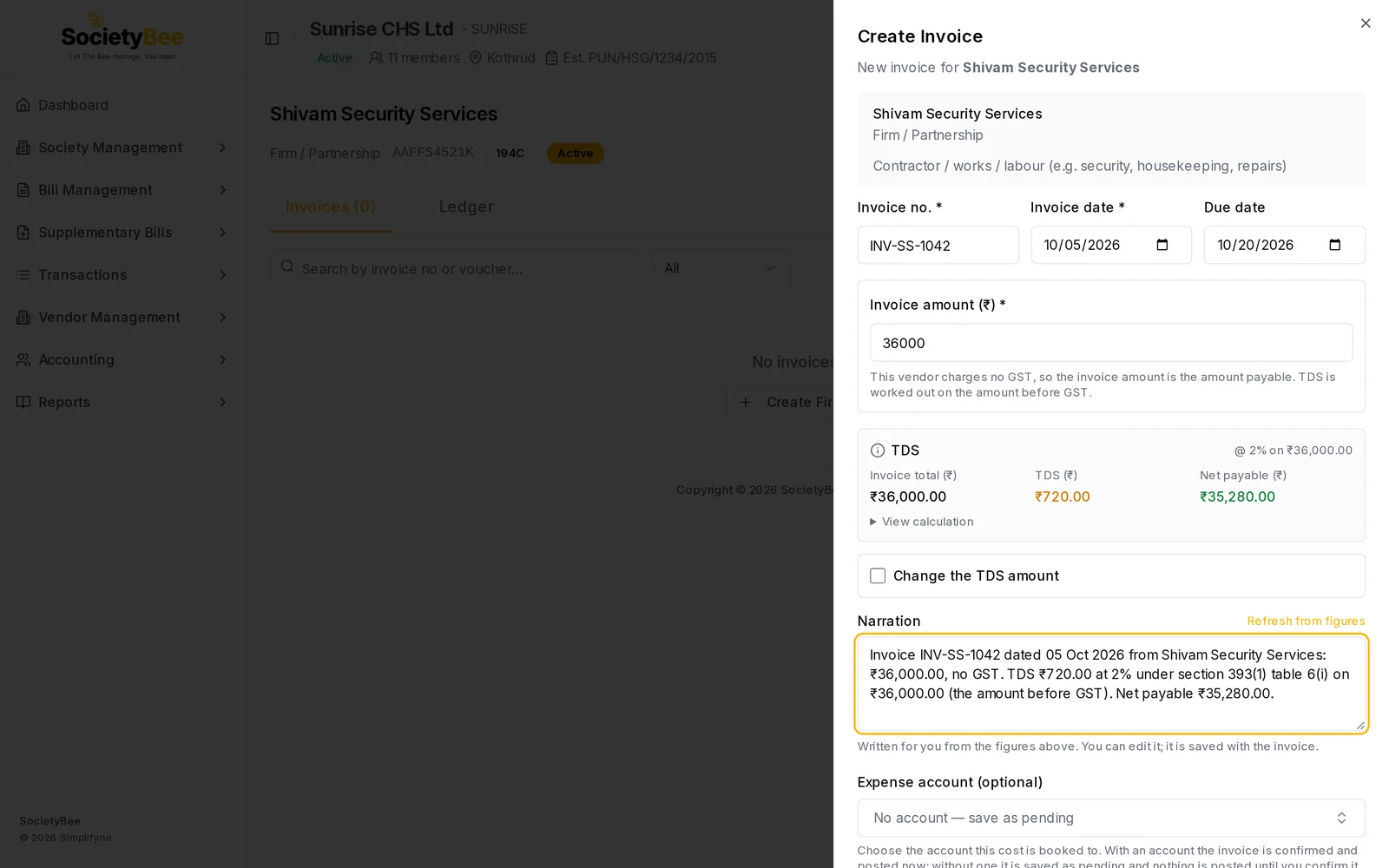
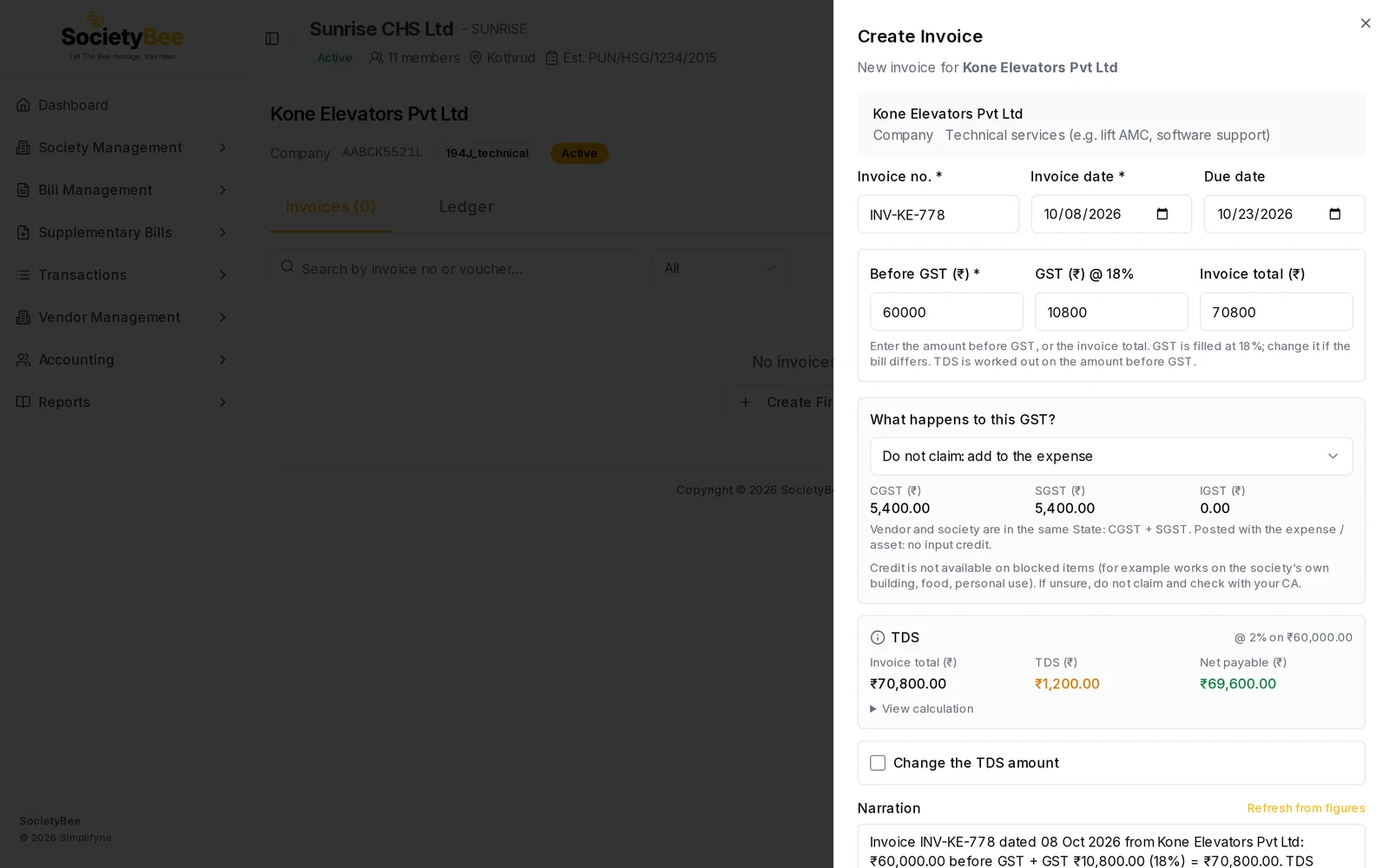
For a vendor with no GST, type the Invoice amount (₹). For a GST vendor you see three boxes: Before GST (₹), GST (₹) and Invoice total (₹). Fill in the amount before GST and the GST is filled at the vendor's rate, or type the total. If the bill's GST differs, change the GST box.
Read the TDS box
A TDS box appears with the Invoice total, the TDS and the Net payable, with the rate on the right, for example @ 2% on ₹36,000.00. Press View calculation to see the rule used, the earlier invoices counted and the date TDS applied.
Choose what happens to the GST (if shown)
When your society claims input GST and the invoice has GST, a box asks What happens to this GST?. See Input GST on vendor bills.
Check the narration
Narration is written for you from the figures, for example Invoice INV-SS-1042 dated 05 Oct 2026 from Shivam Security Services: ₹36,000.00, no GST. TDS ₹720.00 at 2% under section 393(1) table 6(i)…. You can edit it. Press Refresh from figures to write it again.
Choose the expense account (optional)
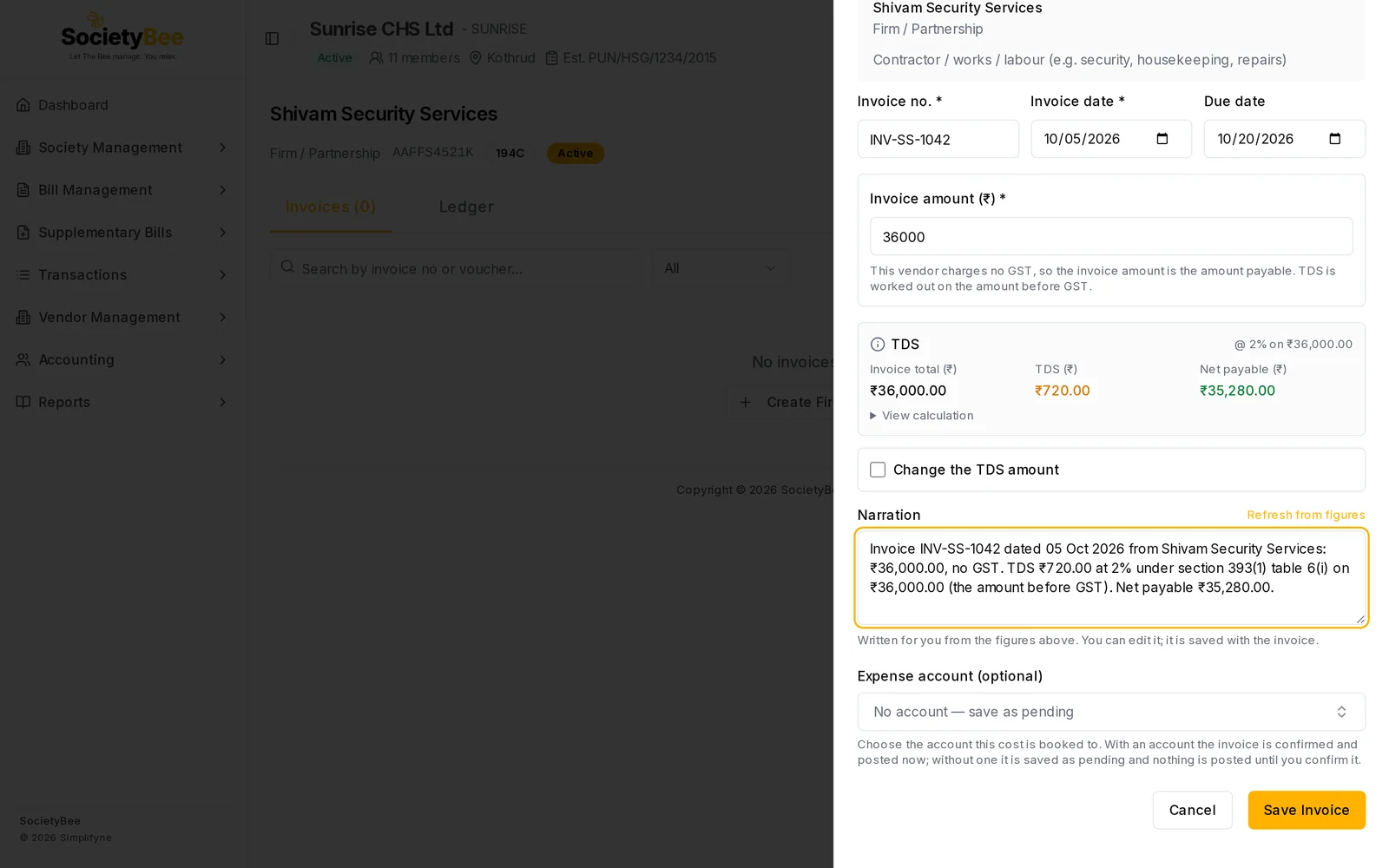
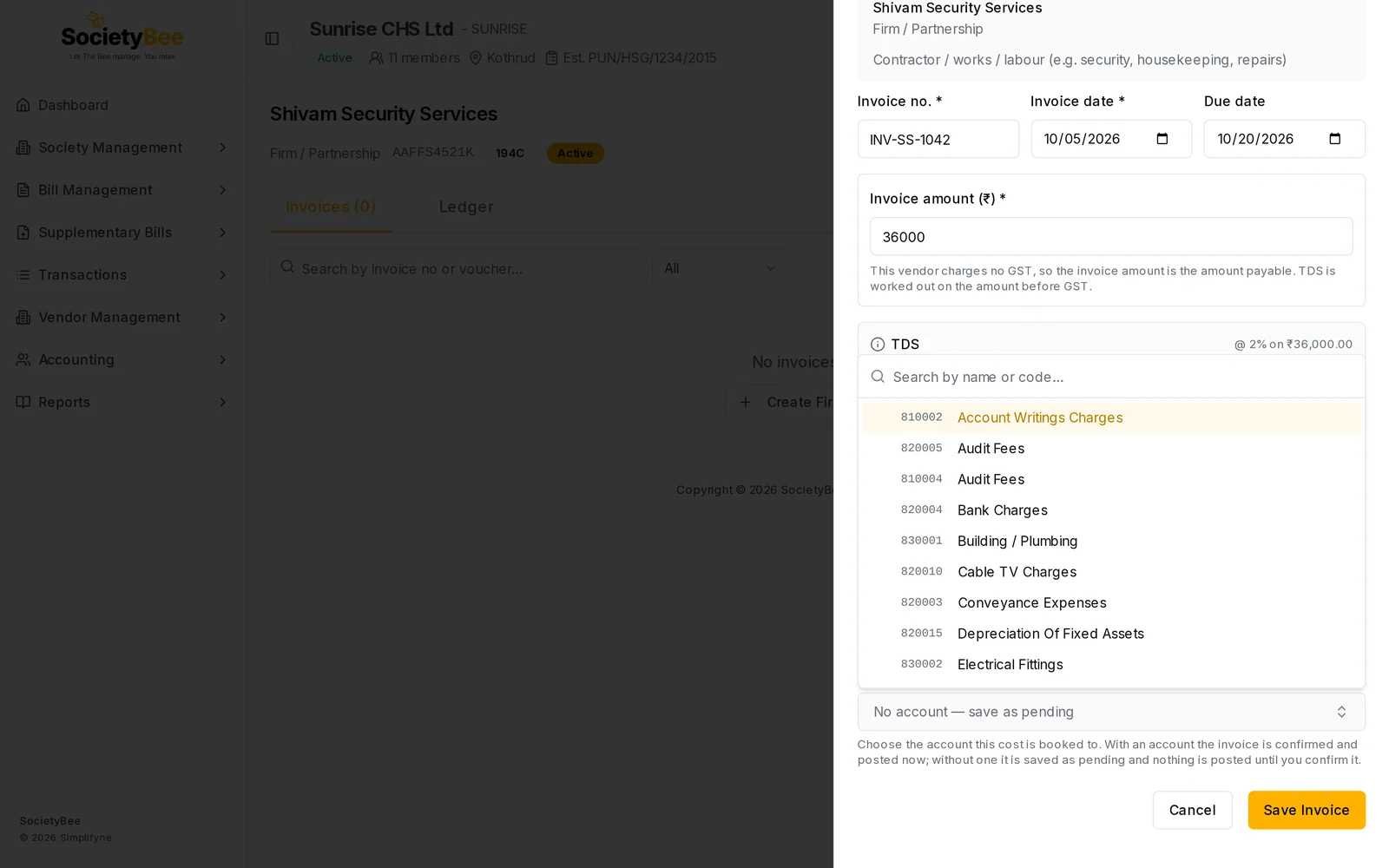
Under Expense account (optional), pick the account this cost belongs to, for example 810003 Security Agency Charges. With an account, the invoice is confirmed and posted now. Without one, it is saved as Pending and nothing is posted.
Press Save Invoice
A message says Invoice saved and confirmed — JV JV-000012, or Invoice saved — ready to confirm for a pending one.
An invoice with GST
When the vendor is Registered (regular), the panel splits the amount into Before GST, GST and Invoice total. TDS is worked out on the amount before GST.
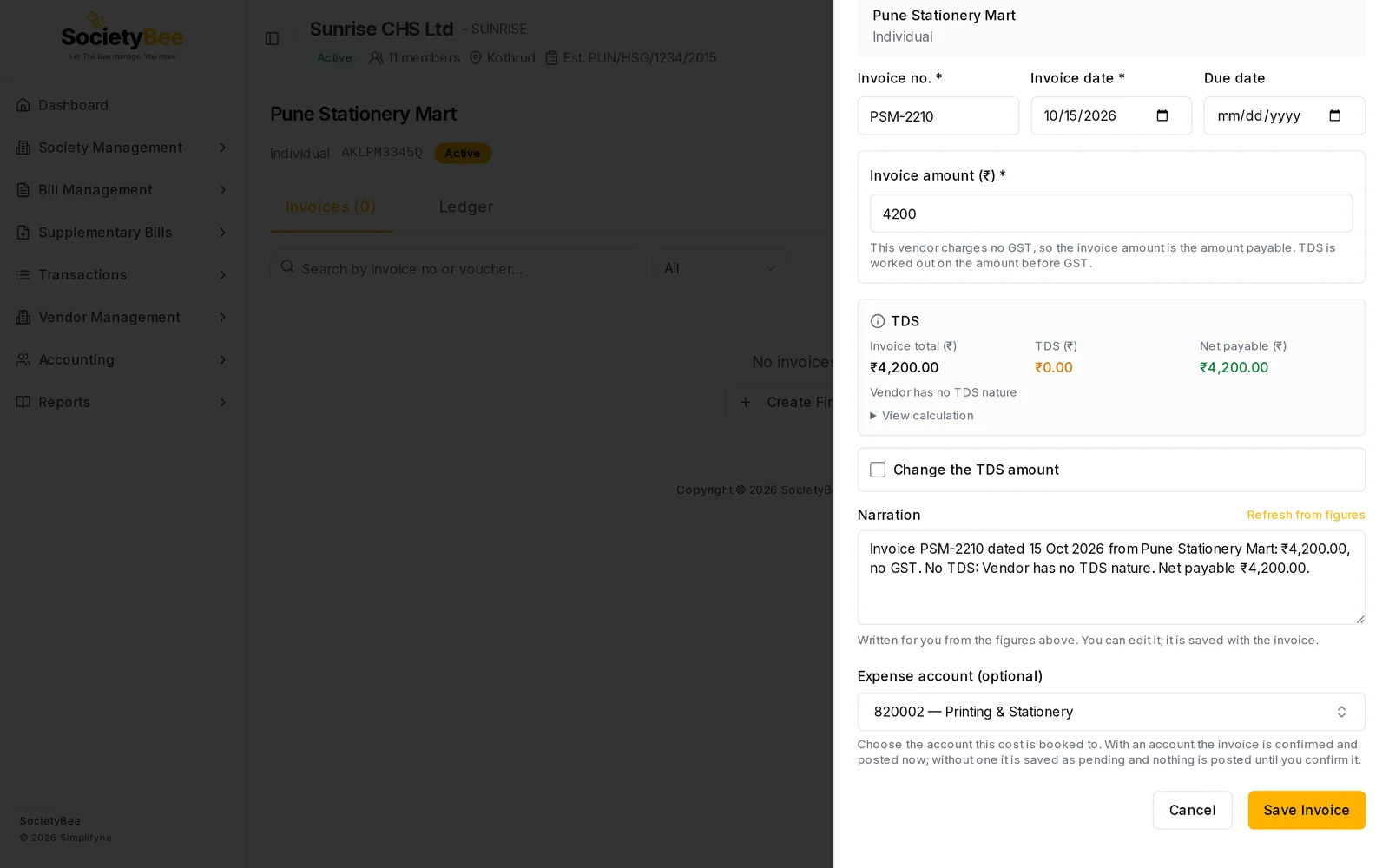
An invoice with no TDS
When the vendor has no TDS rule, or the amount is below the limit, the TDS box shows ₹0.00 with a short reason, for example Vendor has no TDS nature or Below threshold. The invoice is saved with no TDS.
Change the TDS amount (admin only)
If your CA tells you a different TDS amount applies, an admin can tick Change the TDS amount. Enter the TDS amount (₹), which must be between 0 and the amount before GST, and a Reason. The invoice keeps the calculated amount for comparison and marks the amount as set by hand. Other users do not see this box.
Fields and buttons
| Field | What it means | Required |
|---|---|---|
| Invoice no. | The number on the vendor's bill | Yes |
| Invoice date | The date on the bill. It decides the financial year and when TDS applies. | Yes |
| Due date | When payment is expected | No |
| Invoice amount (₹) | The total, for a vendor with no GST | Yes |
| Before GST (₹) | The amount before GST, for a GST vendor | Yes |
| GST (₹) | GST on the bill. Starts at the vendor's rate. | For a GST vendor |
| Invoice total (₹) | Before GST plus GST | Shown for a GST vendor |
| What happens to this GST? | Whether to claim the GST as input credit | When input GST is on |
| Change the TDS amount | Admin only. Overrides the calculated TDS with a reason. | No |
| Narration | A plain-words description of the figures. Editable. | No |
| Expense account | The account to post the cost to. Blank saves the invoice as Pending. | No |
| Save Invoice | Saves, and posts if an account was chosen | |
| Cancel | Closes the panel without saving |
Common mistakes and questions
TDS is zero but I expected some. Open View calculation. Common reasons: the vendor has no TDS payment type, or the amount is still below the limit. Once the limit is crossed during the year, TDS is taken on the whole amount so far, see TDS on vendor bills.
The Save Invoice button is greyed out. SocietyBee found no verified TDS rule for the vendor's payment type, or the GST is a blocked credit. Read the red message in the panel.
I saved without an expense account. What now? The invoice is Pending. Press Confirm on its row to post it. See Confirm and pay.
I need to fix a posted invoice. Only a Pending invoice can be edited. A posted one is cancelled with a reason and entered again.