
Confirm and pay a vendor invoice
Post a pending vendor invoice to the books, then pay it in full or in parts from a cash or bank book, with the cash-limit warnings explained.
Before you start
What this does
Confirm posts a Pending invoice to your books. Pay then records money going out of a cash or bank book to the vendor. A payment can cover the whole net amount or just a part.
Confirm a pending invoice
If you saved an invoice without an expense account, it waits as Pending.
Press Confirm
On the invoice row, press Confirm. A box titled Confirm Invoice shows the Gross Amount, the TDS and the Net Payable.
Choose the Debit Expense Account
Press Debit Expense Account * and pick the account the cost belongs to, for example 810003 — Security Agency Charges.
Press Post Journal Entry
The message Confirmed — JV JV-000008 appears. The invoice now shows Confirmed with its journal voucher number.
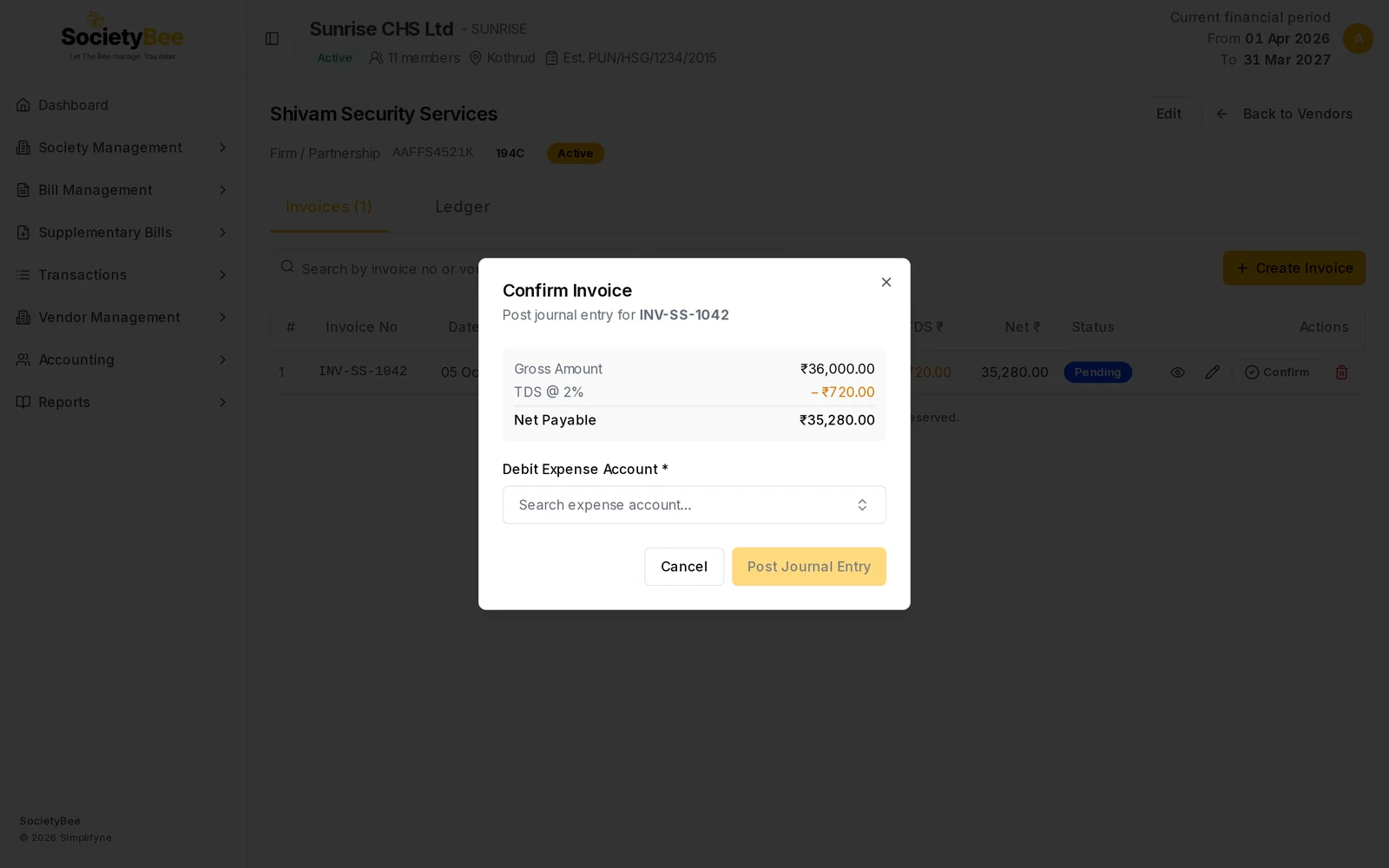
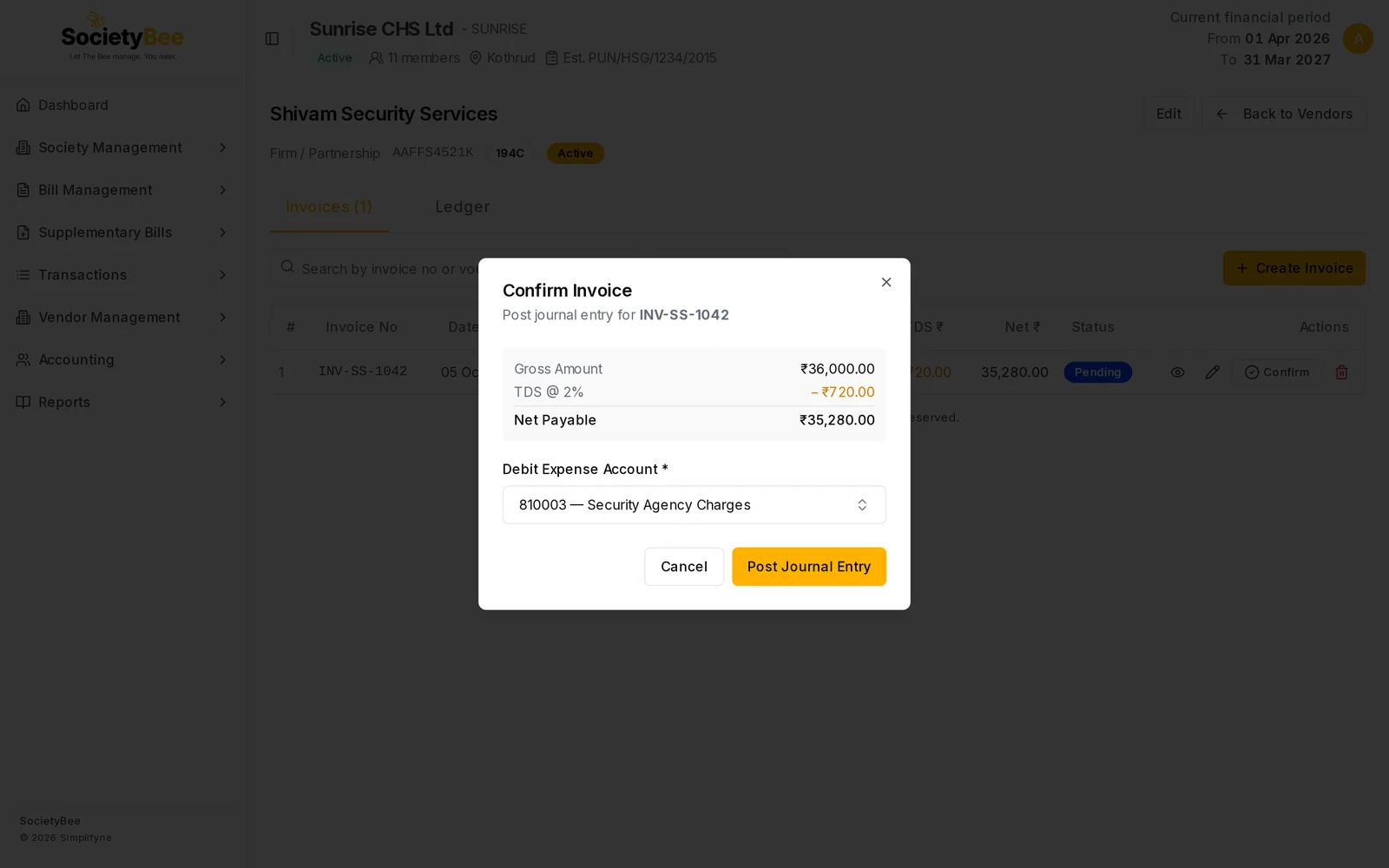
The journal entry charges the expense with the invoice amount, credits the vendor with what you owe, and credits TDS Payable with the TDS. Where GST is claimed, it also debits the Input GST accounts.
Pay an invoice
Press Pay
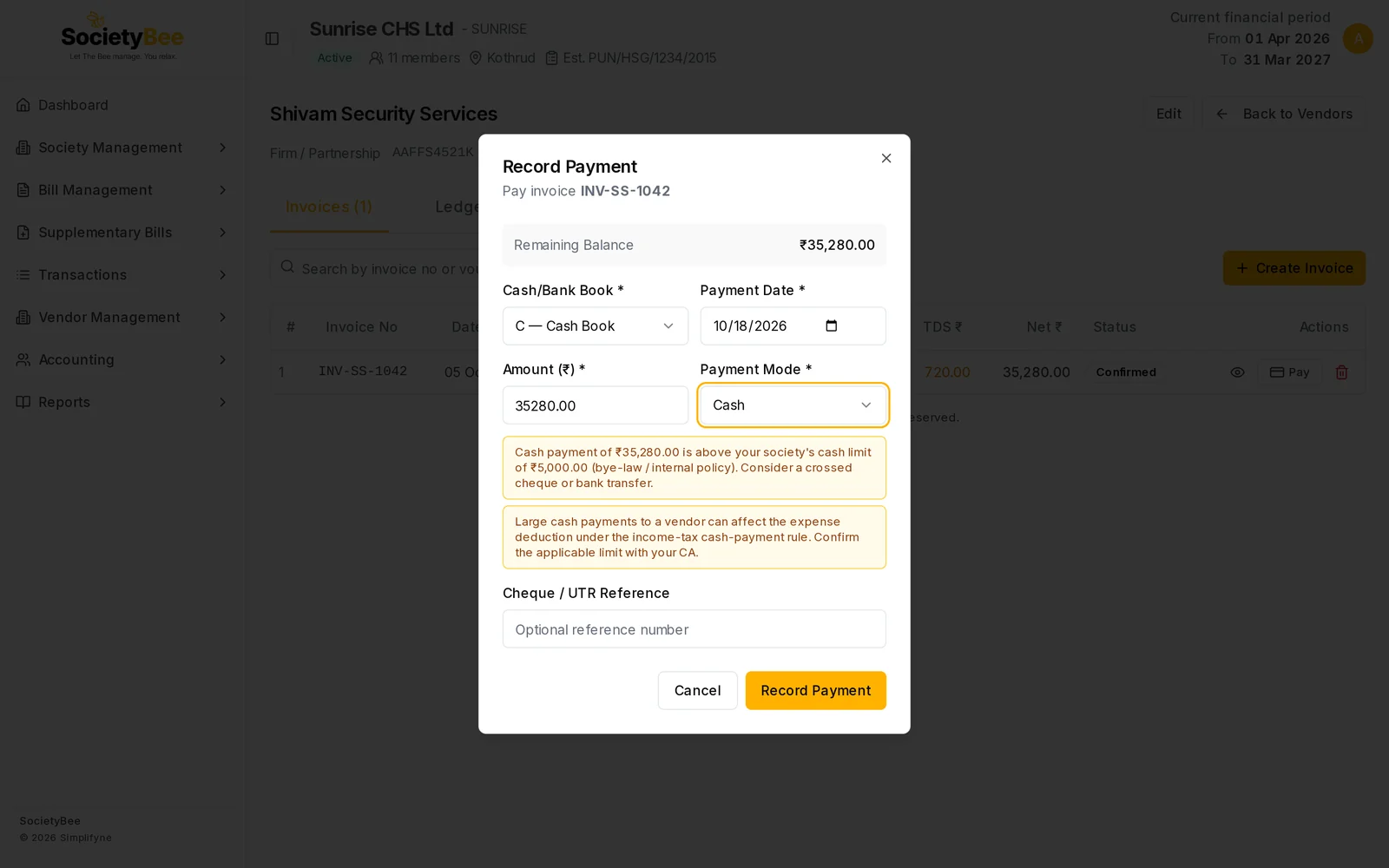
Pay appears on a Confirmed invoice with an amount still unpaid. A box titled Record Payment shows the Remaining Balance.
Choose the Cash/Bank Book
Pick the book the money goes out of, for example HDFC — HDFC Bank - Kothrud or C — Cash Book. Only cash and bank books are listed.
Check the Payment Date
It starts as today. Change it if the payment was made on another day.
Enter the Amount
It starts as the full remaining balance. Type a smaller amount to pay in parts.
Choose the Payment Mode
Pick Cash, Cheque, UPI, Net Banking or Card.
Add the Cheque / UTR Reference (optional)
Type the cheque number or bank reference.
Press Record Payment
The message Payment recorded — PV-000009 appears. The invoice stays Confirmed while a balance remains, and turns Paid when nothing is left.
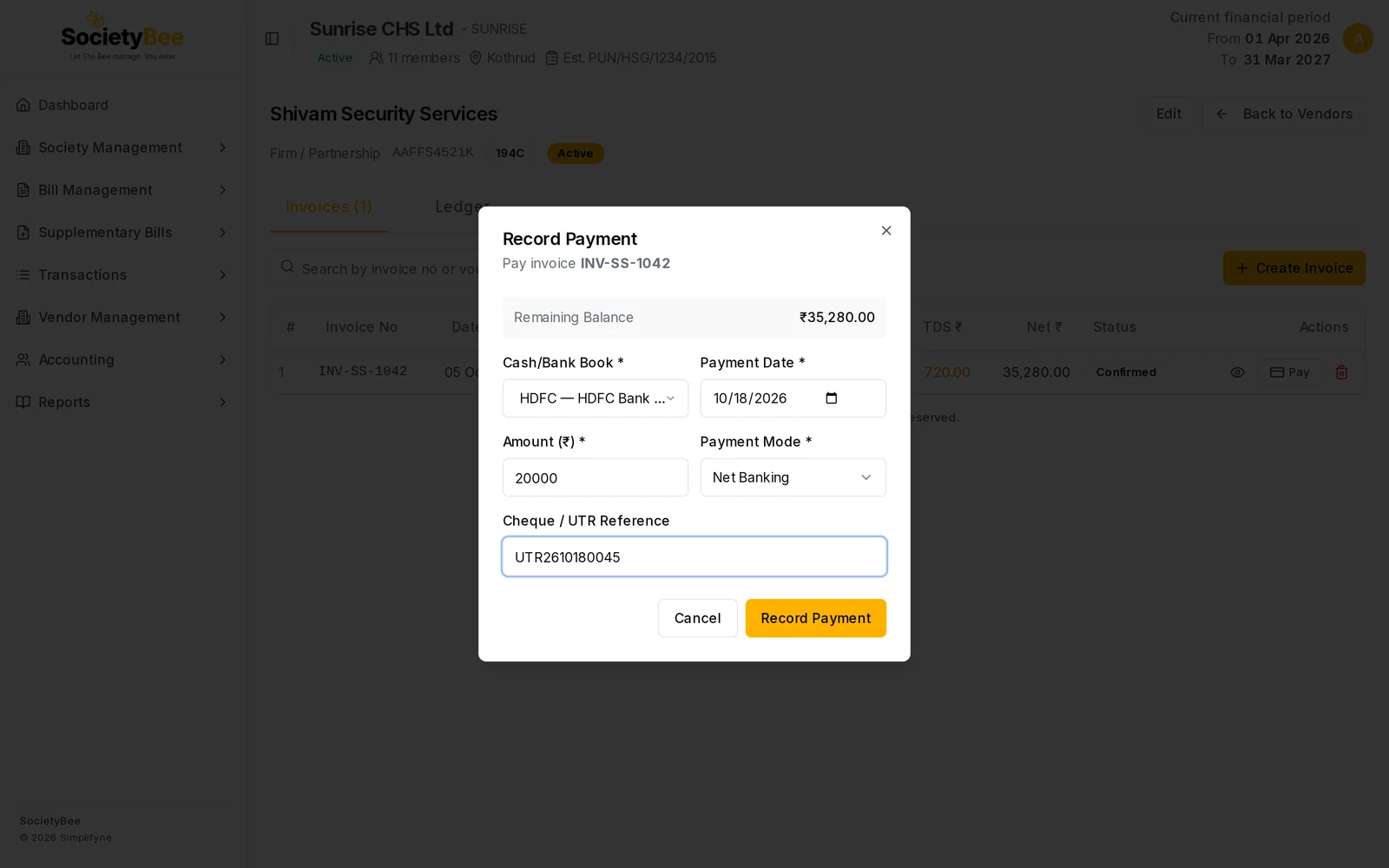
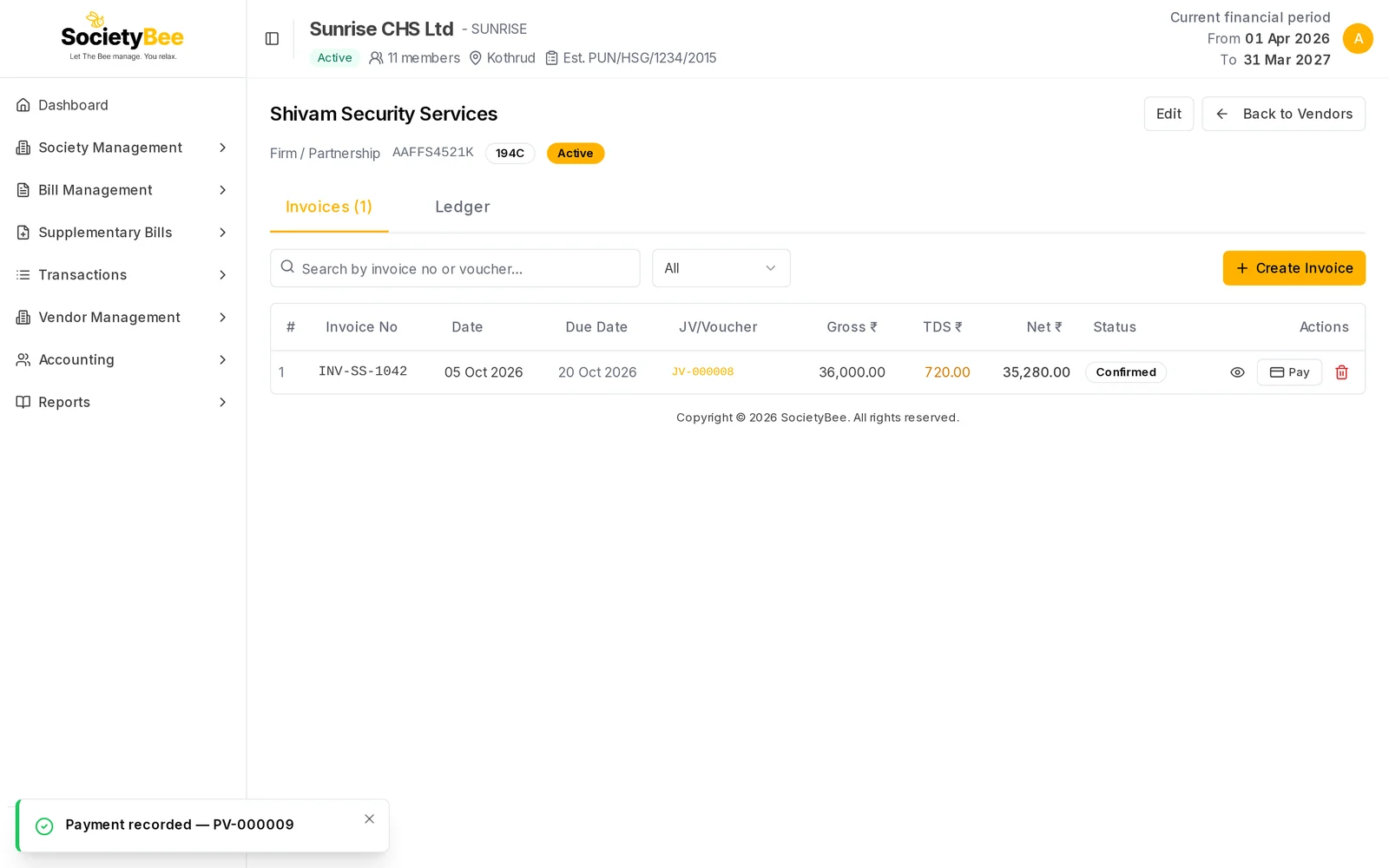
Each payment gets its own voucher number starting with PV-, which you can open from the invoice details or find in the voucher list.
Cash payment warnings
When you choose Cash, SocietyBee can show up to two amber warnings.
- Above your society's cash limit. It appears when the amount is more than the Cash limit per payment set in GST and TDS settings, and Warn when a cash payment exceeds the society limit is ticked. It suggests a crossed cheque or bank transfer.
- Income-tax cash-payment rule. A reminder that large cash payments to a vendor can affect the expense deduction. It appears when Warn about the income-tax cash-payment rule is ticked. Confirm the applicable limit with your CA.
The warnings do not stop you. You can still press Record Payment.
Fields and buttons
| Field | What it means | Required |
|---|---|---|
| Debit Expense Account | The expense the invoice is charged to | Yes, to confirm |
| Cash/Bank Book | The book the payment goes out of | Yes |
| Payment Date | The day you paid | Yes |
| Amount (₹) | What you are paying now | Yes |
| Payment Mode | How you paid | Yes |
| Cheque / UTR Reference | The cheque number or bank reference | No |
| Post Journal Entry | Posts the invoice | |
| Record Payment | Posts the payment |
Common mistakes and questions
It says my payment exceeds the remaining balance. SocietyBee does not take a payment above the unpaid net amount. Lower the Amount.
I paid the wrong amount or the wrong book. Cancel that payment (an admin can) and record it again. See Invoice details and cancel.
The vendor received less than the invoice. Where did the TDS go? The net amount is paid to the vendor. The TDS stays with the society until you deposit it with the government.
What happens next
Deposit the TDS under TDS reports and deposits.