SocietyBee
    Billing
    Automated maintenance & charge billing
    Collections
    Track payments, send reminders
    Accounting
    Double-entry ledger & bank reconciliation
    Reports & Compliance
    Bye-law compliant statutory reports
    BeeAgent AI
    Natural language queries on your data
    For CAs & Accountants
    Manage all societies from one login
    For Treasurers
    Simple billing & audit-ready records
    For Managing Committee
    Visibility without the spreadsheets
    Docs
    Step-by-step guides for every module
    Blog
    Society management guides & tips
    Glossary
    Accounting & society terms explained
    vs MyGate
    Accounting vs gate security app
    vs ApnaComplex
    Multi-society CA login vs per-society pricing
    vs SocietyRun
    BeeAgent AI & zero gateway commission
    vs NoBrokerHood
    Accounting vs marketplace app
    vs Excel
    Audit trail & statutory reports vs spreadsheets
    Pricing
    Sign inStart free →
    Society Onboarding
    Member Onboarding
    Bills
    Receipts
    Vouchers
    Vendors, TDS and GST
    • Vendors, TDS and GST at a glance
    • Add a vendor
    • The vendor list and search
    • Edit or deactivate a vendor
    • The vendor page, invoices and ledger
    • Create a vendor invoice
    • Confirm and pay a vendor invoice
    • Invoice details, PDF, cancel and delete
    • How TDS is worked out on vendor bills
    • Input GST (ITC) on vendor bills
    • TDS reports, deposits and the statement
    Reports
    Supplementary Bills
    Bank Reconciliation
    Docs / Vendors, TDS and GST

    The vendor page, invoices and ledger

    Learn the vendor page where you keep a vendor's invoices and ledger, with the invoice list, search, status filter, every column and every button explained.

    Who can do this:adminemployee 4 min read Checked 18 Oct 2026

    Before you start

    • The vendor list and search

    What this page does

    Each vendor has a page with two tabs. Invoices lists every bill you entered for the vendor, with the buttons to confirm, pay, view and cancel. Ledger shows every entry that changed what you owe the vendor, with a running balance.

    Where to find it

    Go to Vendor Management > Vendors and press the vendor's name or Manage. The top of the page shows the vendor's name, type, PAN, TDS section and Active or Inactive. Edit opens the vendor form, and Back to Vendors returns to the list.
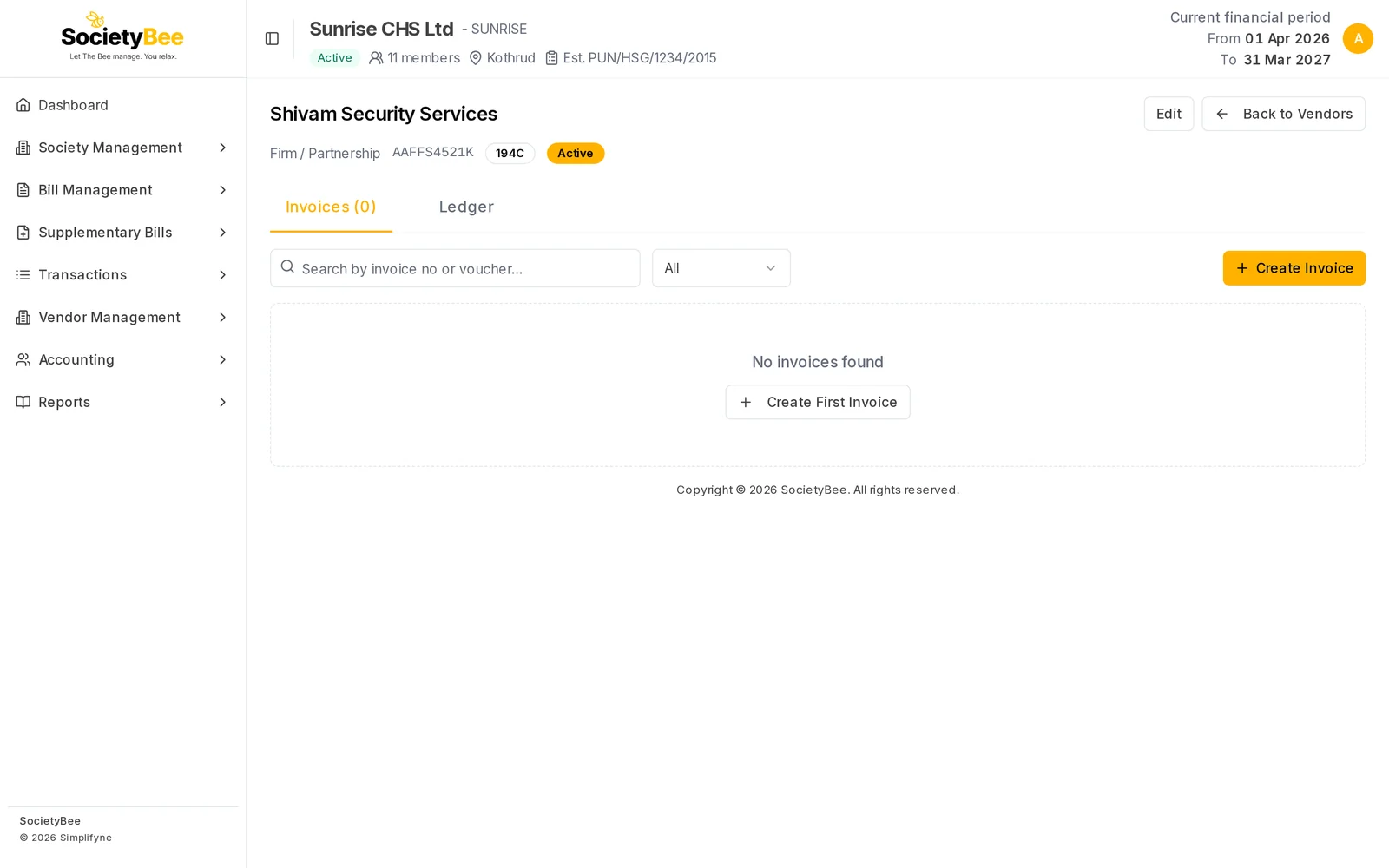
    Vendor page for Shivam Security Services with Invoices and Ledger tabs, a search box, a status filter and a Create Invoice button, and no invoices yet
    A new vendor with no invoices.

    The Invoices tab

    1. Find an invoice

      Type an invoice number or voucher number in Search by invoice no or voucher…. Use the status box beside it to show All, Pending, Confirmed, Paid or Cancelled.

    2. Read the row

      Each row shows the invoice number, date, due date, the journal voucher number, the gross amount, the TDS and the net amount, as explained below.

    3. Use the buttons

      The icons and buttons at the end of the row depend on the status.
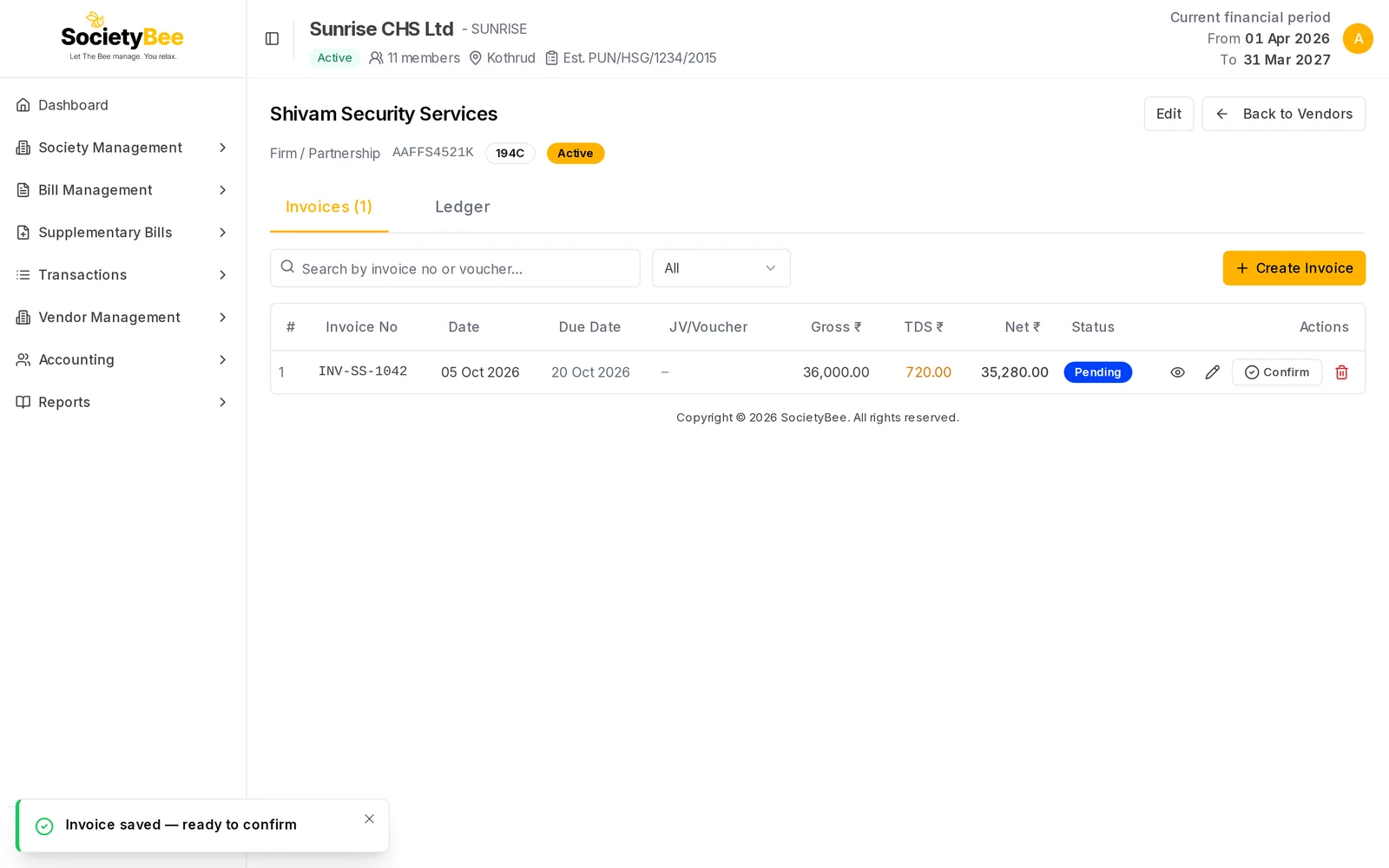
    Invoices tab with one Pending invoice INV-SS-1042 for 36,000 rupees with TDS 720 and net 35,280, and eye, pencil, Confirm and bin buttons
    A Pending invoice has view, edit, Confirm and delete buttons.

    Columns

    ColumnWhat it shows
    Invoice NoThe number on the vendor's bill
    DateThe invoice date
    Due DateWhen the vendor expects payment, or a dash
    JV/VoucherThe journal voucher number made when the invoice was confirmed. Press it to see the entries. Empty while Pending.
    Gross ₹The full invoice amount, including GST
    TDS ₹TDS held back from the vendor, or a dash
    Net ₹What you actually pay the vendor: gross minus TDS
    StatusPending, Confirmed, Paid or Cancelled

    Buttons on each row

    ButtonShown whenWhat it does
    EyeAlwaysOpens the invoice details
    PencilPending onlyEdits the invoice
    ConfirmPending onlyPosts the invoice to the books, see Confirm and pay
    PayConfirmed, with an amount still unpaidRecords a payment
    BinNot CancelledDeletes a Pending invoice, or cancels a posted one with a reason
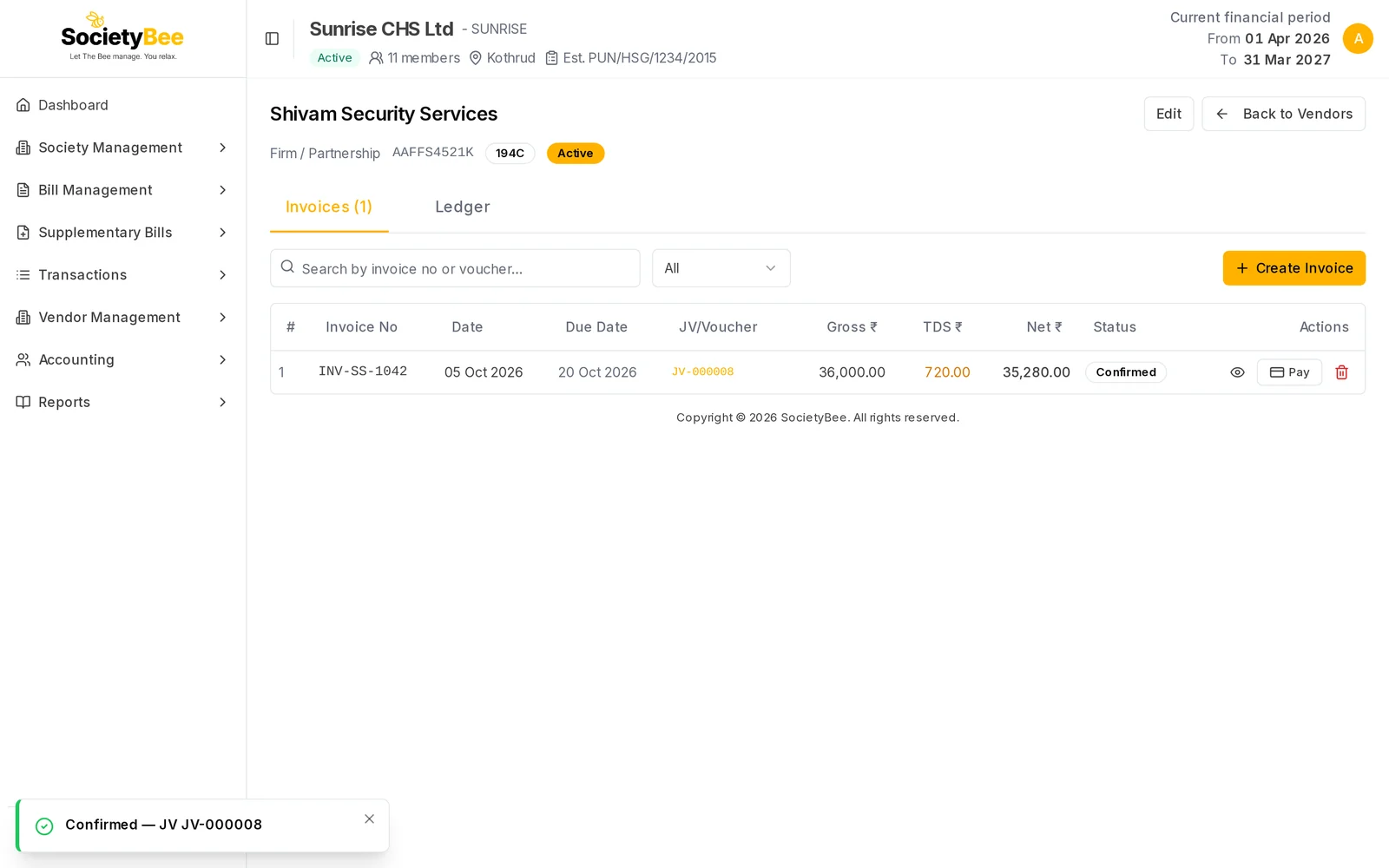
    Invoices tab with the invoice now Confirmed, showing journal voucher JV-000008 and view and Pay buttons
    After Confirm the invoice has a journal voucher and a Pay button.
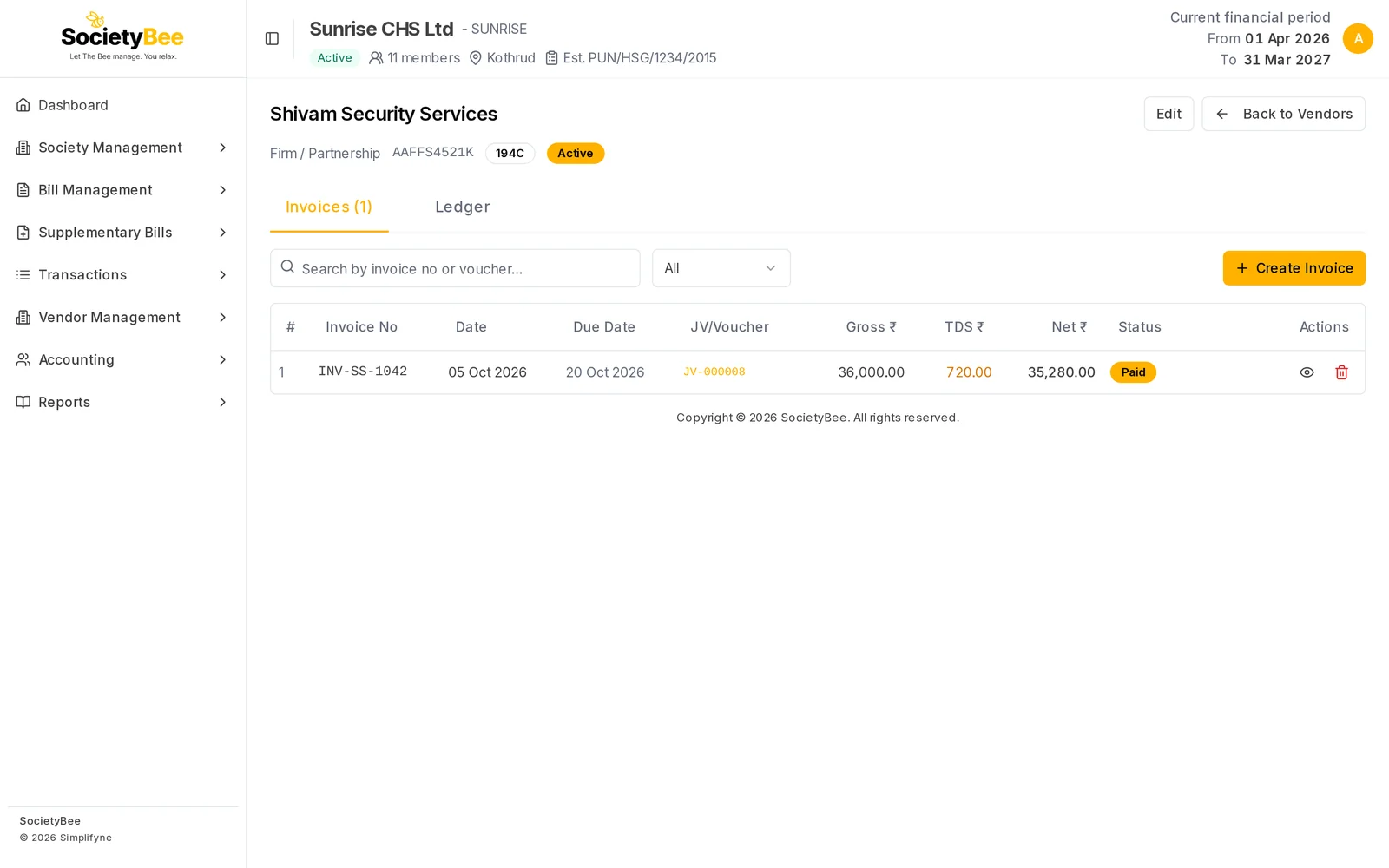
    Invoices tab with the invoice marked Paid and only view and bin buttons
    A Paid invoice.

    The Ledger tab

    The ledger is the vendor's account. It shows what the society owes and has paid.

    ColumnWhat it shows
    Date and VoucherThe entry date and its voucher, for example JV-000008 for the invoice and PV-000009 for a payment
    NarrationWhat the entry was for
    Debit ₹Money that reduces what you owe: TDS held back, and payments made
    Credit ₹Money you owe the vendor: the invoice amount
    Balance ₹The running total. Cr means you still owe the vendor. Dr means you have paid more than you owe.
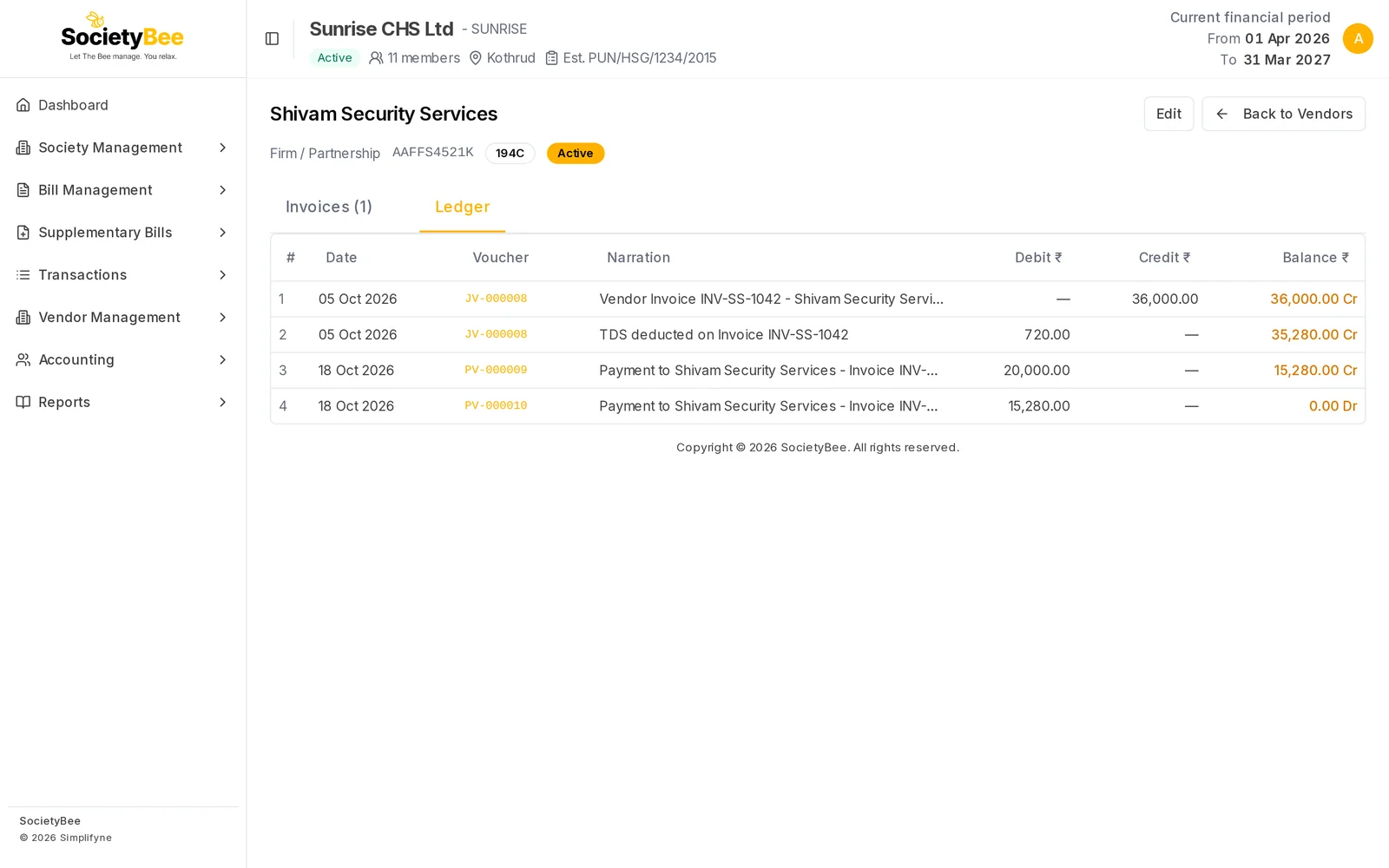
    Vendor Ledger tab for Shivam Security Services with the invoice credit of 36,000, the TDS debit of 720 and two payments of 20,000 and 15,280, ending at a balance of 0.00 Dr
    The ledger of a fully paid invoice. The balance is zero.

    In the example, the invoice credits ₹36,000. The TDS of ₹720 is deducted from what you owe, so ₹35,280 remains. Two payments then bring the balance to zero.

    Common mistakes and questions

    How much do we owe this vendor? Look at the last Balance on the Ledger tab. A Cr balance is the amount still to pay.

    The Pay button is gone. The invoice is Pending (confirm it first), Paid, or Cancelled.

    I cannot find an invoice I made. Set the status box to All and clear the search.

    What happens next

    Create a vendor invoice.

    Related guides

    • Create a vendor invoice
    • Confirm and pay a vendor invoice
    • Invoice details, PDF, cancel and delete
    PreviousEdit or deactivate a vendorNext Create a vendor invoice

    On this page

    1. What this page does
    2. Where to find it
    3. The Invoices tab
    4. The Ledger tab
    5. Common mistakes and questions
    6. What happens next
    SocietyBee

    Built in Mumbai by Simplifyne Technologies Private Limited. Serving housing societies across India.

    Enquiries

    +91 95949 04493
    admin@societybee.in

    Product

    • Billing
    • Collections
    • Accounting
    • Reports & Compliance
    • BeeAgent AI
    • For CAs & Accountants
    • For Treasurers
    • For Managing Committee

    Resources

    • Docs
    • Blog
    • Glossary
    • SocietyBee vs MyGate
    • SocietyBee vs ApnaComplex
    • SocietyBee vs SocietyRun
    • SocietyBee vs NoBrokerHood
    • SocietyBee vs Excel

    Company

    • About
    • Trust & Security
    • Pricing
    • Early Access
    • Book a Demo
    • Contact
    • Privacy Policy
    • Terms & Conditions
    • Refund Policy

    🇮🇳 We serve housing societies across India

    Operating team based in Mumbai.

    © 2026 Simplifyne Technologies Private Limited.

    All rights reserved.