
Invoice details, PDF, cancel and delete
Open a vendor invoice to see its amounts, TDS, GST, narration and payments, download the PDF, and delete a pending invoice or cancel a posted one safely.
Before you start
What this does
The eye button opens an invoice with every figure behind it. A wrong invoice is never edited after posting. A pending one is deleted, and a posted one is cancelled with a reason, which keeps the original entry and posts a reversing one so the audit trail stays complete.
See the invoice details
Press the eye on an invoice row. A box titled Invoice INV-SS-1042 opens.
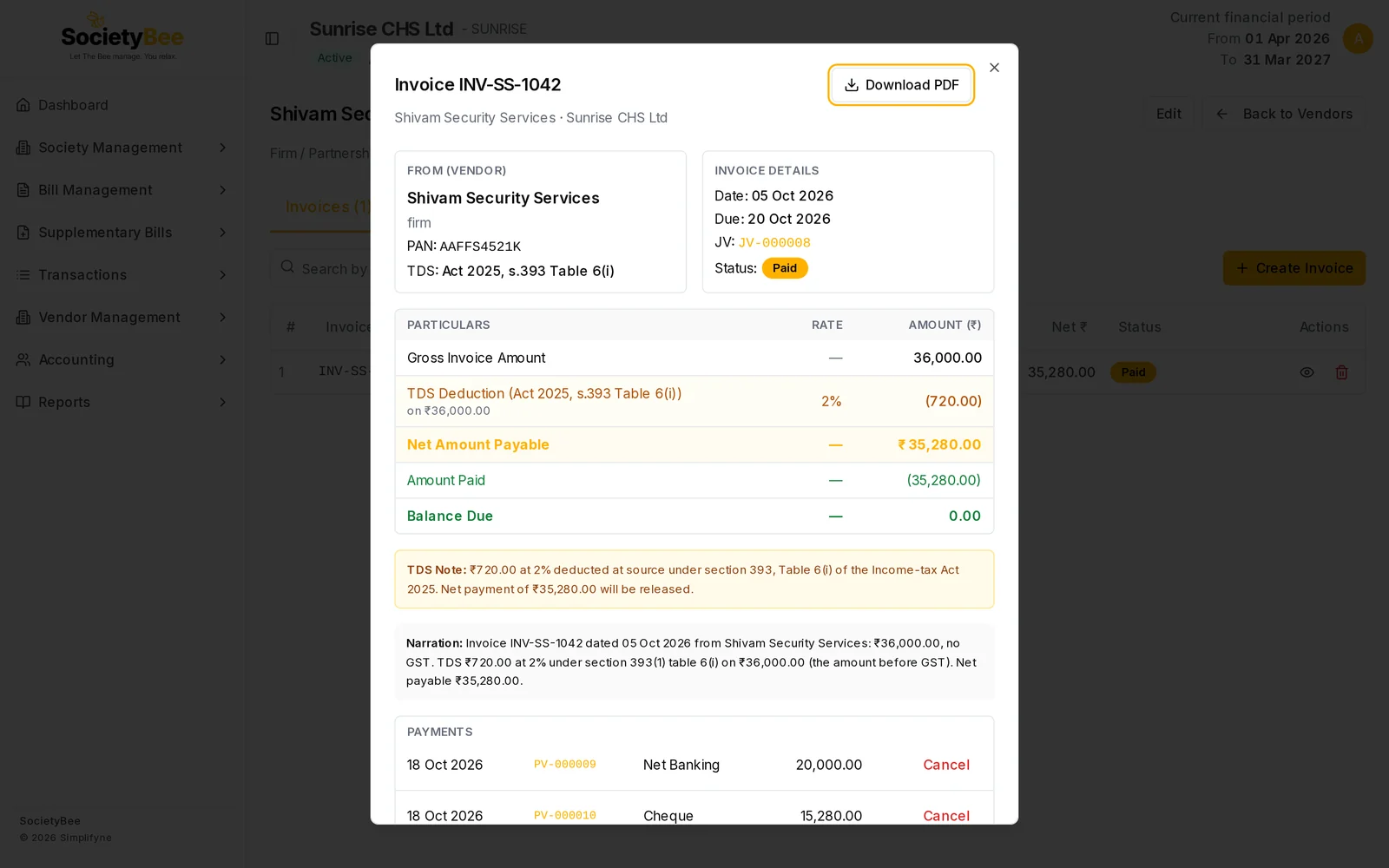
| Part | What it shows |
|---|---|
| From (Vendor) | The vendor, PAN and the TDS rule used, for example Act 2025, s.393 Table 6(i) |
| Invoice Details | Invoice date, due date, journal voucher (press it to see the entries) and status |
| Gross Invoice Amount | The full bill. With GST, lines below it split it into the taxable value, the GST, and CGST, SGST or IGST. |
| GST treatment | What was done with the GST, for example claimed as input credit |
| TDS Deduction | The TDS, its rate, the amount it was worked on, and any higher-rate reason |
| Net Amount Payable | Gross minus TDS |
| Amount Paid and Balance Due | Shown once a payment is made |
| TDS Note | A sentence explaining the TDS |
| Narration | The description saved with the invoice |
| Payments | Each payment with its date, voucher, mode and amount |
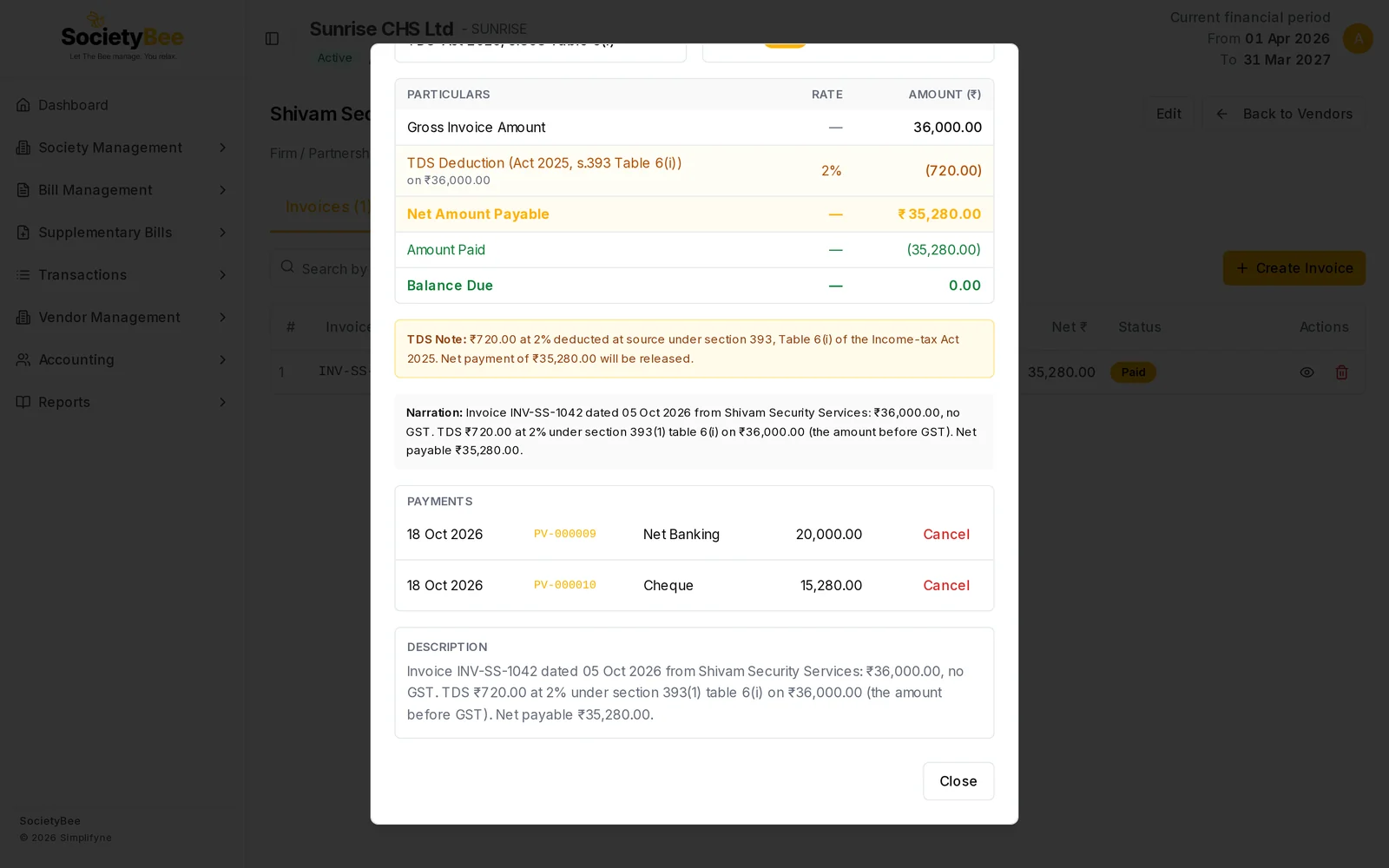
Press Download PDF at the top to get the invoice as a PDF for your records.
See the journal entries
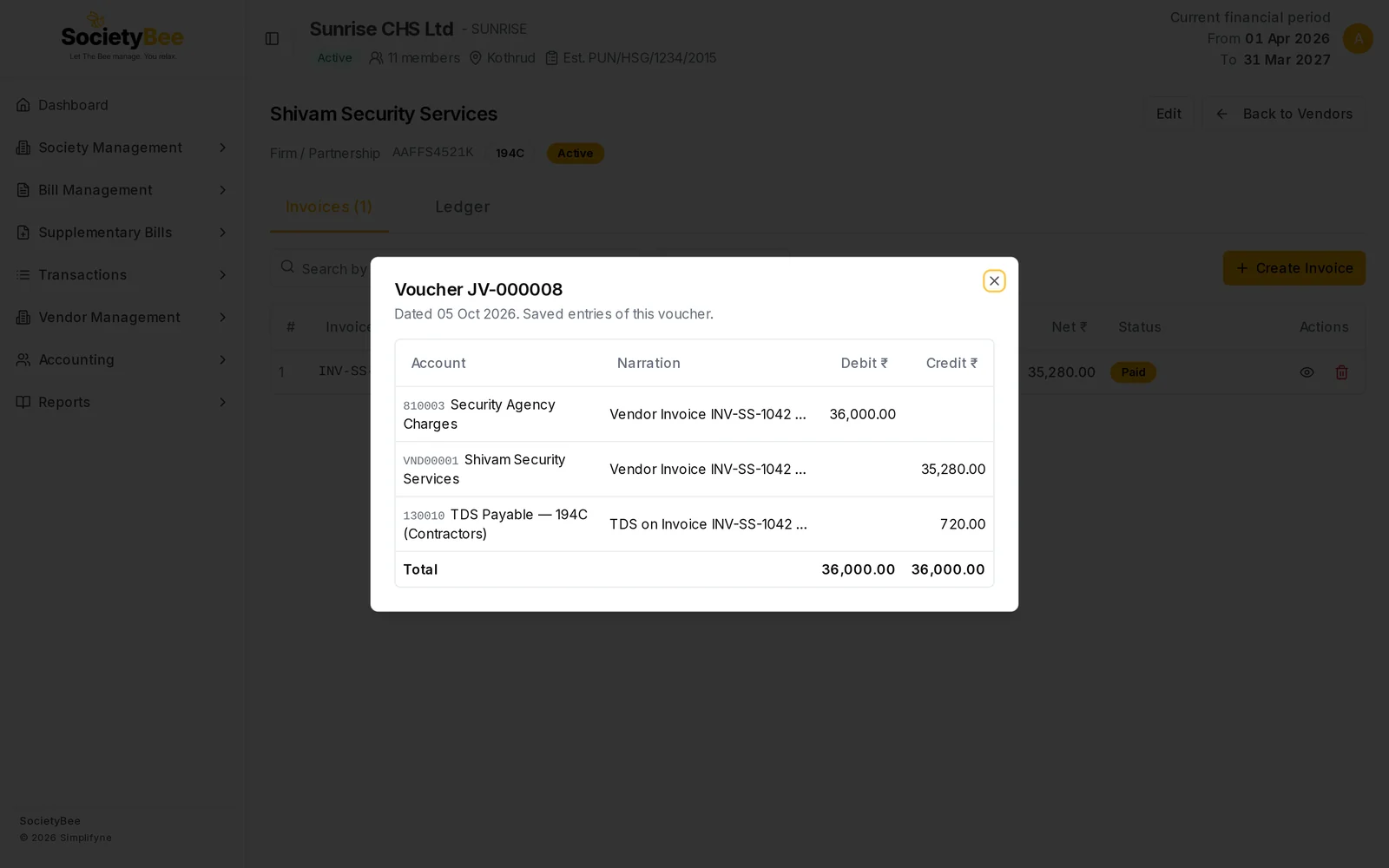
Press the voucher number, for example JV-000008, to see the entries it posted: the expense, the vendor, TDS Payable and any Input GST.
Delete or cancel an invoice
Press the red bin on the row. What happens depends on the status.
| Status | Box title | What it does |
|---|---|---|
| Pending | Delete Invoice? | Deletes the invoice. It was never posted, so nothing in the books changes. |
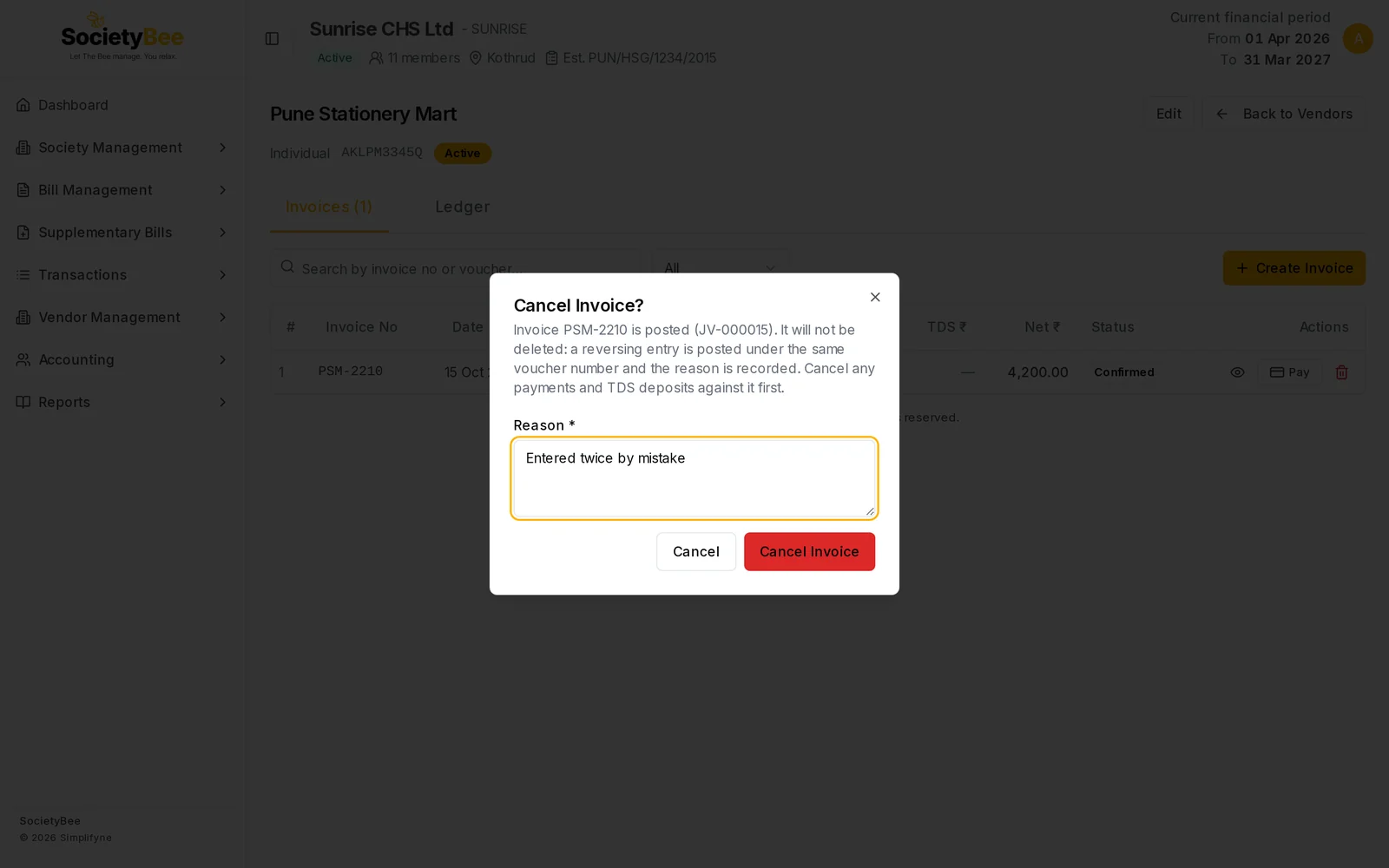
| Confirmed or Paid | Cancel Invoice? | Posts a reversing entry under the same voucher number. Asks for a Reason. |
Press the bin
A box asks you to confirm.
Enter a Reason (posted invoices)
Type why, for example Entered twice by mistake. The button works only with a reason.
Confirm
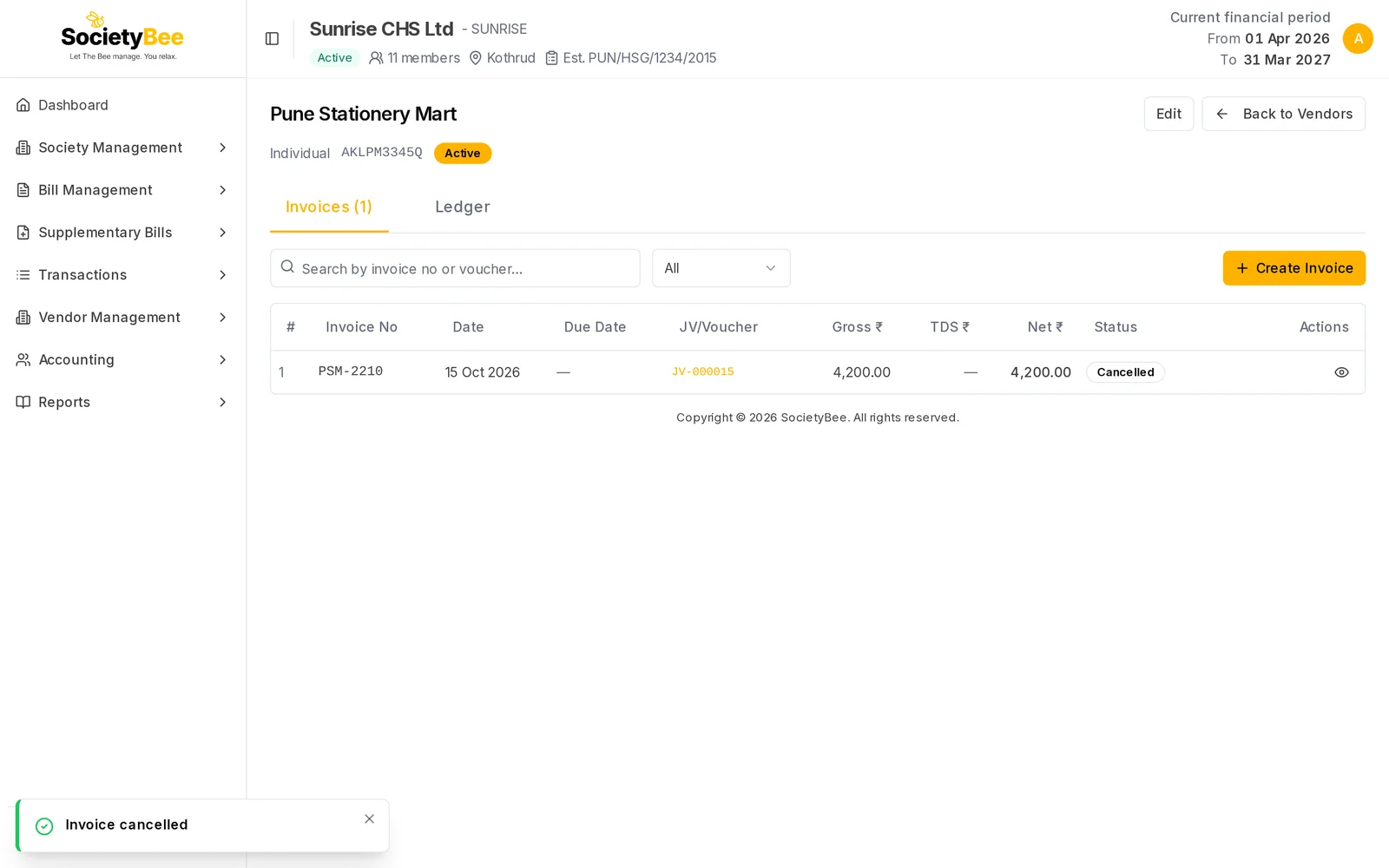
Press Delete Invoice or Cancel Invoice. The message Invoice deleted or Invoice cancelled appears. A cancelled invoice stays in the list with the status Cancelled.
When an invoice cannot be cancelled
- Payments exist. Cancel the payments made against the invoice first.
- TDS was deposited. If the TDS on the invoice has already been deposited, cancel that TDS deposit first. See TDS reports and deposits.
SocietyBee tells you which one is blocking.
Cancel a payment (admin)
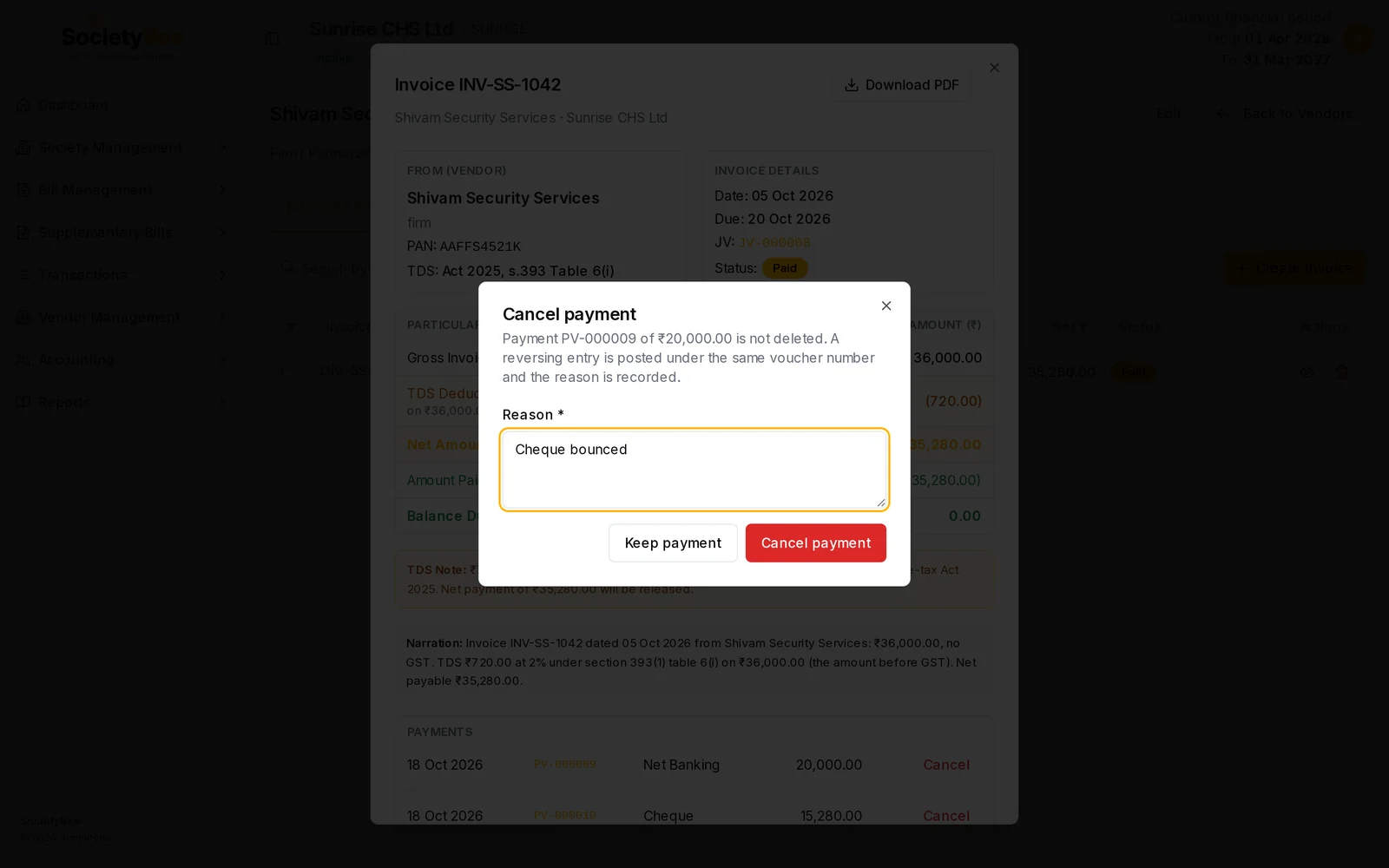
An admin sees a Cancel button beside each payment in the invoice details. A box titled Cancel payment says the payment is not deleted: a reversing entry is posted under the same voucher number, and your reason is recorded. Type a Reason and press Cancel payment, or press Keep payment to leave it. The amount becomes payable again on the invoice.
Common mistakes and questions
I made a mistake in a posted invoice. You cannot edit it. Cancel it with a reason and enter it again.
Why is there no pencil on a Confirmed invoice? Only Pending invoices can be edited.
What happens next
Back to the vendor page, or deposit the TDS under TDS reports and deposits.