
Edit or deactivate a vendor
Change a vendor's details, switch a vendor off so it is hidden from new invoices, and bring it back later.
Before you start
What this does
You can correct a vendor's details at any time, and switch a vendor off when you stop using them. A vendor is never deleted, so its old invoices and ledger always stay.
Edit a vendor
Open the edit form
On Vendor Management > Vendors, press the pencil on the vendor's row. You can also press Edit on the vendor's page.
Change what is wrong
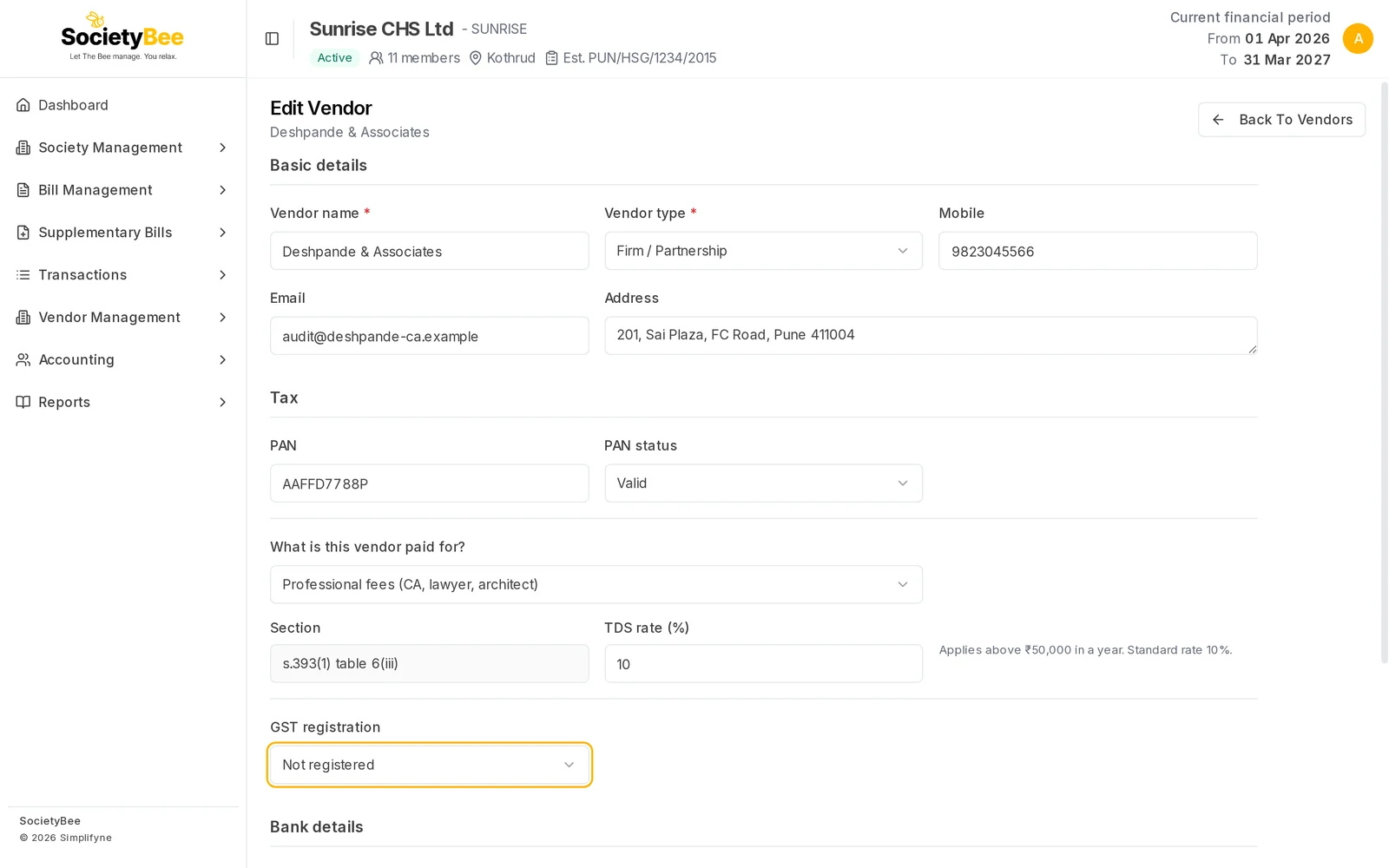
The form is the same as Add a vendor, filled with the saved values. For example, change GST registration from Not sure to Not registered.
Save
Press Save Changes. The message Vendor updated appears and you return to the list. Press Cancel to leave without saving.
Deactivate a vendor
Press the power icon
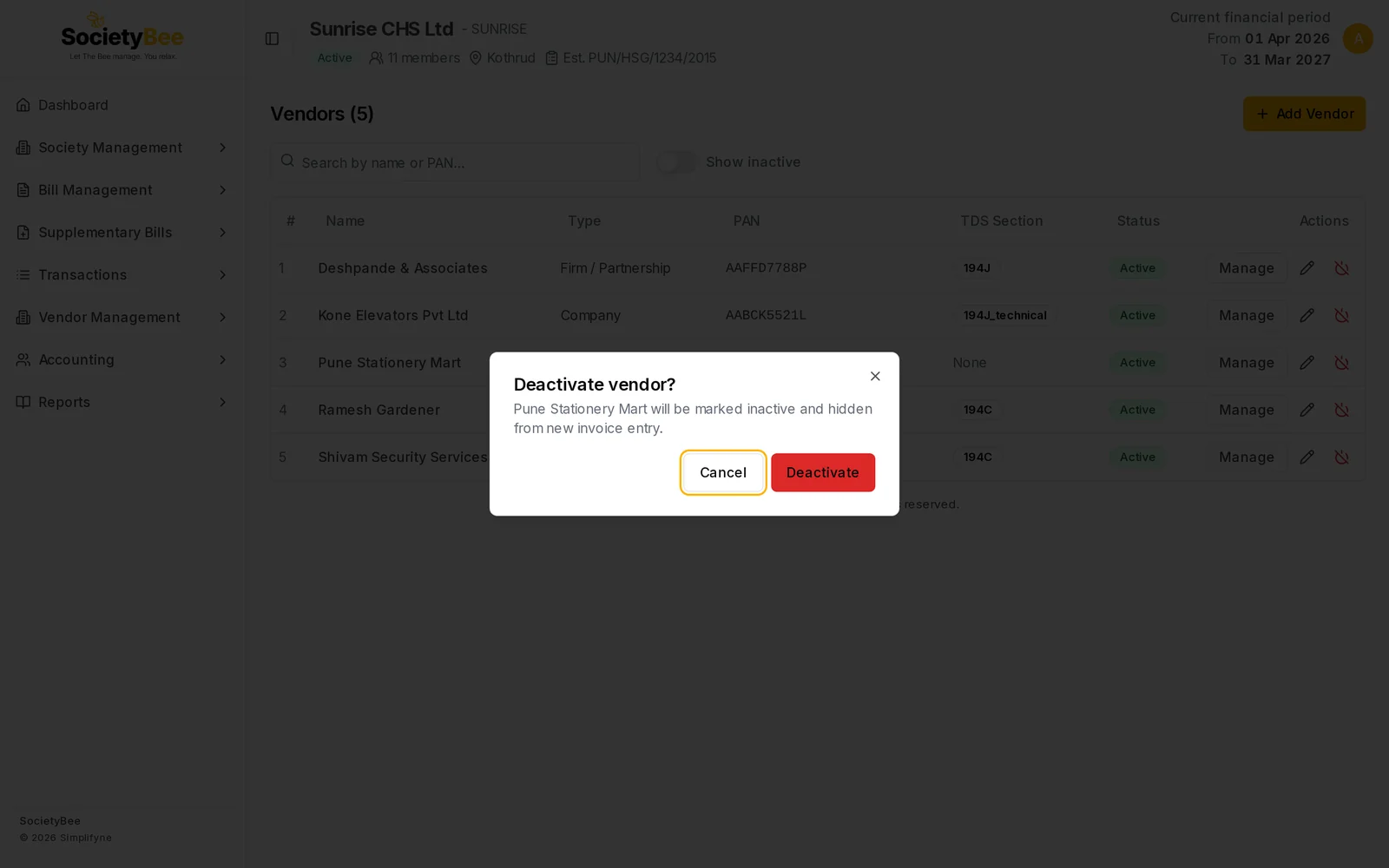
On the vendor's row, press the red power icon. A box asks Deactivate vendor? and says the vendor will be marked inactive and hidden from new invoice entry. Inactive vendors are also hidden from the vendor list unless Show inactive is on.
Confirm
Press Deactivate. The message Vendor deactivated appears and the vendor disappears from the list.
Bring a vendor back
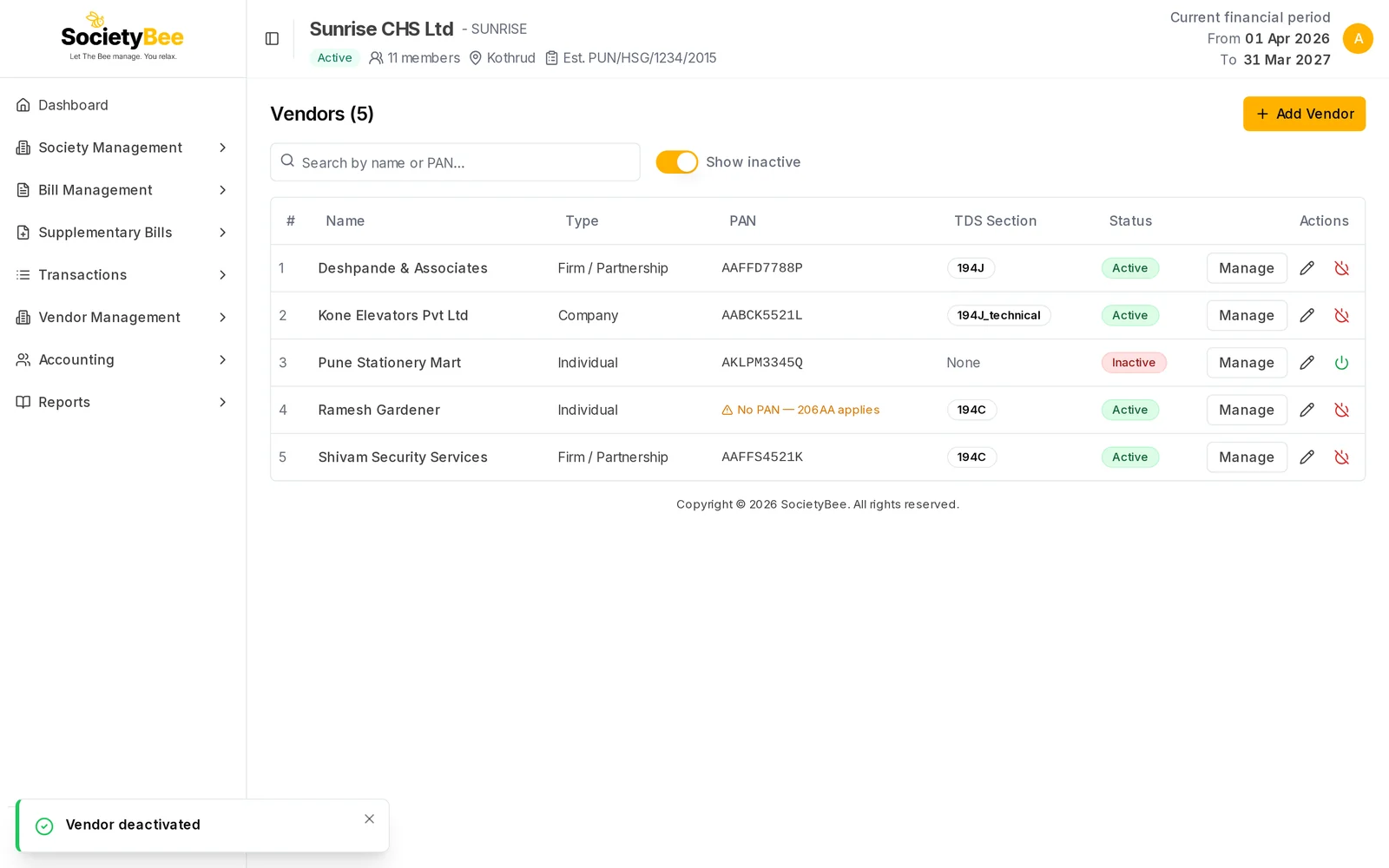
Turn on Show inactive on the list. The inactive vendor shows an Inactive badge and a green power icon. Press it and then Reactivate. The message Vendor reactivated appears.
Common mistakes and questions
Can I delete a vendor? No. Deactivate it instead. Its invoices, payments and ledger stay for your records and audit.
I deactivated a vendor with an unpaid invoice. Nothing on its invoices changes. You can still open the vendor from the list with Show inactive on.
What happens next
Go back to the vendor list.