
Input GST (ITC) on vendor bills
Understand the four choices for the GST on a vendor invoice, when input credit can be claimed, and which accounts the GST is posted to.
Before you start
What this does
When a vendor charges GST on a bill, your society pays that GST too. A society that is registered for GST and can claim credit may record it as input GST (ITC) instead of treating it as part of the expense. This guide explains the choice you make on each invoice. It does not tell you whether your society is allowed to claim. Your CA decides that.
Before you start
- GST is switched on for the society, and Claim input GST (ITC) on vendor invoices is ticked with a start date, in GST and TDS settings.
- The vendor is registered for GST, or the invoice shows GST.
If either is missing, the What happens to this GST? box does not appear. The GST is then simply part of the expense.
Steps
Enter the invoice with GST
On the vendor's Create Invoice panel, fill Before GST, GST and Invoice total.
Open What happens to this GST?
The box appears when your society claims input GST and the GST amount is more than zero. It starts on Do not claim: add to the expense.
Pick one of the four choices
See the table below.
Read the split
The box shows CGST (₹), SGST (₹) and IGST (₹), and a line that says where the amounts will be posted.
Save
Press Save Invoice, or confirm a pending invoice later.
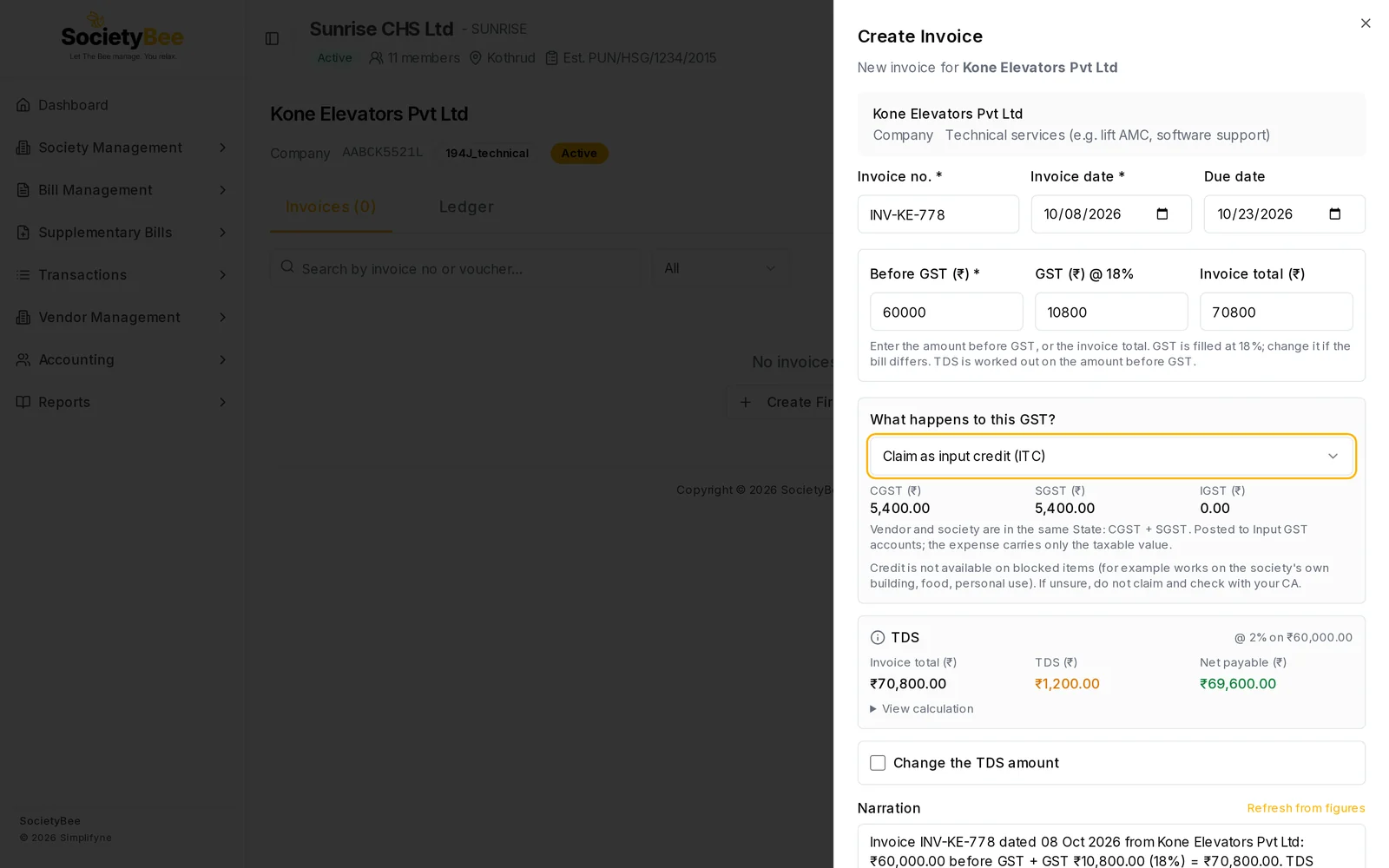
The four choices
| Choice | What SocietyBee does |
|---|---|
| Claim as input credit (ITC) | The GST goes to the Input CGST, Input SGST or Input IGST accounts. The expense carries only the amount before GST. |
| Not claimable (blocked credit): add to the expense | The GST is added to the expense. Use this for items where credit is not allowed. |
| Capitalise: add to the asset / fund | The GST is added to the asset or fund the bill belongs to. |
| Do not claim: add to the expense | The GST is added to the expense. This is the starting choice. |
Credit is not available on some items, for example works on the society's own building, food or personal use. If you are unsure, do not claim and ask your CA.
CGST, SGST or IGST
SocietyBee splits the GST for you, using the State code at the start of the vendor's and the society's GSTIN. When the vendor and the society are in the same State, the GST is CGST + SGST half each. The box says so, for example Vendor and society are in the same State: CGST + SGST. For a vendor in another State, or an SEZ, it uses IGST.
What is posted
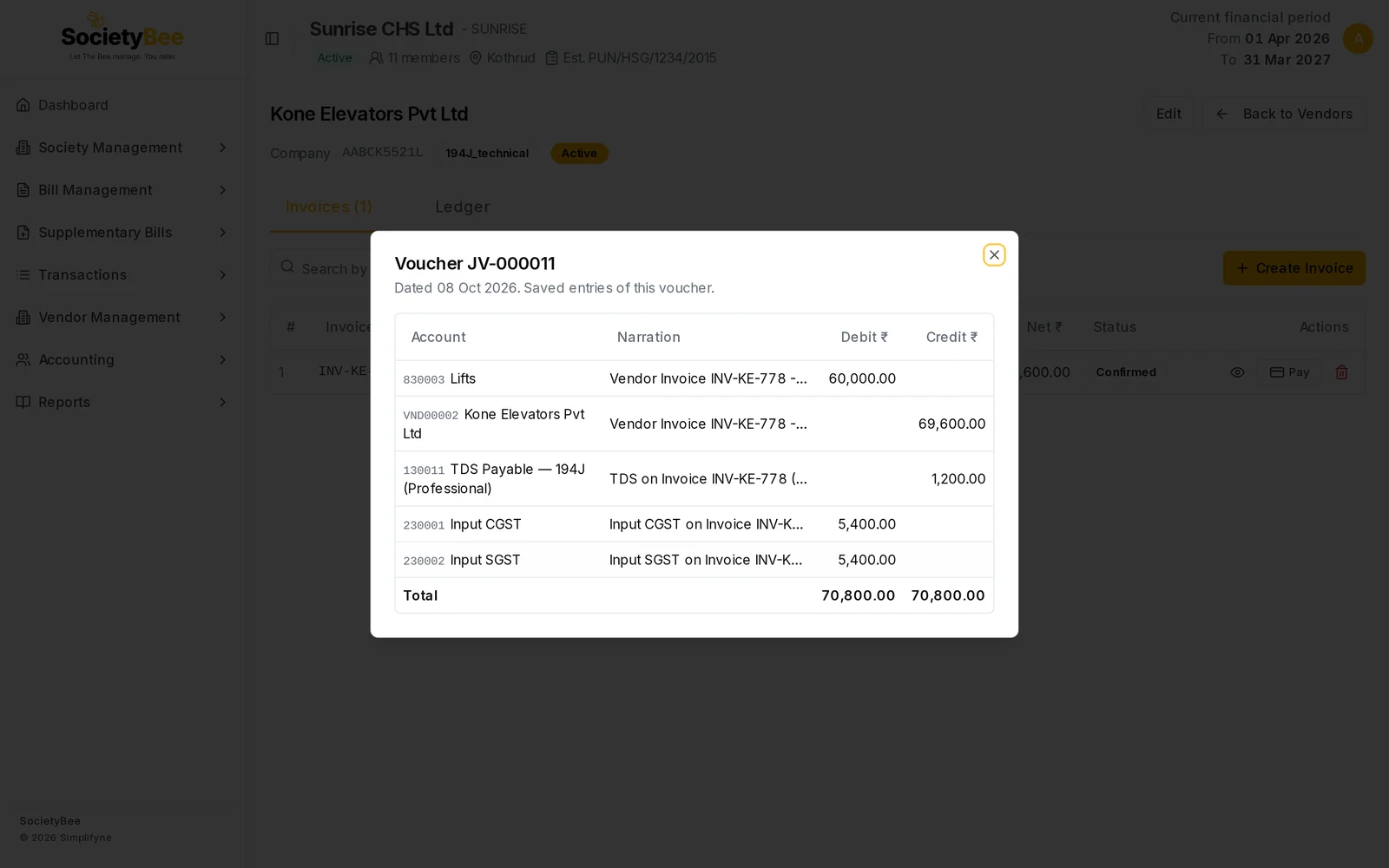
For the example in the picture, the invoice from Kone Elevators for ₹60,000 plus ₹10,800 GST, claimed as credit and confirmed, posted this journal voucher.
| Account | Debit | Credit |
|---|---|---|
| Lifts (expense) | ₹60,000 | |
| Input CGST | ₹5,400 | |
| Input SGST | ₹5,400 | |
| Kone Elevators Pvt Ltd (vendor) | ₹69,600 | |
| TDS Payable | ₹1,200 |
The vendor is credited the net amount, which is the total less TDS. Total debits equal total credits at ₹70,800.
Messages you may see
| Message in the box | What it means |
|---|---|
| Input GST applies only to invoices dated on or after a date | The invoice date is before your Input GST applies from date. The GST is booked inside the expense. |
| A red box about blocked credit | Credit is not allowed here. Choose another option. Save Invoice stays off while this is shown. |
| An amber note | SocietyBee could not split the GST. Read the note and check the vendor's GSTIN and the amounts. |
Common mistakes and questions
I do not see the box. Input GST is not switched on for the society, or the invoice has no GST. Check GST and TDS settings.
An old invoice did not get input credit. Only invoices dated on or after the Input GST applies from date claim credit. Earlier ones are not changed.
I chose the wrong option on a posted invoice. A posted invoice cannot be edited. Cancel it with a reason and enter it again.
What happens next
Deposit TDS and keep GST records with your CA. See TDS reports and deposits.