
Add a vendor
Add a vendor with contact, PAN, what they are paid for, GST type and bank details, with every field on the Add Vendor form and the TDS rate box explained.
Before you start
What this does
A vendor is anyone your society pays for goods or services. Adding the vendor once stores the PAN, GST and bank details, so every invoice you enter later works out TDS and GST correctly.
Where to find it
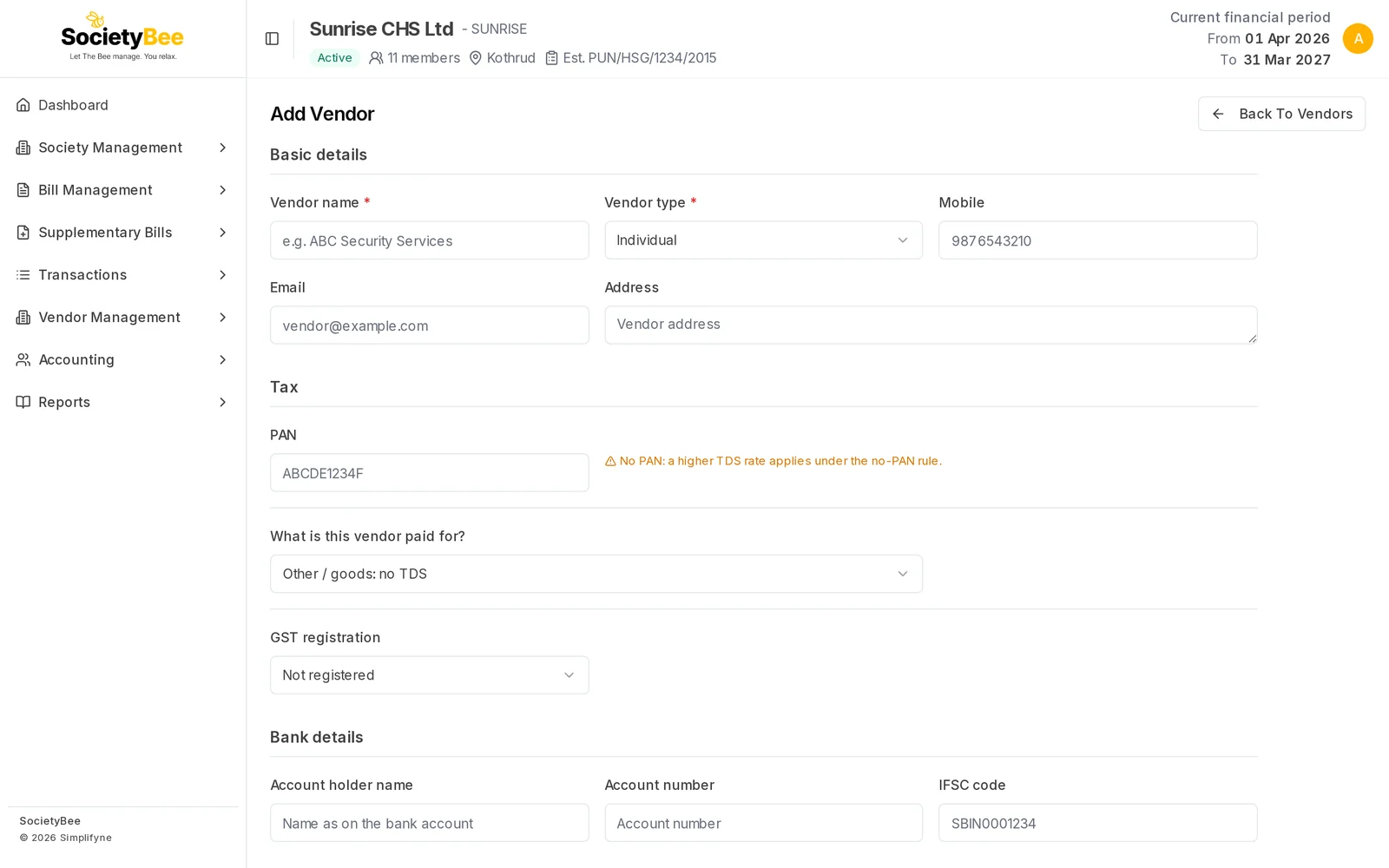
Go to Vendor Management > Vendors and press Add Vendor.
Steps
Enter the Vendor name and type
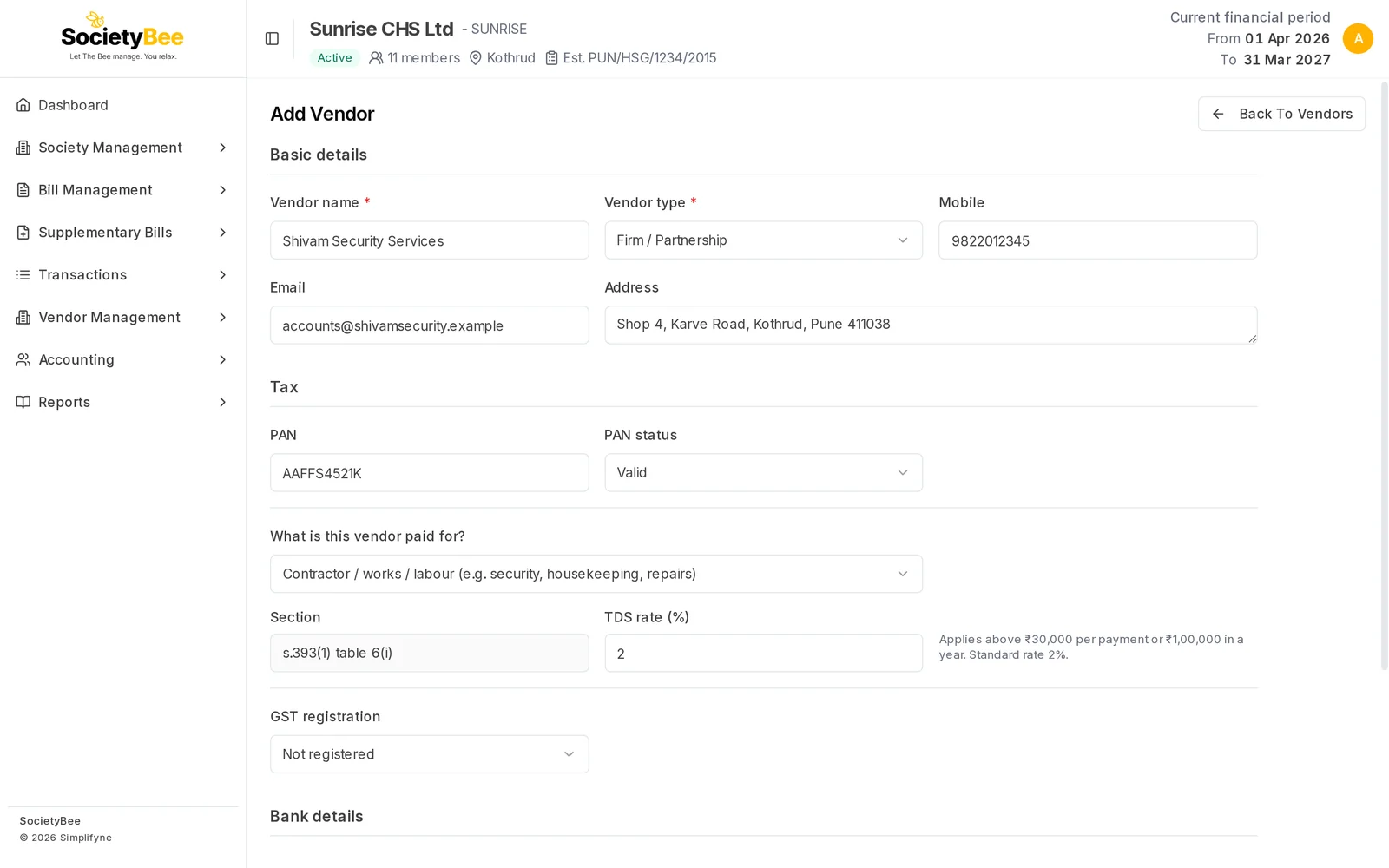
Type the Vendor name exactly as it appears on the bills. Choose the Vendor type: Individual, HUF, Company, Firm / Partnership or LLP. Both are required. The type decides which TDS rate applies for some payments, for example contractors.
Add the contact details (optional)
Mobile takes 10 digits starting with 6, 7, 8 or 9. Email must be a valid address. Address takes up to 500 characters.
Enter the PAN
Type the 10-character PAN, for example
AAFFS4521K. Letters turn into capitals as you type. If you leave it blank, an amber note says No PAN: a higher TDS rate applies under the no-PAN rule. Once a PAN is typed, PAN status appears next to it with Valid and Inoperative (not linked to Aadhaar). An inoperative PAN is treated like a missing PAN for TDS.Choose what the vendor is paid for
Under What is this vendor paid for?, pick the closest match, for example Contractor / works / labour (e.g. security, housekeeping, repairs). Pick Other / goods: no TDS for a supplier of goods, such as a stationery shop. This is how SocietyBee decides the TDS section and rate. See TDS on vendor bills.
Check the TDS section and rate
The Section box shows the matching rule, for example s.393(1) table 6(i). The TDS rate (%) starts at the standard rate, and a note beside it says when TDS applies, for example Applies above ₹30,000 per payment or ₹1,00,000 in a year. Standard rate 2%. Leave the rate as it is unless the vendor has a lower-deduction certificate.
Choose the GST registration
Pick Registered (regular), Registered (composition), Not registered, SEZ or Not sure. For a regular or SEZ vendor, enter the GSTIN and the GST rate billed (%), for example
18. The rate fills the GST on each new invoice for this vendor.Add the bank details (optional)
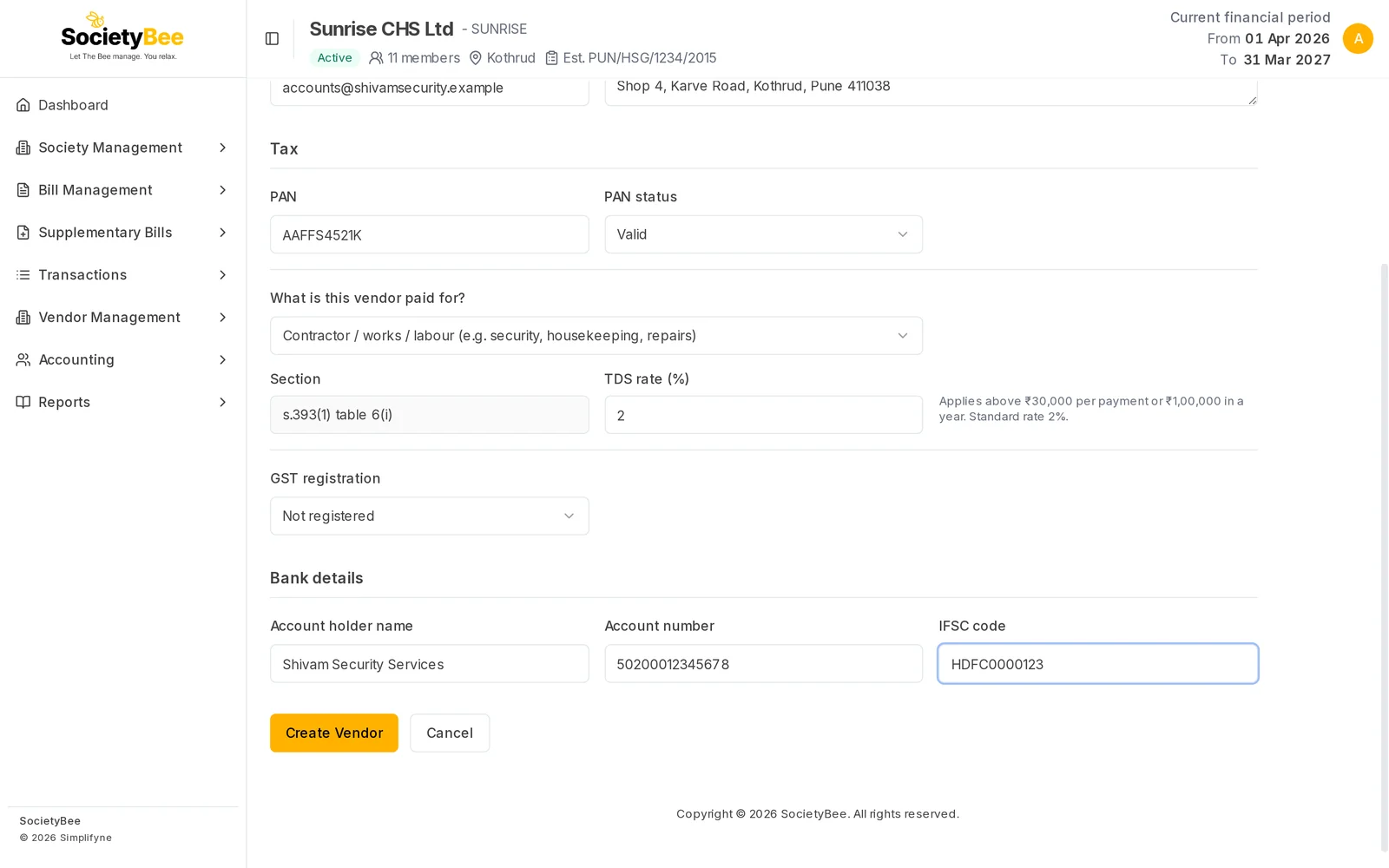
Account holder name, Account number and IFSC code are saved for your records. The IFSC must look like
SBIN0001234.Press Create Vendor
The message Vendor created successfully appears and you return to the vendor list.
Fields and buttons
| Field | What it means | Example | Required |
|---|---|---|---|
| Vendor name | Name on the vendor's bills | Shivam Security Services | Yes |
| Vendor type | Individual, HUF, Company, Firm / Partnership or LLP | Firm / Partnership | Yes |
| Mobile | 10-digit Indian mobile number | 9822012345 | No |
| Vendor's email | accounts@shivamsecurity.example | No | |
| Address | Postal address | Shop 4, Karve Road, Pune | No |
| PAN | 10-character PAN | AAFFS4521K | No, but TDS is at a higher rate without it |
| PAN status | Valid or Inoperative | Valid | When a PAN is given |
| What is this vendor paid for? | Decides the TDS section and rate | Contractor / works / labour | No |
| Section | The rule found for that payment type. Read only. | s.393(1) table 6(i) | Shown automatically |
| TDS rate (%) | Starts at the standard rate | 2 | Shown automatically |
| GST registration | The vendor's GST status | Not registered | No |
| GSTIN | The vendor's 15-character GST number | 27AABCK5521L1Z4 | For regular, composition or SEZ |
| GST rate billed (%) | The usual GST on this vendor's bills | 18 | For regular or SEZ |
| Account holder name | Name on the bank account | Shivam Security Services | No |
| Account number | Vendor's bank account | 50200012345678 | No |
| IFSC code | Bank branch code | HDFC0000123 | No |
A lower TDS rate with a certificate
Some vendors get a lower-deduction certificate from the tax office. If you type a TDS rate below the standard one, three more boxes open: Certificate no., Valid from and Valid to. All three are required, and SocietyBee uses the lower rate only between those dates. A rate above the standard rate is refused. A higher rate applies on its own only when the PAN is missing.
Common mistakes and questions
I do not see What is this vendor paid for. Your society has not switched on TDS. Instead you will see a TDS section box and, for a section other than none, an Override rate (%) box. Switch TDS on in GST and TDS settings to use the new form.
It says no TDS rule is set up for this payment type. SocietyBee shows No verified TDS rule is set up for this payment type yet, so TDS will not be calculated on its invoices. This is shown for payment types SocietyBee has no verified rule for yet. Ask your CA how to handle TDS for that payment, and use Change the TDS amount on the invoice if needed.
The GSTIN box is missing. It appears only when GST registration is Registered (regular), Registered (composition) or SEZ, or when the vendor is a company, firm or LLP that is not marked Not registered.
I get Invalid PAN format.
A PAN has five letters, four digits and one letter, for example ABCDE1234F.
What happens next
Find the vendor in the vendor list, then create an invoice.