
How TDS is worked out on vendor bills
Learn how SocietyBee decides whether TDS applies to a vendor invoice, which rate it uses, what happens when a yearly limit is crossed, and what changes when the vendor has no PAN.
Before you start
What this explains
When TDS is switched on for your society, every vendor invoice is checked by SocietyBee for TDS. The check uses four things: what the vendor is paid for, the vendor type, the vendor's PAN and the total billed in the financial year. You never type a TDS rate on an invoice. This guide explains the result you see in the TDS box.
The rules in the table
| The vendor is paid for | Rate | When TDS applies |
|---|---|---|
| Contractor / works / labour (security, housekeeping, repairs), Individual or HUF | 1% | A single payment above ₹30,000, or the year's total above ₹1,00,000 |
| Contractor / works / labour, any other vendor type | 2% | The same limits |
| Professional fees (CA, lawyer, architect) | 10% | The year's total above ₹50,000 |
| Technical services (lift AMC, software support) | 2% | The year's total above ₹50,000 |
| Rent: machinery / equipment | 2% | Rent above ₹50,000 in a month |
| Rent: land / building / furniture | 10% | Rent above ₹50,000 in a month |
Each row names the section of the Income-tax Act 2025 it follows, for example s.393(1) table 6(i), shown on the vendor form and on the invoice. A vendor who is paid for Interest has no verified rule yet, and invoices say so instead of guessing.
What you see on an invoice
The TDS box shows the Invoice total, the TDS and the Net payable, and the rate and base on the right, for example @ 2% on ₹36,000.00. Press View calculation to see the full working.
| Line in View calculation | Meaning |
|---|---|
| Status | OK, or a reason there is no TDS |
| Law | The section and table used |
| Basis | The rule behind the rate, for example Section rate |
| Higher rate | Shown only when a higher rate was used, with the reason |
| Taxable value and GST | The amount TDS is worked on, and the GST kept out of it |
| Earlier invoices this financial year | The total already billed to this vendor, which is used for the yearly limit |
| Trigger date | The date the limit was crossed or TDS first applied |
The yearly limit and catch-up TDS
If the amount is below the limit, the TDS box shows ₹0.00 with the note Below threshold. Once the year's total crosses the limit, TDS is taken on the whole amount billed so far, not only on the new invoice.
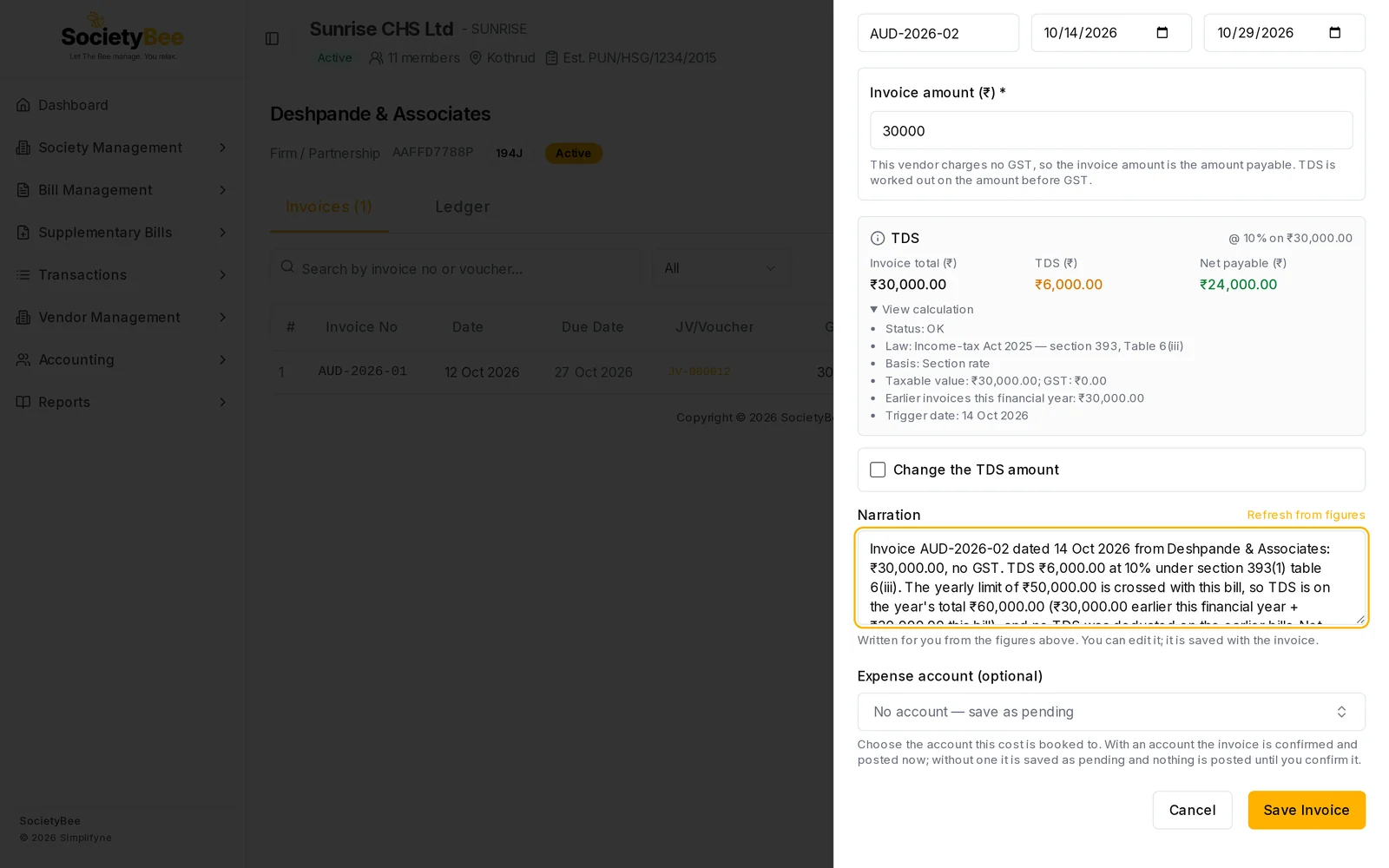
Example from the demo society. Deshpande & Associates, a professional firm, bills ₹30,000 on 12 Oct and again ₹30,000 on 14 Oct. The yearly limit is ₹50,000.
| Invoice | Total this year | TDS |
|---|---|---|
| 12 Oct, ₹30,000 | ₹30,000, below the limit | ₹0 |
| 14 Oct, ₹30,000 | ₹60,000, above the limit | ₹6,000, which is 10% of ₹60,000 |
The second invoice carries the TDS for both bills. In the TDS statement it is marked incl. catch-up.
TDS is not charged on GST
TDS is worked out on the amount before GST when the bill shows GST separately. For a ₹70,800 invoice that is ₹60,000 plus ₹10,800 GST, 2% TDS is ₹1,200, not ₹1,416.
A vendor with no PAN
When the vendor has no PAN, an invalid PAN, or a PAN marked Inoperative, a higher rate applies. In the demo, a gardener with no PAN billed ₹32,000. The contractor rate for an individual would be 1%, but the screen uses 20%.
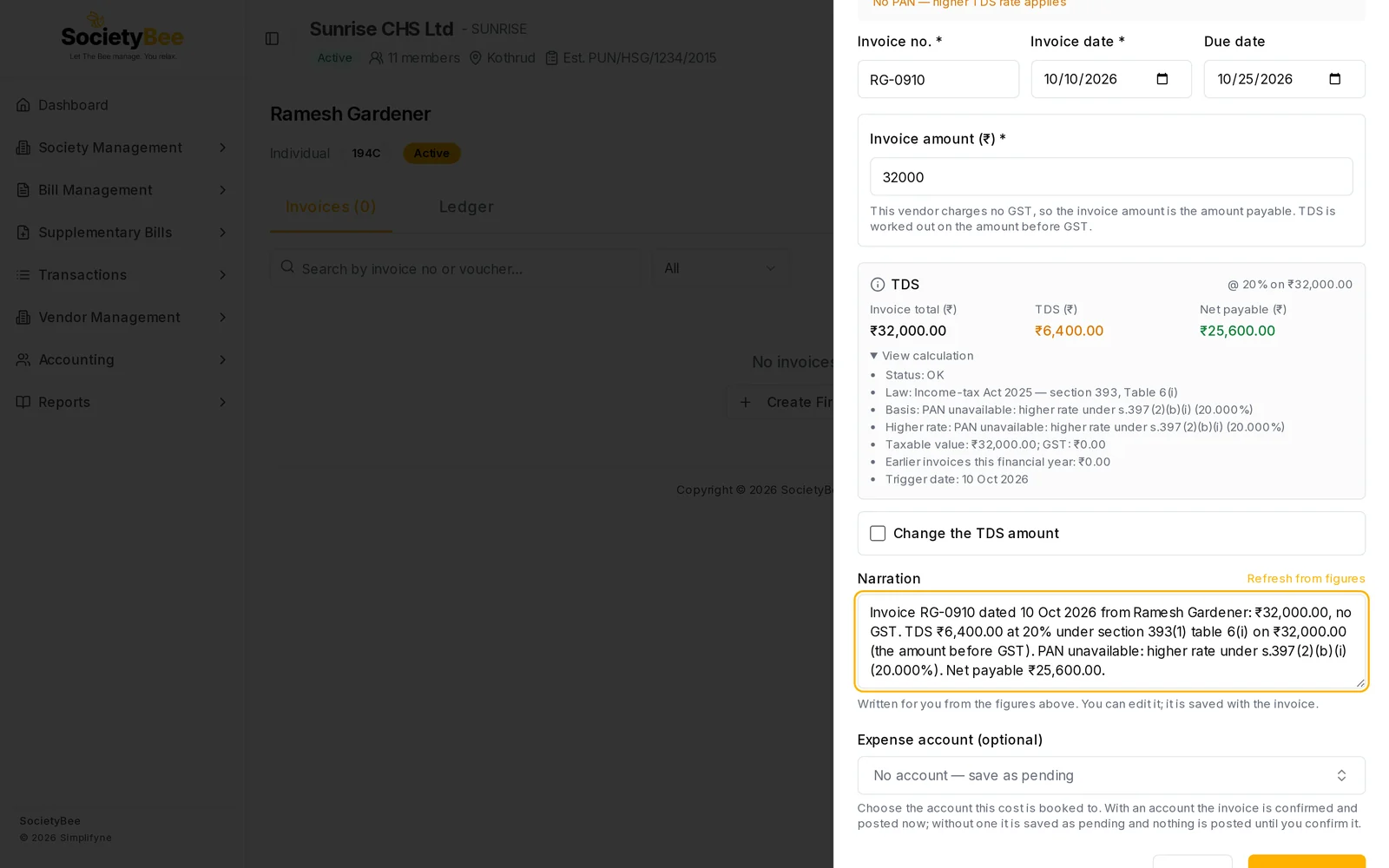
The vendor list marks such vendors with No PAN — 206AA applies. Getting the PAN and saving it on the vendor is the way to bring the rate down for new invoices.
A lower rate with a certificate
A vendor can hold a lower-deduction certificate. Enter the lower rate, the certificate number and its dates on the vendor form. The lower rate is used only for invoices dated within the certificate's validity.
Changing the TDS amount by hand (admin)
An admin can tick Change the TDS amount on the invoice, enter another amount between 0 and the amount before GST, and write a reason. The invoice then shows TDS amount set manually, the system's calculated amount and your reason. Use this only on your CA's advice.
If TDS is switched off
Societies that have not switched on TDS see a different invoice box called TDS Computation. It shows the rate chosen on the vendor and a TDS Amount (₹) box that you can type in yourself. Switch TDS on in GST and TDS settings for the calculation described here.
Common mistakes and questions
TDS was zero on the first bill but not on the second. The year's total crossed the limit on the second bill. That is the catch-up rule above.
TDS differs from my own calculation. Check three things in View calculation: the vendor's payment type, whether the vendor type changes the rate, and the earlier total. Also check whether the vendor's PAN is missing or marked inoperative.
I picked a vendor payment type but there is no rule. The vendor form says no verified rule exists and TDS will not be calculated. Ask your CA, and record any TDS by hand with Change the TDS amount.
What happens next
TDS you hold back is a liability until you pay it to the government. See TDS reports and deposits.