SocietyBee
    Billing
    Automated maintenance & charge billing
    Collections
    Track payments, send reminders
    Accounting
    Double-entry ledger & bank reconciliation
    Reports & Compliance
    Bye-law compliant statutory reports
    BeeAgent AI
    Natural language queries on your data
    For CAs & Accountants
    Manage all societies from one login
    For Treasurers
    Simple billing & audit-ready records
    For Managing Committee
    Visibility without the spreadsheets
    Docs
    Step-by-step guides for every module
    Blog
    Society management guides & tips
    Glossary
    Accounting & society terms explained
    vs MyGate
    Accounting vs gate security app
    vs ApnaComplex
    Multi-society CA login vs per-society pricing
    vs SocietyRun
    BeeAgent AI & zero gateway commission
    vs NoBrokerHood
    Accounting vs marketplace app
    vs Excel
    Audit trail & statutory reports vs spreadsheets
    Pricing
    Sign inStart free →
    Society Onboarding
    Member Onboarding
    Bills
    Receipts
    Vouchers
    Vendors, TDS and GST
    • Vendors, TDS and GST at a glance
    • Add a vendor
    • The vendor list and search
    • Edit or deactivate a vendor
    • The vendor page, invoices and ledger
    • Create a vendor invoice
    • Confirm and pay a vendor invoice
    • Invoice details, PDF, cancel and delete
    • How TDS is worked out on vendor bills
    • Input GST (ITC) on vendor bills
    • TDS reports, deposits and the statement
    Reports
    Supplementary Bills
    Bank Reconciliation
    Docs / Vendors, TDS and GST

    The vendor list and search

    Find any vendor by name or PAN, show or hide inactive vendors, and understand each column and button on the Vendors page.

    Who can do this:adminemployee 2 min read Checked 18 Oct 2026

    Before you start

    • Add a vendor

    What this page does

    Vendors lists every vendor of the society. From here you add a vendor, open a vendor's invoices and ledger, edit a vendor, or switch a vendor off.

    Where to find it

    Go to Vendor Management > Vendors. The heading shows how many vendors match, for example Vendors (5).
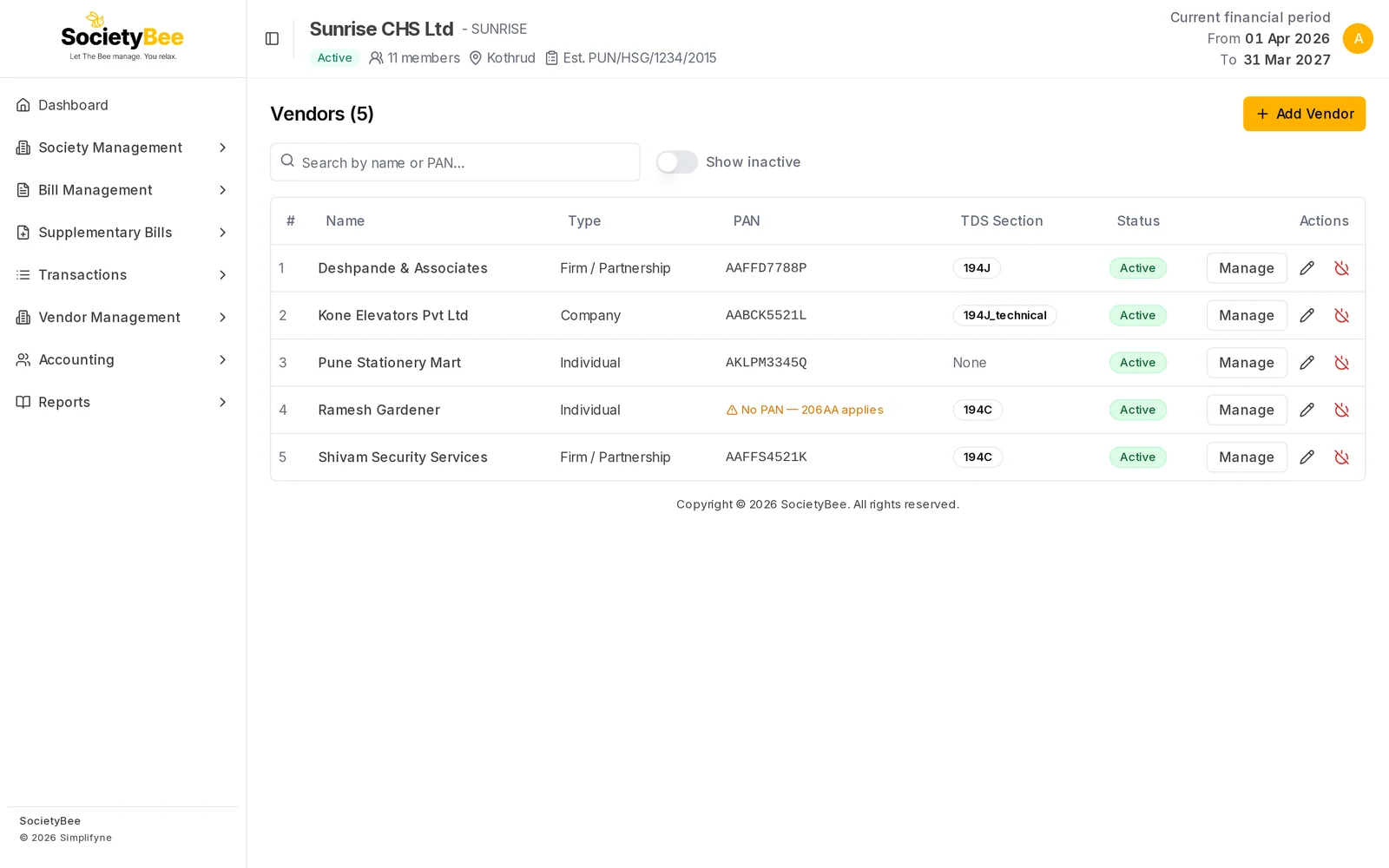
    Vendors page listing five vendors with type, PAN, TDS section, status and Manage, edit and deactivate buttons, with a search box and a Show inactive switch
    The Vendors page.

    Steps

    1. Search

      Type in Search by name or PAN…. The list narrows as you type and matches any part of the name or the PAN.

    2. Show inactive vendors if needed

      Vendors you have switched off are hidden. Turn on Show inactive to see them as well.

    3. Open a vendor

      Press the vendor's name, or the Manage button, to open the vendor page with its invoices and ledger.
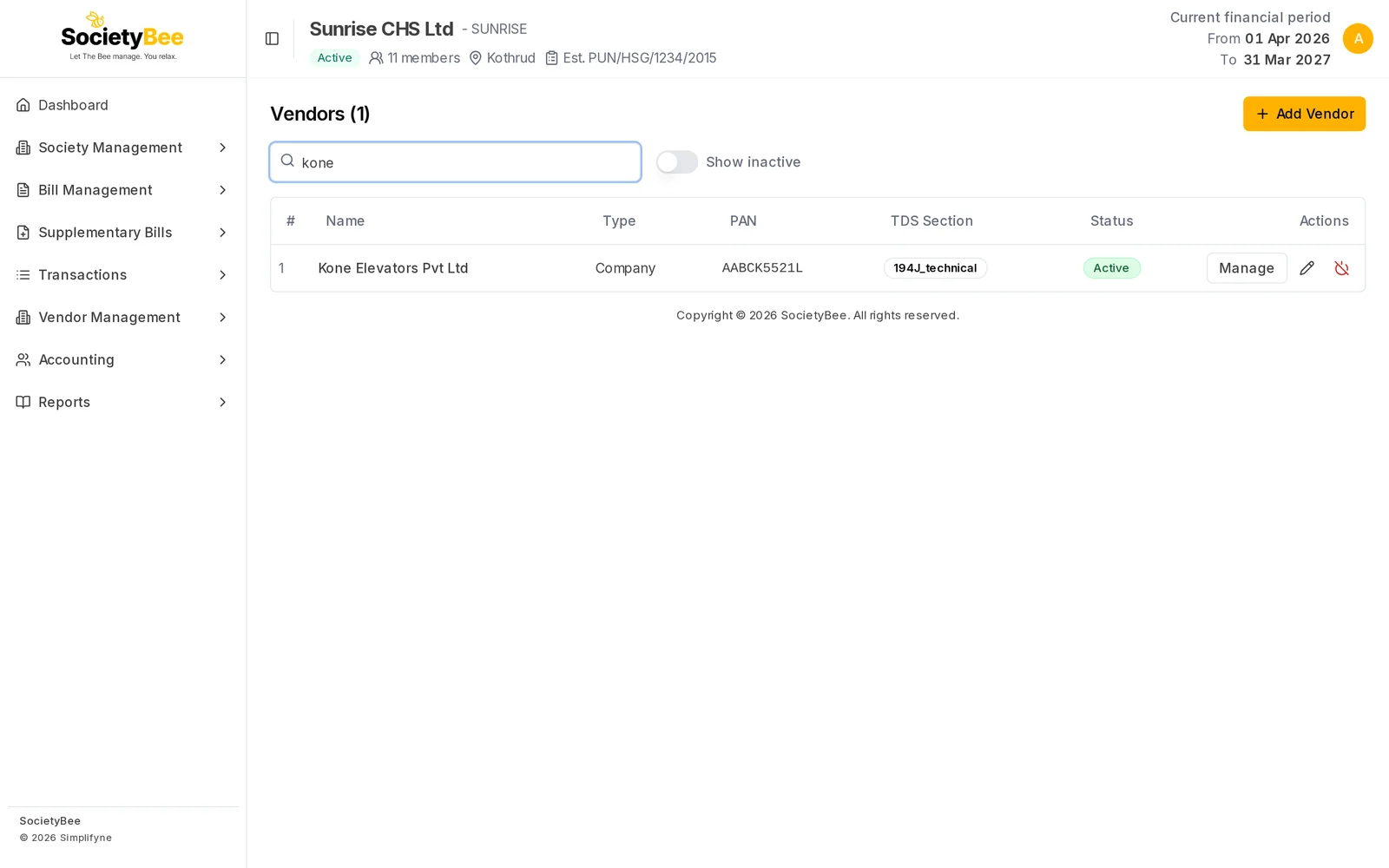
    Vendors list filtered by the word kone showing only Kone Elevators Pvt Ltd
    Searching for a vendor.

    Reading the columns

    ColumnWhat it shows
    #The row count
    NameThe vendor's name. Press it to open the vendor.
    TypeIndividual, HUF, Company, Firm / Partnership or LLP
    PANThe PAN. When it is missing, an amber note says No PAN — 206AA applies, meaning a higher TDS rate is used.
    TDS SectionA short code for the kind of payment, such as 194C for contractors or 194J for professional fees. None means no TDS. These are the older section codes, kept as plain labels.
    StatusActive or Inactive
    ActionsManage, a pencil to edit, and a power icon to switch the vendor off or on

    Buttons

    ButtonWhat it does
    Add VendorOpens the Add Vendor form
    ManageOpens the vendor's invoices and ledger
    Pencil (Edit Vendor)Opens the form to edit the vendor
    Power iconAsks to deactivate or reactivate the vendor

    Common mistakes and questions

    A vendor I added is missing. Check that Show inactive is on if you deactivated the vendor, and clear the search box.

    The TDS Section shows 194J_technical. That is the label for technical services. It is the same rule the vendor form calls Technical services.

    What happens next

    Open a vendor to work with its invoices.

    Related guides

    • Edit or deactivate a vendor
    • The vendor page, invoices and ledger
    PreviousAdd a vendorNext Edit or deactivate a vendor

    On this page

    1. What this page does
    2. Where to find it
    3. Steps
    4. Reading the columns
    5. Buttons
    6. Common mistakes and questions
    7. What happens next
    SocietyBee

    Built in Mumbai by Simplifyne Technologies Private Limited. Serving housing societies across India.

    Enquiries

    +91 95949 04493
    admin@societybee.in

    Product

    • Billing
    • Collections
    • Accounting
    • Reports & Compliance
    • BeeAgent AI
    • For CAs & Accountants
    • For Treasurers
    • For Managing Committee

    Resources

    • Docs
    • Blog
    • Glossary
    • SocietyBee vs MyGate
    • SocietyBee vs ApnaComplex
    • SocietyBee vs SocietyRun
    • SocietyBee vs NoBrokerHood
    • SocietyBee vs Excel

    Company

    • About
    • Trust & Security
    • Pricing
    • Early Access
    • Book a Demo
    • Contact
    • Privacy Policy
    • Terms & Conditions
    • Refund Policy

    🇮🇳 We serve housing societies across India

    Operating team based in Mumbai.

    © 2026 Simplifyne Technologies Private Limited.

    All rights reserved.